Blogging on Shopify: Set Up, Write and Maintain a Store Blog
How the built-in Shopify blog works, which settings matter, what to write for a store, and when a separate blog system is worth the extra work.

Every Shopify store comes with a blog. For most stores it is enough, and you can start posting today without installing anything. This guide shows how the native blog works, which settings are worth your time, what to write when you sell products, and how to keep the blog tidy once it grows.
The plain answer: use the built-in blog unless you can name a specific thing it cannot do. Then fix that one thing. Move to a separate blog system only when the work around the blog has outgrown the Shopify admin.
What the built-in blog gives you
Shopify's help pages describe the blog as part of the online store. The store starts with one blog called News, and you can add more. Each blog holds posts (Shopify calls them articles in its developer docs). Here is what you get, from the Shopify Help Center pages on blogs:
- Posts with a rich text editor. You can add images, links, tables and embedded video.
- Scheduling. A post stays hidden until you publish it. You can also pick a future date, or backdate a post.
- Tags. You add them to posts to group them by topic. Customers can click a tag to see matching posts.
- Excerpts. A short summary shown on the blog page. Without one, the theme shows part of the post instead.
- A search listing for every post. You edit the page title, meta description and URL handle.
- Comments, if you want them. They are off by default.
- An RSS feed for each blog. The address is the blog URL with
.atomadded to the end. - Templates. You can give a blog or a single post its own layout in the theme editor.
The authors on a post come from your staff list. According to the help page on adding and managing posts, only the store owner or a staff member with admin access can be picked. POS-only staff and collaborators do not appear in the list. A staff member also needs the Blog posts and pages and Home permissions to show up. A guest writer has to be added as staff to appear in the author menu. Plan for that before you hire a freelancer.
Set up the blog in a sensible order
Do these once, before you write post number one.
- Name the blog and pick a URL. In the admin, go to Content, then Blog posts, then Manage blogs. Rename News if it does not fit. A title can be up to 255 characters, but short is better. If you change the web address later, Shopify offers to create a redirect from the old one.
- Decide on comments. The three options are disabled, allowed with moderation, and allowed with automatic publishing. Shopify's comments page says it flags spam for you, and suggests a blog app if you want to reply to comments. For most product stores, comments off or moderated is the safe choice.
- Add the blog to your menu. A blog nobody can find from the navigation is a blog nobody reads.
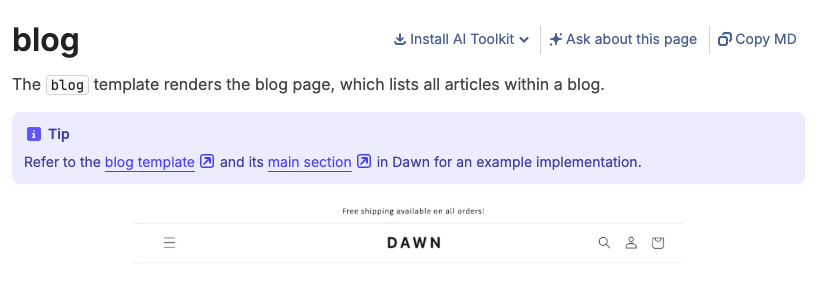
- Check the templates. The blog template lists the posts and the article template shows one post. Both are theme files, described in the blog template and article template docs. If you want a different layout for one blog, create a new template in the theme editor and apply it to that blog.
- Set your authors. Give every writer a staff account with the right permissions, or the author menu will be missing them.
If your theme is older or heavily customised, ask who owns the template files before you change anything. Our guide to Online Store 2.0 features explains why sections and JSON templates make blog layouts easier to change.
What to write when you sell products
A store blog has a different job from a media site. It should help a shopper decide, or help a customer use what they bought. A few topic types that tend to fit:
- Answers to real questions. Start with your support inbox, product page questions, reviews and live chat logs. If three customers asked it, write the post.
- Buying guides. Help someone choose between your own products, or between a product type and its alternatives.
- How-to and care posts. Show the product in use, with steps and photos.
- Gift guides and roundups. Shopify's blog post templates page lists gift guide, roundup, how-to and interview formats, with title ideas for each.
- Comparison and "what is" posts for the terms people type before they know your brand.
Each post should link to the product or collection it relates to, with link text that says what the page is. Google's SEO starter guide says link text tells people and search engines what the linked page contains. "Our beeswax candle collection" works better than "click here".
A few habits keep the quality up:
- Write for one reader with one question. Answer it near the top, then explain.
- Show what only you know: how the product is made, what goes wrong, what you would tell a friend.
- Use your own photos where you can. Shopify suggests JPEG for post images.
- Name the author. Google's guidance on people-first content asks whether readers can see who wrote a piece and why they should trust it.
Be careful with automation. Shopify's Sidekick can draft posts, and the Shopify page on it says you are responsible for the accuracy of anything you publish. It warns that generated text can claim product benefits you never listed. Google's same page lists "using extensive automation to produce content on many topics" as a warning sign. Use a draft as a starting point, and have someone who knows the product check every claim.
Search fields, structured data and dates
Each post has a search engine listing in the admin. Shopify's help page says titles longer than 70 characters, or descriptions over 320 characters for a post, may be cut off in results. Write a title that describes the post, and a description that tells the reader what they will get. Do not stuff keywords. Our guide to Shopify SEO apps covers the tools that help with the wider store.
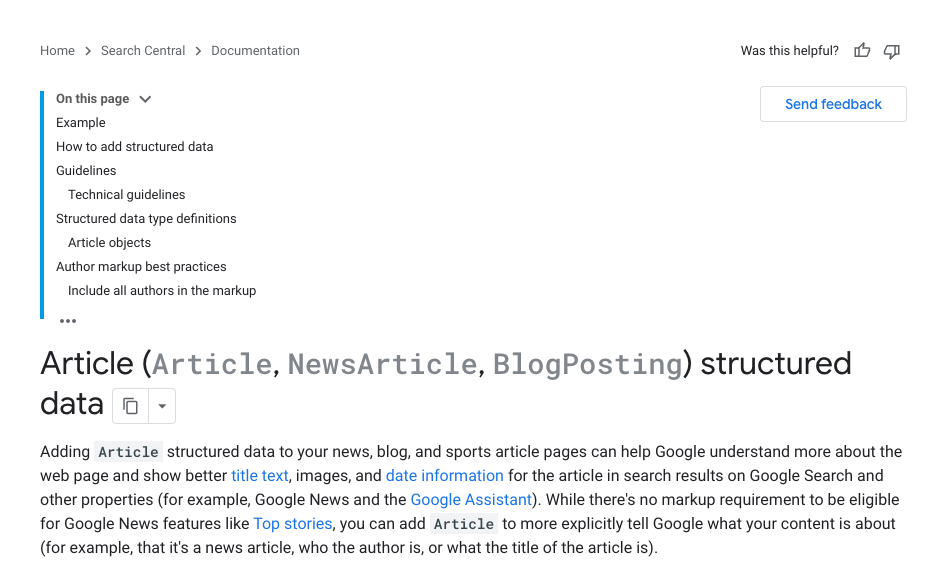
Structured data. Google's page on Article structured data says the markup can help Google understand a page and show better title text, images and date information. It also says there are no required properties. You add the ones that apply, such as author, headline, dates and images. Types allowed are Article, NewsArticle and BlogPosting.
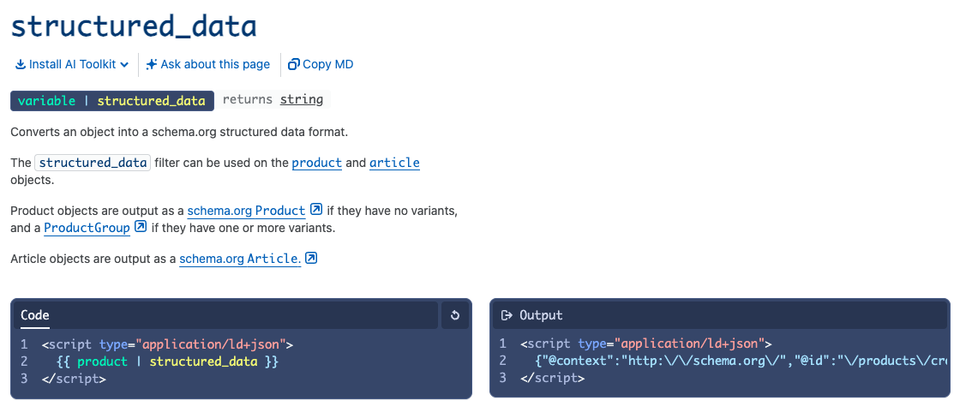
On the Shopify side, the structured_data filter turns an article into schema.org Article markup, according to the Liquid reference. Shopify's Dawn theme calls it in its article section, so a theme built from Dawn may already output it. Check your own theme: view the page source of a live post and look for a script of type application/ld+json. If a theme has none, a developer can add one line.
Dates. Google's byline date guidance asks for a visible date with a clear label such as "Last updated", and for the visible date to match the date in the markup. Do not show a new date unless you changed the post in a real way. Google's people-first page names "changing the date of pages to make them seem fresh when the content has not substantially changed" as a warning sign.
The honest limits of the native blog
The native blog is simple on purpose. Based on the pages we read, these are the places where it can feel thin:
| Area | What the docs show | Where it can hurt |
|---|---|---|
| Editor | A rich text editor with images, links, tables and video | No editorial workflow in the pages we read, such as review steps or approvals |
| Organising posts | Several blogs per store, plus flat tags | We did not find nested categories or topic hubs on the pages we read |
| Authors | Must be store staff | Guest writers need a staff account |
| Comments | Off, moderated or automatic, with spam flagging | Shopify suggests a blog app if you want to reply |
| Search | Tags are searchable in store search. The predictive search API lists articles as a resource type | The API default leaves articles out, so check how your theme's search treats posts |
| Scale | We found no stated limit on post count | Large archives are a theme and process problem, not a documented cap |
| Reuse | Articles are available through the Storefront and Admin APIs | You need a developer to use them elsewhere |
On the search row: the Predictive Search API reference says article is an accepted resource type, but the default list is query, product, collection and page. A store can change this in the Search and Discovery app settings. If readers cannot find old posts from your search box, look there first.
None of these is a reason to leave Shopify on its own. Many gaps close with a theme change, a custom template, or one app. Name the gap before you pick the fix.
When a separate blog makes sense
Shopify's own help page says you can link a store menu to a blog hosted somewhere else, such as WordPress, Tumblr or Blogger, and suggests linking back to the store. Developers can also read and write articles through the Storefront API Article object and the Admin API, which is the route for a headless build.
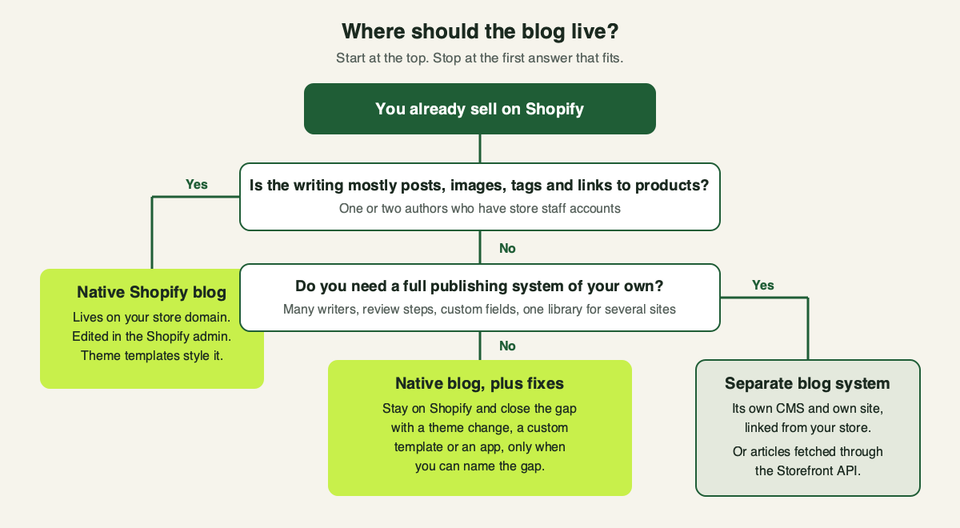
Our own blog is a separate system: a headless content system feeding our own website, not the Shopify blog. That suits us, because we publish many long guides with a review step. A store with a handful of posts a month does not need it.
What a separate blog costs you, in effort and not only money:
- Two systems to run. Two logins, two backups, two places to fix a broken page.
- Design drift. The blog has to look and feel like the store, and keep doing so after every theme change.
- Link and measurement work. Posts need links to products, and you need analytics that follow a visitor from post to cart.
- SEO setup. A different host or subdomain means separate redirects, sitemaps and a separate Search Console property to watch.
- Developer time for changes. Anything the Shopify admin gives you out of the box, you now build or buy.
| Option | Pick this if | Skip this if |
|---|---|---|
| Native Shopify blog | You write posts about your products, have one to three writers, and want everything in one admin | You need review steps, many writers, or content shared across several sites |
| Native blog plus a template or app | You can name one gap, such as layout, comment replies or search | You are stacking apps to copy a whole publishing system |
| Blog on another platform, linked from the store | A content team already works in that platform | You have no one to run it and keep it matching the store |
| Headless, using the Storefront API | You have developers and want one content library for several front ends | You are a small team with a theme-based store |
If you are weighing this up, we can look at the real constraints with you. Talk to us before committing to a rebuild.
Keep the blog healthy: refresh, merge, prune
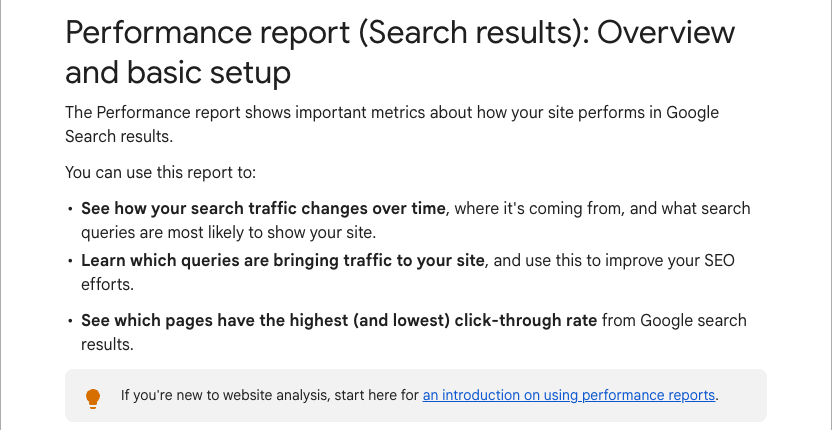
A blog gets worse if nobody looks after it. Once you have a few dozen posts, set a regular review. Use Google Search Console, which shows how your pages perform in Google results.
Google's Performance report help says the report shows clicks, impressions, click-through rate and average position. You can group the data by queries or pages, change the date range, and export it. By default it shows the past three months.
Open the report, switch to the Pages view, find your blog URLs, and widen the date range. Then sort the posts into four piles.
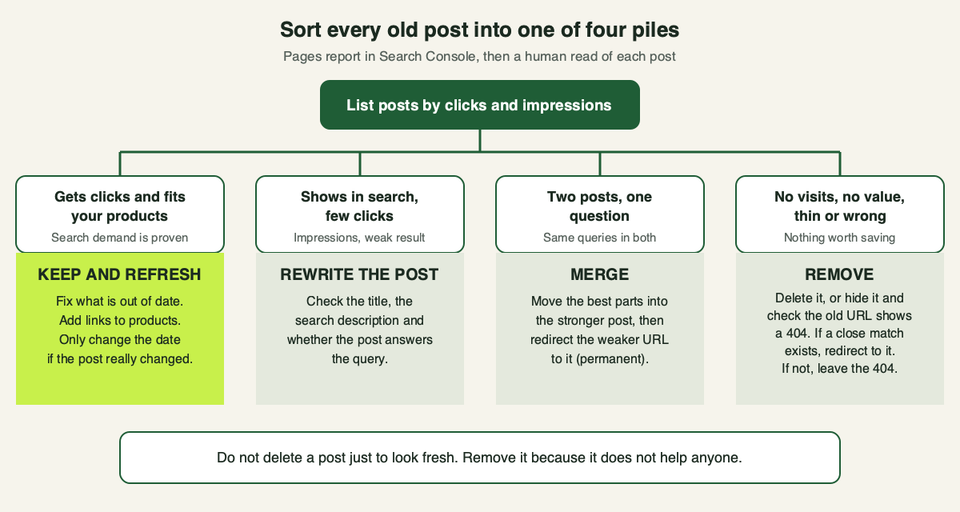
Keep and refresh. Posts that earn clicks and still fit your products. Correct anything out of date, check every link, add links to the products you sell now, and update the date only when the changes are real.
Rewrite. Posts that appear in search but get few clicks. Compare the title and description to the query. Ask whether the post answers it. The fix is usually a clearer title, a better opening, or a missing section.
Merge. Two or three posts answering the same question compete with each other. Move the best parts into the strongest post, then send the weaker URLs to it with a redirect. Google's redirect guidance says permanent redirects (301 or 308) signal that the target should be the canonical page. In Shopify, the URL redirects help page says you can redirect only from broken URLs, so delete the old post, or hide it and open the old URL to confirm it shows a 404, before you add the redirect. We did not test whether a hidden post counts as a broken URL. Check the page for the other conditions.
Remove. Posts with no value: thin, wrong, or about a product you no longer sell. If a close replacement exists, redirect to it. If not, a not-found page is an honest answer.
One caution from Google's people-first page: adding or removing a lot of content only because you think it will make the site look "fresh" will not help. Prune because a post does not serve a reader, not to hit a number.
Run the review on a schedule, such as every quarter. Write down what you changed so you can see what moved later. Do not expect a quick change: Search Console shows trends over weeks, and it covers Google results only.
For the rest of the store, our e-commerce website checklist lists the pages and basics that a blog should support.
Questions people ask
Does Shopify have a built-in blog?
Yes. Every online store includes a blog engine, and the Help Center describes it as a built-in tool. You create posts from Content, then Blog posts, in the admin.
Can I have more than one blog?
Yes. The default blog is called News, and Shopify's help page says you can add more. Use more than one only when the audiences are truly different, such as news and a how-to library. For most stores, one blog with tags is simpler.
How do I schedule a post?
Open the post, go to the Visibility section, and choose a date and time with the calendar icon. Shopify's help also describes setting a past date, which is how you backdate a post.
Can customers comment on my posts?
If you allow it. Comments are off for a new blog. You can allow them with moderation or with automatic publishing, and Shopify flags spam for you. Shopify's help page suggests a blog app if you want to reply to comments.
Does a Shopify blog help SEO?
Shopify's help pages say blogging can help your search visibility and bring traffic. The result depends on whether the posts are useful and match what people search for. We could not find a source that promises any traffic or ranking result, so treat that as unproven until your own Search Console data shows it.
Can I move my blog from WordPress to Shopify?
Plan it as a migration. Every old URL needs a destination, so that links and search results keep working, and every post has to arrive in the new blog with its images and links intact. Shopify's redirect tools, covered above, handle the URL side. We did not review import tools for this guide. If the archive is big, ask a developer to scope it first.
Is Shopify's AI writing tool enough to run a blog?
No. Sidekick can draft a title or a post, and it is a fair way to get past a blank page. Shopify says you remain responsible for accuracy, and Google warns against mass-producing content on many topics. Write about what you know, and edit every draft.
What to do next
Put the first review in the calendar for next quarter, and write down what you will look at: clicks, impressions and which posts you plan to refresh, merge or remove. If you want a second opinion on the blog, the theme templates or a move to a separate system, talk to us.