Shopify Online Store 2.0: what it is and what changed
Online Store 2.0 is the theme architecture Shopify announced in June 2021. Its core is the JSON template, which lets merchants add and reorder sections on most pages, connect settings to metafields, and install apps as blocks without editing code. Newer themes such as Horizon go further with theme blocks. Upgrading from a vintage theme is optional, but you lose these features if you stay.
Online Store 2.0 is the theme architecture Shopify announced in June 2021. Its centre is the JSON template: a data file that lists the sections on a page, so merchants can add, remove and reorder sections on most pages, connect settings to metafields, and install app features as blocks without anyone editing theme code. Shopify's newest theme architecture, built on theme blocks, extends the same idea with nested blocks.
This guide is for store owners wondering whether their theme is "2.0", and for developers who have a migration or a theme build in front of them. We rewrote it and checked every claim against Shopify's own documentation on 17 October 2026. Where something is new or may change, we say when it was announced and link the source.
What Online Store 2.0 actually is
Shopify's developer documentation describes Online Store 2.0 as a set of features and improvements that make themes and theme apps easier to build, more flexible and easier to maintain. It was not one switch. It was a group of changes announced together at Shopify Unite on 29 June 2021, and most of them depend on one file type: the JSON template.
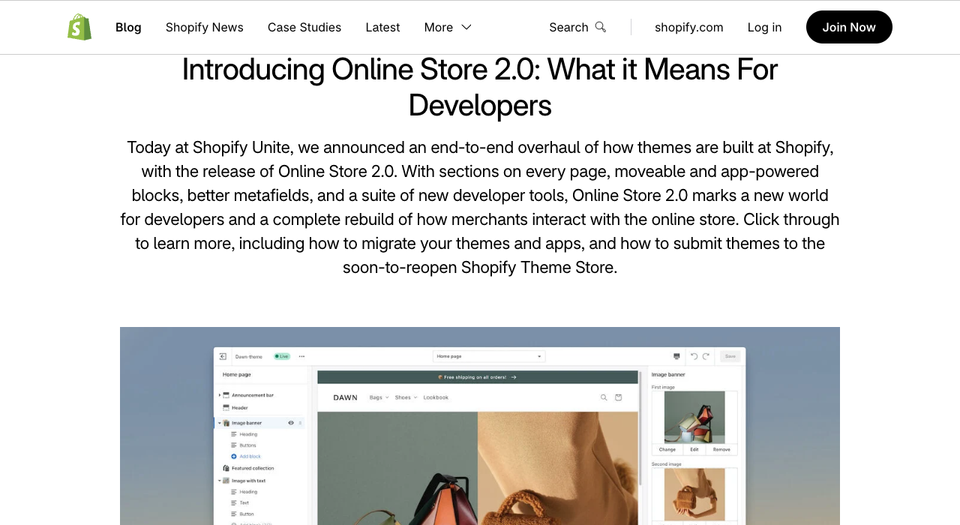
The Unite 2021 press release listed the pieces: sections on all pages, a new editor experience, theme app extensions, additional metafields, and a new reference theme called Dawn. The Theme Store was due to open to developer submissions on 15 July of that year.
The features that came with it
JSON templates and sections on every page
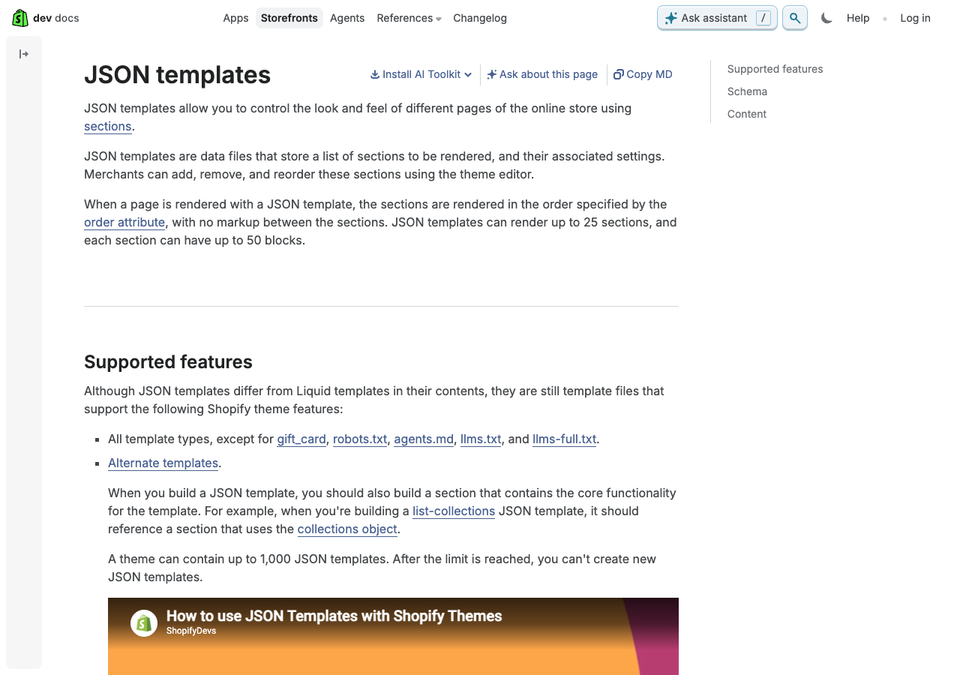
Before 2.0, a vintage theme could let you add, move and remove sections on the home page only. Product, collection and other pages were fixed Liquid files. In a 2.0 theme, the template for each page is a JSON file that lists which sections to render and in what order.
Here is a small product template we wrote to show the shape:
{
  "sections": {
    "main": {
      "type": "main-product",
      "settings": { "show_vendor": true }
    },
    "related": {
      "type": "product-recommendations"
    }
  },
  "order": ["main", "related"]
}
Each key under sections is an ID you choose, and type is the filename of a file in the sections folder, without the extension. The order array sets the sequence. Shopify's documentation sets these limits: a JSON template can render up to 25 sections, each section can have up to 50 blocks, and a theme can hold up to 1,000 JSON templates.
One rule catches people out in code. A template can exist as JSON or as Liquid, never both. If product.liquid is there, you cannot also create product.json.
The section files themselves must define presets in their schema for merchants to be able to add them from the editor. A section without presets can be placed in the JSON by hand, but the merchant cannot remove it.
App blocks
Before 2.0, an app that wanted to appear on a product page usually asked the merchant, or an agency, to paste snippets into theme files. App blocks, built with theme app extensions, replaced that. The merchant adds the app's block in the theme editor, and when the app is uninstalled its code goes with it.
For a section to accept app blocks, the developer opts in with one entry in the section schema:
{% comment %} sections/feature-list.liquid {% endcomment %}
<div class="feature-list" {{ section.shopify_attributes }}>
  {% for block in section.blocks %}
    {% case block.type %}
      {% when 'feature' %}
        <p {{ block.shopify_attributes }}>{{ block.settings.text }}</p>
      {% when '@app' %}
        {% render block %}
    {% endcase %}
  {% endfor %}
</div>

{% schema %}
{
  "name": "Feature list",
  "blocks": [
    {
      "type": "feature",
      "name": "Feature",
      "settings": [
        { "type": "text", "id": "text", "label": "Text" }
      ]
    },
    { "type": "@app" }
  ],
  "presets": [{ "name": "Feature list" }]
}
{% endschema %}
Two limits from the docs are worth knowing. Blocks of type @app do not accept a limit value, and they are not supported in statically rendered sections. If a merchant adds an app block straight onto a template rather than into a section, Shopify wraps it in a generated section, or in your own apps.liquid if you provide one.
Dynamic sources and metafields
The third pillar is dynamic sources. Instead of typing a value into a setting, a merchant connects the setting to a field on the product, collection or page, or to a metafield. The theme editor handles this without code.
The deep dive on defining and showing that data is in our metafields guide, and the section and block mechanics are covered in the sections and blocks guide. We keep this article to the architecture around them.
The editor and the reference theme
The theme editor became the place where merchants arrange pages, create templates and wire up metafields. Dawn, released as the reference theme at Unite 2021, showed what a theme built this way looks like. Its repository describes it as an HTML-first, JavaScript-only-as-needed approach and as Shopify's first source-available theme. If you want to work with Dawn today, our Dawn customization guide goes through it.
What has been added since 2021
Online Store 2.0 is not frozen. Shopify has kept extending the same architecture. These are the changes we could confirm in primary sources.
Theme blocks (2024 onward)
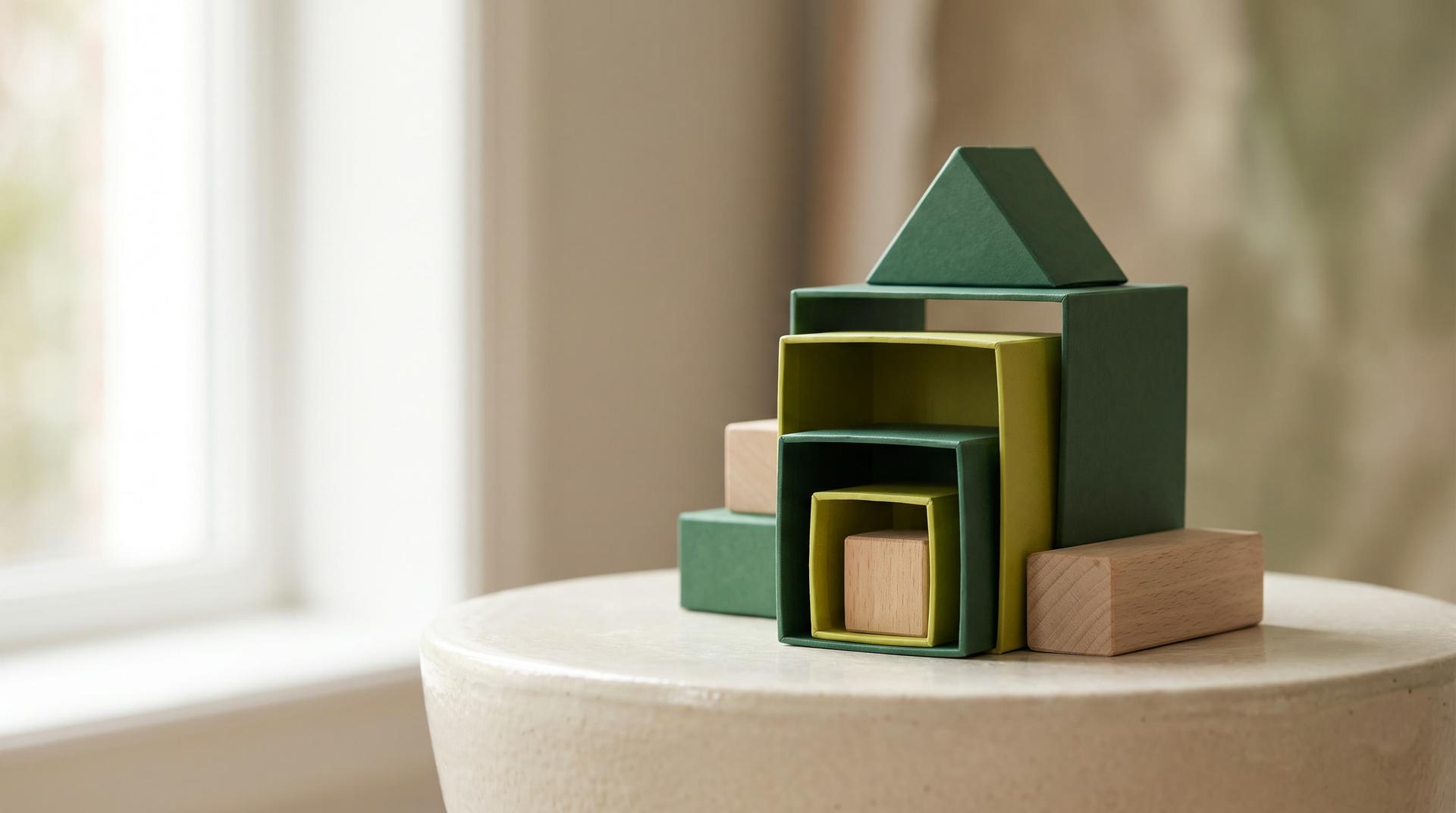
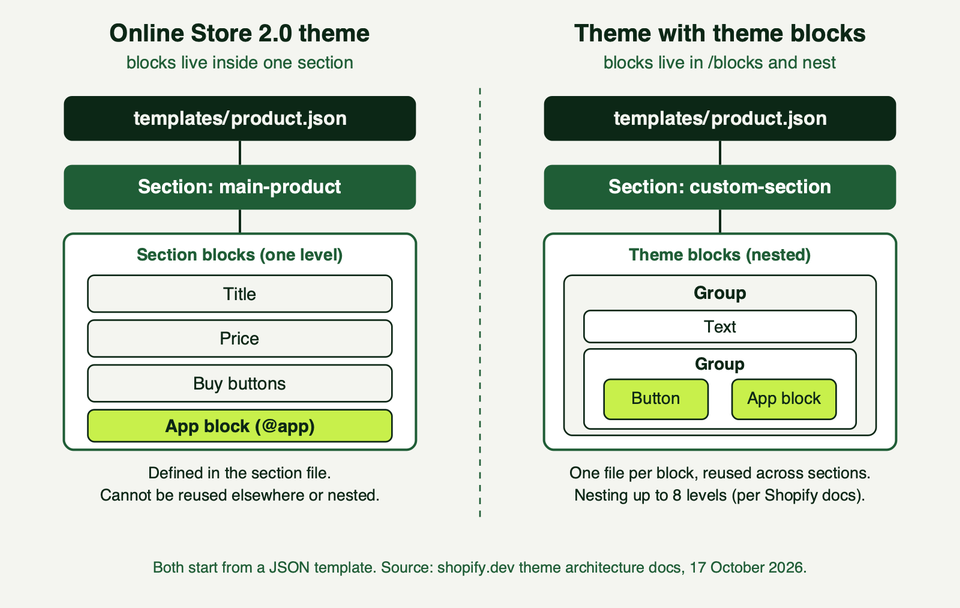
On 31 January 2024 Shopify announced theme blocks in developer preview on its Partners blog. A theme block is a Liquid file in a blocks folder at the theme root, defined once and reusable across sections. Theme blocks can also nest inside other blocks. The current documentation says they can be nested up to 8 levels deep, not counting the section level.
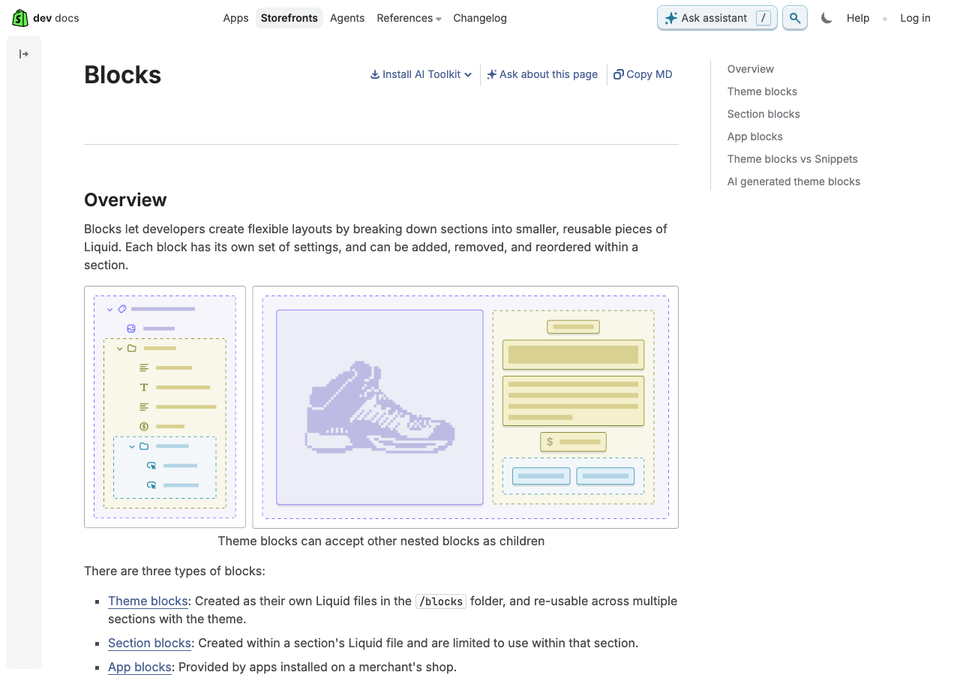
The docs name three kinds of block:
- Theme blocks, created as Liquid files in
/blocks, reusable across sections and nestable. - Section blocks, defined inside one section's file and usable only there, with a single level and no nesting.
- App blocks, supplied by installed apps.
A section can define its own blocks or accept theme blocks, but not both at once. Here is a small theme block and a section that accepts it, written by us for this guide:
{% comment %} blocks/callout.liquid {% endcomment %}
<div class="callout callout--{{ block.settings.tone }}" {{ block.shopify_attributes }}>
  {{ block.settings.text }}
</div>

{% stylesheet %}
  .callout { padding: 1rem; border-radius: 0.5rem; }
  .callout--info { background: #eef6ff; }
  .callout--alert { background: #fff4e5; }
{% endstylesheet %}

{% schema %}
{
  "name": "Callout",
  "settings": [
    { "type": "richtext", "id": "text", "label": "Text" },
    {
      "type": "select",
      "id": "tone",
      "label": "Tone",
      "default": "info",
      "options": [
        { "value": "info", "label": "Info" },
        { "value": "alert", "label": "Alert" }
      ]
    }
  ],
  "presets": [{ "name": "Callout" }]
}
{% endschema %}
{% comment %} sections/notice-stack.liquid {% endcomment %}
<section class="notice-stack" {{ section.shopify_attributes }}>
{% content_for 'blocks' %}
</section>
{% schema %}
{
"name": "Notice stack",
"blocks": [{ "type": "@theme" }, { "type": "@app" }],
"presets": [{ "name": "Notice stack" }]
}
{% endschema %}{% content_for 'blocks' %} renders whatever blocks the merchant has added, in order. Developers who need a fixed piece of layout can instead render a static block with {% content_for "block", type: "...", id: "..." %}. Static blocks can be hidden and customised but not reordered, removed or duplicated.
The diagram shows the difference in structure.
Horizon and the Theme blocks architecture tier
Shopify's Summer '25 Edition introduced Horizon, which Shopify calls its new design foundation, built on theme blocks. It launched as one design system with a family of themes. Shopify's Help Center now describes three architecture versions: vintage, Online Store 2.0, and the latest, which covers themes that support theme blocks, including the Horizon family. The latest tier includes every OS 2.0 feature plus theme blocks.
A detail worth checking yourself: Dawn's repository has no blocks folder as of today, while Horizon's holds dozens of block files. Dawn is still a 2.0 theme and is still being updated. Its release 15.5.0 on 19 June 2026 added standard storefront events and a product disclosures section, and 16.0.0 on 10 August 2026 removed the legacy customer account pages. So "Dawn" and "theme blocks" are two different things, and a Dawn-based store is not out of date.
If you build themes: Horizon's own README says themes based on or derived from Horizon are not eligible for the Theme Store, and points to the Skeleton Theme as the starting point instead.
Smaller additions in the Editions
From Shopify's Spring '26 Edition: standard storefront events and actions, so apps and AI agents can interact with a theme through one interface instead of reading the page's DOM, and colour palettes, a way to define named colours once in settings that merchants pick from across the theme. The Summer '25 Edition added an AI block generator in the theme editor. Per the developer docs, generated blocks are ordinary theme blocks stored in /blocks, and the feature is for eligible merchants. We cover the assistant itself in our Sidekick guide.
These are recent and may change, so check the linked pages before building on them.
Vintage versus Online Store 2.0 versus theme blocks
This table follows Shopify's Help Center comparison, with two extra rows from the developer docs.
| Capability | Vintage | Online Store 2.0 | Theme blocks |
|---|---|---|---|
| Sections on the home page | Yes | Yes | Yes |
| Sections on most other pages (JSON templates) | No | Yes | Yes |
| Create new templates in the editor | No | Yes | Yes |
| App blocks and app embeds | No | Yes | Yes |
| Dynamic sources, including metafields | No | Yes | Yes |
| Collection filtering and predictive search | No | Yes | Yes |
| Reusable, nestable blocks in /blocks | No | No | Yes |
| Available in the Theme Store | No | Yes | Yes |
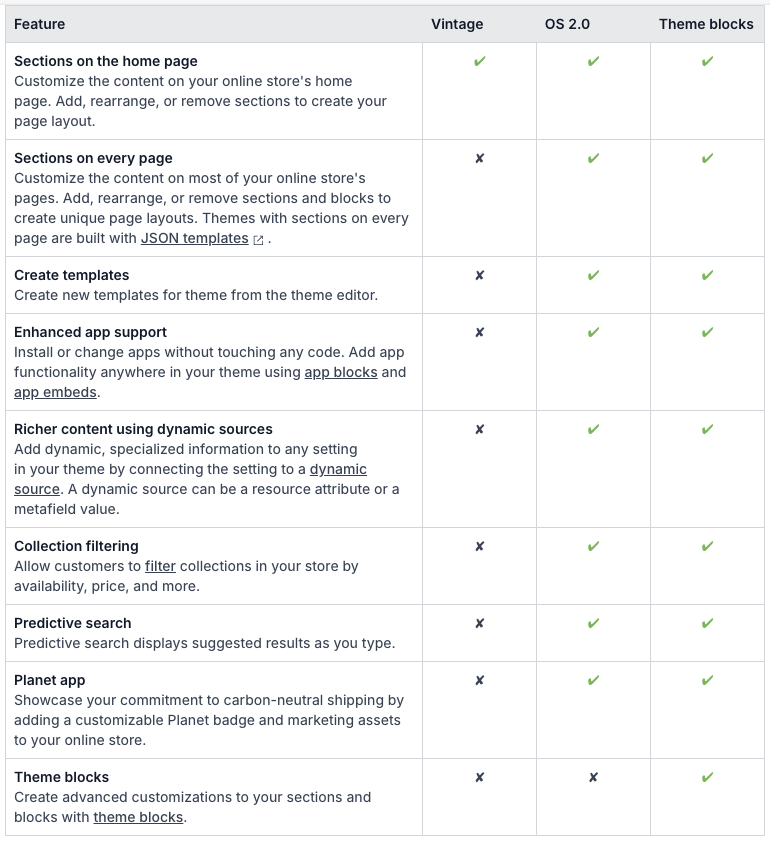
The Theme Store row comes from the same Help Center page, which also says Shopify's free vintage themes do not receive updates beyond security fixes.
How to tell which one your store uses
Shopify's own test takes a minute.
- In the admin, go to Online Store, then Themes.
- On the theme you want to check, choose Edit theme.
- Open the Products menu and select Default product.
- Look in the sidebar under the product template's sections. If an Add section button appears, the theme supports sections on every page.
No Add section button means a vintage theme. To split vintage into two types, Shopify's page says to check the Sections folder in the code editor: files in it mean a sectioned vintage theme, an empty folder means a non-sectioned one.
Developers can check the code directly. In 2.0 themes, files in templates/ end in .json. A blocks/ folder with Liquid files means the theme uses theme blocks. With the Shopify CLI you can pull a copy and look:
shopify theme pull --store your-store.myshopify.com
ls templates blocks
Shopify's help page warns that a theme can be part way: some parts can support 2.0 features while others do not, because only some pages have JSON templates. That happens when a theme was only partly migrated or came from outside the Theme Store. Test the page types you care about, not only the product page.
Should you migrate?
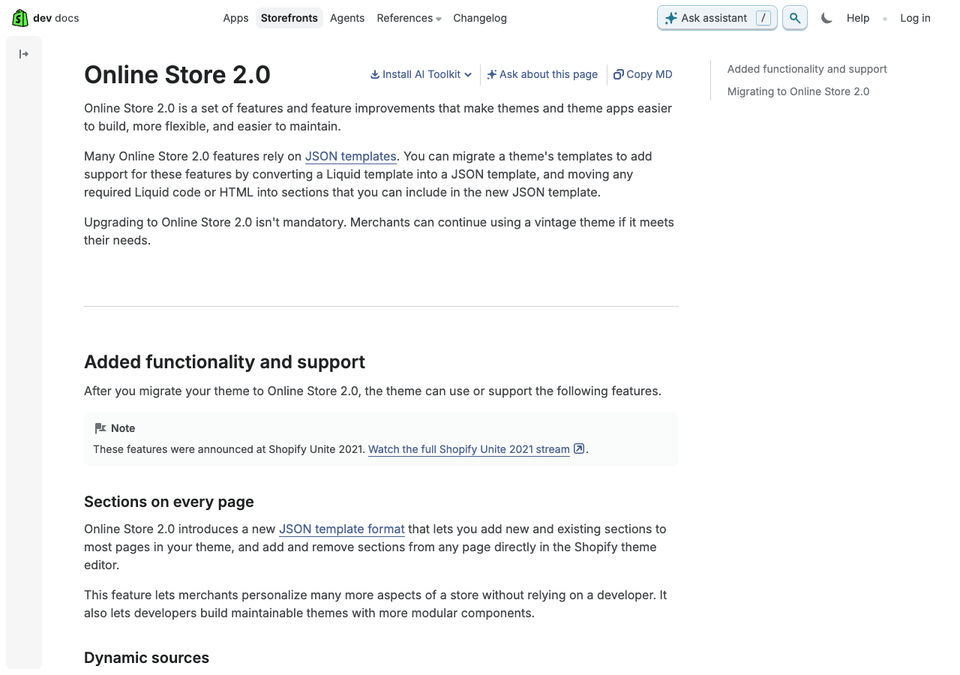
Shopify's documentation is plain on this: "Upgrading to Online Store 2.0 isn't mandatory." Merchants can keep a vintage theme if it meets their needs. We could not find an official end date for vintage themes in the pages we opened, so we have left any deprecation claim out.
The practical reasons to move are the missing features themselves: you cannot edit most pages in the editor, app blocks are unavailable, and many customisation tutorials only apply to one architecture or the other. The reasons to wait are cost and risk if the store has heavy custom code.
Three ways to get there
Shopify lists three routes:
- Install a 2.0 theme from the Theme Store. Best when you also want a new look. You rebuild your content and settings in the new theme.
- Update to a newer version of your current theme, if its developer released one that uses 2.0. Add it as a new theme and review it before publishing.
- Migrate your own theme manually. You can do it template by template, so you can start with the product page only.
For choosing a new theme, see our guide to choosing a Shopify theme and the roundup of free themes.
Migrating one template by hand
Shopify's migration guide for a template such as product.liquid follows six steps. In our words:
- Back up. Duplicate the theme and keep the copy unpublished while you work, or run
shopify theme pullif you work locally. - Find the
{% section %}tags in the Liquid template and note them. A section file cannot include other section files, so remove these references. - Move the remaining code into a section, either an existing one or a new file in
sections. - Delete the Liquid template. A
.liquidand a.jsontemplate for the same page cannot coexist. - Create the JSON template that points to your section.
- Test it in the theme editor, using
shopify theme devif you work locally.
The result for a product page is small:
{
  "sections": {
    "main": { "type": "product-template" },
    "recommendations": { "type": "product-recommendations" }
  },
  "order": ["main", "recommendations"]
}
Then add a presets entry and, where useful, an @app block to the section schemas so merchants can use the editor properly. Moving the code is the easy part; the time goes on schema design and retesting apps. Our Liquid templating guide covers the language side.
What is in it for merchants and for developers
Merchants get control over layout without a developer: reorder sections on product and collection pages, add app features from the editor, and connect data from metafields. Installing and removing apps leaves the theme cleaner, because the code is packaged as app blocks.
Developers get modular files with a clear contract: a template is data, a section is a unit with a schema, and a theme block is a reusable piece with its own settings. App compatibility stops being a matter of pasting snippets. Performance is still your job, so see our theme performance guide.
Honest limits
Online Store 2.0 does not fix everything. These are limits we can state from the docs:
- A JSON template caps at 25 sections, a section at 50 blocks, and a theme at 1,000 JSON templates and 300 theme blocks. Every file in
/blockscounts, even unused ones. - Some template types cannot be JSON:
gift_card,robots.txt,agents.md,llms.txtandllms-full.txtstay Liquid. - Section blocks cannot be nested or reused, and a section cannot mix its own blocks with theme blocks.
- Theme blocks do not receive variables from parent code the way snippets do. Use snippets for repeatable markup and theme blocks for merchant-editable pieces.
- Flexibility is not quality. A section with 40 settings is still a bad section, and an editor with unlimited layout can produce a slow, inconsistent store.
Frequently asked questions
Is Online Store 2.0 the same as Dawn?
No. Online Store 2.0 is the architecture: JSON templates, app blocks and dynamic sources. Dawn is one free reference theme built on it. Many other themes are 2.0 themes too, and Horizon adds theme blocks on top of the same foundation.
Is my store forced to move off a vintage theme?
Shopify's developer docs say upgrading is not mandatory, and a vintage theme keeps working. What you give up is sections on most pages, app blocks and dynamic sources. Shopify's own free vintage themes also only receive security fixes, so they will not gain new features.
Does moving to 2.0 delete my content or metafields?
Shopify's migration guide works on a duplicated, unpublished copy, so your live store is untouched until you publish. We found no Shopify page saying how metafield data is affected, but values are stored against products and other resources, not in theme files. Theme settings and the links between settings and metafields do need checking in the new theme.
Do I need a developer to migrate?
Shopify says you do not need to be a developer or a Partner to migrate your own theme manually, but you do need working knowledge of Liquid, HTML, CSS and JavaScript. Installing a new Theme Store theme needs no code, though rebuilding your content in it takes time.
Are theme blocks better than sections?
They solve a different problem. Sections remain the unit that holds one area of a page. Theme blocks make what sits inside a section reusable and nestable, and Horizon is built around them. Themes that use section blocks, such as Dawn, still work and are still maintained.
Where we can help
We build and maintain Shopify themes, and we can audit which architecture your theme uses, plan a migration to a 2.0 theme, or build custom sections and blocks for your store. See what we do on our services page, or talk to us about the store in front of you. For a deeper look at building from scratch, our custom theme development guide is a good next read.