Ecommerce Website Checklist: A Scored Audit for a Live Store
A 24-row scored audit for a live Shopify store, covering checkout, speed, apps, redirects, indexing, structured data, accessibility, email, analytics, security and backups, each tied to an official source, plus the order to fix things in.


A store that has been live for a year drifts. Apps pile up, redirects break, a payment setting changes, and nobody notices until sales dip. This post gives you a scored audit you can copy, run every quarter, and fix in a sensible order. Every group of checks points to an official page from Shopify, Google, the W3C or another primary source, so you can see the rule for yourself.
If you have not launched yet, use our Shopify launch checklist instead. It covers the one-time setup. This page covers what happens after.
How to use this audit
Score each row 0, 1 or 2:
- 0: broken, or you do not know. An unknown is a zero until you have looked.
- 1: works, but you can name a gap.
- 2: you tested it this quarter and it works.
There are 24 rows, so the top score is 48. The total matters less than the zeros. A single zero in rows 1.1, 1.2, 11.1 or 11.2 (orders and keys) is a this-week job, whatever the total says.
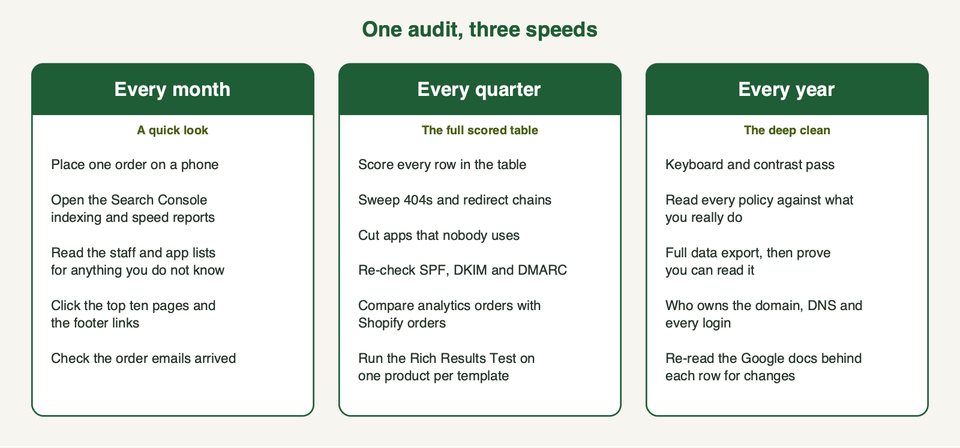
Also run a short version whenever you change something big: a new theme, a payment change, a new app, a domain change. Shopify's own advice on test orders says to place at least one whenever you change your payment settings (Shopify: placing a test order).
The scored table
Copy this into a sheet. The sections below explain each group and name the official source behind it.
| # | Area | Check | Score (0, 1, 2) |
|---|---|---|---|
| 1.1 | Checkout | Place a full order on a phone with each payment method you offer, and see it in your orders list | |
| 1.2 | Checkout | Payments are not left in test mode, and shipping and tax are right for one home and one overseas address | |
| 2.1 | Speed | Field data shows LCP at 2.5 seconds or less, INP at 200 milliseconds or less and CLS at 0.1 or less on your key page types | |
| 2.2 | Speed | The main image at the top of each key page loads eagerly, with no lazy loading and no fade-in | |
| 3.1 | Apps | Every app has an owner and a reason, and unused ones are removed | |
| 3.2 | Apps | You have measured the heaviest scripts by blocking them in browser tools | |
| 4.1 | Redirects | No internal link points at a 404 or at a URL that redirects | |
| 4.2 | Redirects | Old URLs go to the closest live page in one permanent step, with no chains | |
| 5.1 | Indexing | Nothing important is blocked by robots.txt or noindex | |
| 5.2 | Indexing | Your sitemap is submitted and your key pages show as indexed | |
| 6.1 | Structured data | The Rich Results Test passes on one product page per template, and price and stock match the page | |
| 6.2 | Structured data | Return and shipping details in markup match your real policies | |
| 7.1 | Accessibility | You can get from a product page to payment using only the keyboard, and focus is always visible | |
| 7.2 | Accessibility | Text contrast, tap target size, form labels and error messages meet WCAG 2.2 AA | |
| 8.1 | Policies | Return, shipping and privacy pages say what you actually do today | |
| 8.2 | Policies | Footer links and contact details all work | |
| 9.1 | SPF or DKIM passes for your sending domain, and a DMARC record exists | ||
| 9.2 | Order, shipping and abandoned checkout emails fire, and marketing mail has an easy unsubscribe | ||
| 10.1 | Analytics | One purchase event per order, with transaction ID, value and currency | |
| 10.2 | Analytics | Consent banner behaviour is tested, and there are no old or duplicate tags | |
| 11.1 | Security | Everyone with access is current, with the least permission they need | |
| 11.2 | Security | Two-step sign-in is on for every staff account, and for the email and domain accounts behind the store | |
| 12.1 | Backups | Products, customers, orders, theme copy, redirects and DNS records are exported on a schedule | |
| 12.2 | Backups | You have opened an export and know who would restore it |
1. Checkout and payments
This group protects the thing that pays you. Shopify says a test order lets you confirm that checkout, order processing, inventory, shipping, email notifications and taxes are all correct. It also says customers cannot place live orders while your payment providers are in test mode (Shopify: placing a test order).
That caution shapes how you test a live store. Turning test mode on for a busy shop blocks real buyers. Shopify names another route: process an order with a real payment provider, then cancel and refund it, and note that you may be charged fees by the processor. Our suggestion for most live stores is the second route, on a low-priced item, at a quiet hour. Accept the small fee as the cost of knowing.
What to check:
- Row 1.1: On a phone, add a product, use each payment method you offer (card, wallet, buy now pay later), and finish. Then find the order in your admin and check the confirmation email arrived.
- Row 1.2: Make sure no payment provider was left in test mode after a past test. Then run two addresses through shipping and tax: one at home and one overseas. A rate that looks right for your home country can be wrong elsewhere.
Score 0 if you have not placed an order since your last payment or shipping change.
2. Speed and Core Web Vitals
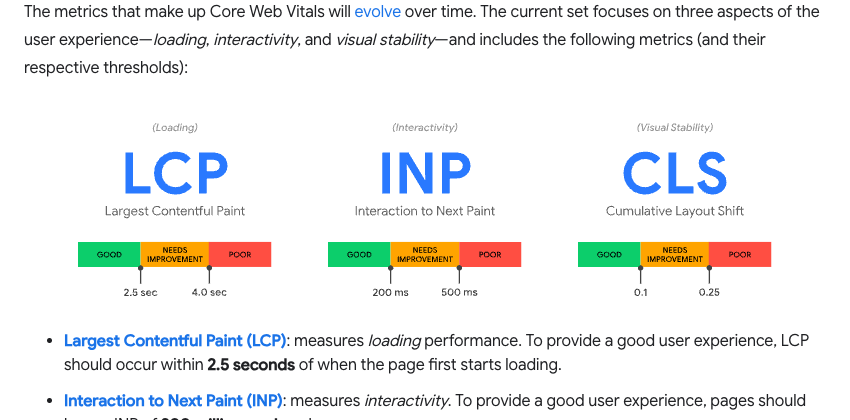
Start with field data, which is what real visitors saw, not a single lab run. Google's guidance is to judge a page at the 75th percentile of page loads, split by mobile and desktop. The "good" lines are:
- LCP (how fast the main content shows): 2.5 seconds or less
- INP (how fast the page responds to taps and clicks): 200 milliseconds or less
- CLS (how much the layout jumps): 0.1 or less
Those come from web.dev's Core Web Vitals page, with the INP bands in its INP guide.
Where to read field data:
- The Core Web Vitals report in Search Console groups your indexed URLs by status and by similar page groups, using real-user data (Search Console: Core Web Vitals report).
- PageSpeed Insights shows real-user data from the Chrome User Experience Report for the previous 28-day collection period, plus a lab run from Lighthouse (PageSpeed Insights docs). The 28-day window matters: a fix will take weeks to show up in field data, so do not panic after two days.
- Shopify's Web Performance Dashboard reports LCP, INP and CLS by page type, device and region, and Shopify lists spotting regressions after deployments or app installs as one use (Shopify: testing for performance).
Shopify's essential theme practices explain most LCP trouble on live stores: never lazy-load the main image, mark it with fetchpriority="high", and do not hide it behind a fade-in. Shopify also notes that nested Liquid loops are the most common cause of slow server response, and that a theme fast on 10 products can be slow on 100 (Shopify: performance best practices). That last one is worth a look if your catalogue has grown since the theme was built.
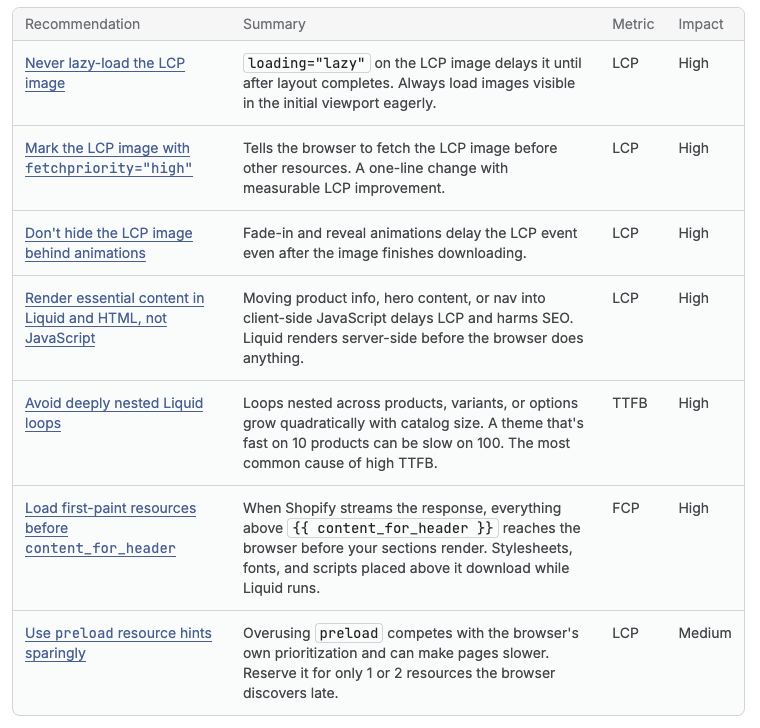
Row 2.1 scores 2 only if your key page types (home, collection, product) pass in field data. Row 2.2 is a quick look at the page source for the top image. For deeper fixes, see our theme performance guide.
3. Apps and third-party scripts
On a store that is a year old, apps are the usual reason speed slipped. Shopify's performance guidance lists "remove render-blocking apps" as a high-impact practice: find app scripts that block the page from rendering, and remove or defer them. It also says badly written first-party code can be just as damaging as a poor third-party script, so do not assume the theme is innocent.
web.dev describes three risks of third-party scripts: slower performance, privacy or security problems, and unpredictable behaviour. Its guide also shows a simple measurement trick: in Chrome DevTools you can block one request and reload, to see what the page does without it (web.dev: load third-party JavaScript).
Shopify says merchants using theme app extensions don't need to edit theme code by hand, because the app appears as blocks in the theme editor (Shopify: theme app extensions). That is a fair question for any vendor: does your app use a theme app extension, or does it write into my theme?
What to do:
- Row 3.1: List every installed app in a sheet. For each, write who owns it, what it does, and whether you used it in the last 90 days. No owner means it is a removal candidate.
- Row 3.2: For the three apps that inject the most on your storefront, block their scripts in DevTools and compare. Keep a note of the change.
One honest gap: we did not find an official page that says what an uninstalled app leaves behind in your theme. After removing an app, search your theme code for the vendor's name, and ask the vendor how to remove any leftover snippet.
4. Broken links and redirects
Every year you retire products, rename collections and change URLs. Each change is a chance to break something.
Google treats the two redirect types differently. Permanent redirects tell Google to show the new target in results, and temporary ones keep the source page. Google's advice is to use a permanent redirect when you are sure it will not be reverted (Google: redirects). Google's crawlers follow up to 10 redirect hops. Our own view is that every extra hop is a risk you do not need, so point old URLs straight at the final page (Google: HTTP status codes).
Be careful with "soft 404s". Google describes a soft 404 as a page that shows a friendly "not found" message but does not return a real 404 status. Search Console flags those, and it recommends a real 404 for pages that are truly gone (Search Console: page indexing report).
Shopify stores each redirect as a pair: the old path and the target (Shopify Admin API: UrlRedirect). That is useful to know when you review a long list: for each pair, ask where the target ends up.
- Row 4.1: Click the top navigation, the footer and your ten most visited pages. Fix links that point at a 404 or at a URL that itself redirects, so the link goes straight to the final page.
- Row 4.2: For each retired product or collection, send the old URL to the closest live page in one permanent step. If nothing is close, let it return a real 404 rather than redirecting everything to the home page. That last point is our judgement, not a Google rule.
5. Search indexing and the sitemap
Two ways stores shut Google out by accident: a robots.txt change, and a noindex tag that came along with a theme or app. Check both.
Google is clear that robots.txt is not a way to keep a page out of search results. A blocked URL can still appear without a description, and if you want a page out, use noindex or a password (Google: robots.txt introduction). Shopify generates a default robots.txt that it says works for most stores. A robots.txt.liquid template replaces that output, and Shopify advises saving a copy of your current robots.txt before you publish a change (Shopify: customize robots.txt). If someone added that template years ago, read it now.
For index status, Google's guidance for small sites is useful: if you have fewer than 500 pages, you may not need the full Page indexing report. Instead, search site:yourdomain.com and search for the exact URL of your key pages (Search Console: page indexing report). If you do open the report, the same page explains that a status like "Crawled, currently not indexed" or "Page with redirect" is not always a problem. Duplicates, for example, should not be indexed.
On canonicals, Google ranks the signals: a redirect is strong, a rel="canonical" tag is strong, and sitemap inclusion is a weak signal. None are required, and Google will pick one if you do not (Google: specify a canonical URL). A sitemap helps discovery but does not guarantee crawling or indexing (Google: sitemaps overview).
- Row 5.1: Open
yourstore.com/robots.txtand read it. Then view the source of your key pages and look for a stray noindex. - Row 5.2: Confirm the sitemap is submitted in Search Console and that your best-selling product and collection pages are indexed. If you want help choosing a tool for this, see our roundup of Shopify SEO apps.
6. Structured data
Product markup is what lets Google show price, availability, ratings and shipping or return information beside your product in results. Google splits product markup into two classes: product snippets for pages where people cannot buy, and merchant listings for pages where they can. A store wants merchant listings (Google: product structured data, merchant listings).
Google's general rules matter for a live store. Markup must describe content that visitors can see, it must be up to date, and even correct markup does not guarantee a rich result (Google: structured data guidelines). The practical risk on a live store is drift: a price or stock status in the markup that no longer matches the page.
- Row 6.1: Run Google's Rich Results Test on one product page for each product template you use. Compare price and availability in the result with what the page shows. If both your theme and an app output product markup, compare the two. We have not seen an official Google page that says which wins, so make sure they agree.
- Row 6.2: Google supports return policy markup, either a link to your policy page or details such as return window and fees (Google: merchant return policy markup). If you use it, it must match the policy you actually follow.
7. Accessibility
This is where a quick audit pays off in ways a sales chart does not show. Our Shopify accessibility guide covers building an accessible theme. For a quarterly check, you need three fast tests.
The W3C's Easy Checks page says these steps give you a first idea of accessibility, and it is careful to say that a page could pass them and still have real barriers (W3C: Easy Checks). Use it as a smoke test, not a certificate. Its checks include keyboard access with a visible focus, image alt text, and form labels and errors.
Two specific WCAG 2.2 rules are easy to test on a store (W3C: WCAG 2.2 quick reference):
- Contrast (1.4.3): text needs a contrast ratio of at least 4.5 to 1, or 3 to 1 for large text. Sale badges and light grey helper text are where stores fail.
- Target size minimum (2.5.8): pointer targets should be at least 24 by 24 CSS pixels, with exceptions such as enough spacing between small targets. This rule is new in WCAG 2.2.
What to do:
- Row 7.1: Unplug the mouse. Press Tab from the product page, add to cart, go to checkout and fill the form. Can you see where focus is at every step? Does it follow a logical order?
- Row 7.2: Check the contrast of your sale price, badge and footer text. Check the size of small icons such as the cart, close and quantity buttons on a phone. Check that every form field has a visible label and that errors say what went wrong.
We cannot tell you whether your store meets a legal standard in your country. This audit finds common barriers. A full review needs a person with assistive technology.
8. Policy pages
Policies drift because operations change and the pages do not. You added a courier, ended free returns, or started shipping to a new country, and the text still says the old thing. A policy that does not match practice is a risk for your customers and for you.
Google's guidance supports this from another angle: if you mark up return details, they appear next to your products in results, which means a wrong policy is now public in more places (Google: merchant return policy markup).
- Row 8.1: Read your returns, shipping and privacy pages once against how you operate today. If a sentence is no longer true, change it. Our launch checklist covers the legal pages you need at the start.
- Row 8.2: Click every link in the footer. Send a message through your contact form and see how long it takes to arrive.
Privacy and consent wording depends on where you sell, so have a lawyer read it if you sell in the UK, the EU or elsewhere with strict rules. We are not lawyers.
9. Email deliverability and flows
Two separate questions here: do your emails reach the inbox, and do the right ones fire?
On the first, Google's sender rules are the clearest published standard. Since 1 February 2024, anyone sending to Gmail accounts must set up SPF or DKIM, use TLS, and keep the spam rate shown in Postmaster Tools below 0.3%. Senders of more than 5,000 messages a day to Gmail must also set up DMARC, and their marketing messages must support one-click unsubscribe plus a visible unsubscribe link (Gmail: email sender guidelines).
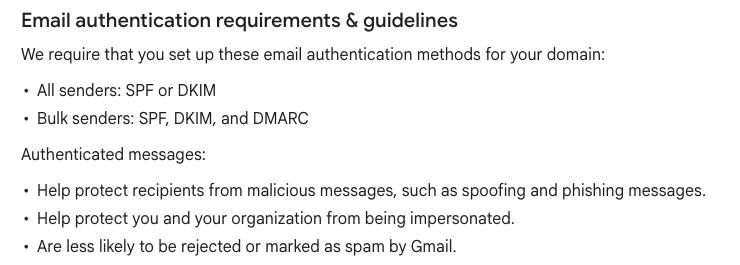
DMARC needs SPF or DKIM in place first. Google's setup guide describes a record that tells receiving servers what to do with mail that fails those checks (none, quarantine or reject), and advises moving the policy toward quarantine or reject over time as you learn how your mail is authenticated (Google: set up DMARC). Starting at none is allowed.
- Row 9.1: Find which services send mail as your domain: your store, your email marketing tool, your support desk. Each needs to be covered by SPF or DKIM. Then add a DMARC record if you do not have one.
- Row 9.2: Place your quarterly test order and confirm the order confirmation arrives and looks right. Then trigger the other flows you rely on (shipping notice, abandoned checkout) and read each once. Check marketing mail for a working unsubscribe link.
10. Analytics integrity
If your numbers are wrong, every decision from them is shaky, so this row comes before you use data to decide anything else.
Google's ecommerce guide shows the purchase event with a transaction ID, value, tax, shipping, currency and an items list, and recommends setting currency and using debug mode when you build it (GA4: measure ecommerce).
- Row 10.1: Pick the last 30 days and compare the count of purchases in your analytics with the count of orders in Shopify. Expect some gap, because of blockers and consent choices, so do not demand a perfect match. A large gap, or analytics showing more purchases than Shopify, points to a missing or duplicated tag. Look at one real order in debug mode if you can.
- Row 10.2: If you use Google tags with a consent banner, test it. Google's consent mode guidance says to set a default consent state and update it when the visitor chooses, and its version 2 added two parameters for ad user data and ad personalisation (Google: consent mode setup). Reject cookies in a private window and see which tags still fire. Also look for tags left behind by an old agency or tool.
11. Security and account hygiene
This is the cheapest group to fix and the worst to ignore. Most of the work is deciding who still needs access.
CISA, the US cyber agency, says a password alone is not enough, and lists online stores among the places where you should turn on multi-factor sign-in. It notes that not all MFA protects equally, that any MFA is better than none, and that FIDO or WebAuthn is the only widely available phishing-resistant option (CISA: More than a Password). That page is now marked as archived, so treat it as general principle, not current policy.
- Row 11.1: Open the list of staff and collaborators in your Shopify admin settings. Remove anyone who left, or whose project ended. For the rest, give the least access the job needs. Do the same for the contractors, freelancers and agencies on your list.
- Row 11.2: Turn on two-step sign-in for every staff account. Then do the same for the accounts that sit behind the store: the email address that receives your password resets, your domain registrar, and your email marketing tool. A store is only as safe as the inbox that can reset its password.
The steps for staff permissions and two-step sign-in live in your Shopify admin settings and in Shopify's help centre, so follow the current screens there.
12. Backups and exports
Shopify holds your store, but that does not mean you hold a copy. If an app deletes data, someone edits the wrong price list, or a bad import overwrites products, a recent export is your way back.
- Row 12.1: Export products, customers and orders from your admin on a schedule. Duplicate your live theme before any change. Save your robots.txt output, your redirect list and your DNS records, since Shopify itself advises saving a copy of robots.txt before changes. For large catalogues, a developer can use Shopify's bulk operations, which run a query in the background and give you a URL to download the full result (Shopify: bulk operations).
- Row 12.2: Open one export and check it holds what you expect (variants, images, metafields if you use them). Decide who would restore it and write down how. An export nobody can read is not a backup.
Questions
Is it safe to place test orders on a live store?
Test mode blocks real customers from checking out while it is on, according to Shopify. Another route is to place a real order on a cheap item, then cancel and refund it, which may cost you processor fees. Either way, check afterwards that payments are not left in test mode.
Why does my speed score differ between tools, and how long until a fix shows?
Some tools show lab data from one simulated run, and some show field data from real visitors. PageSpeed Insights shows both, and its field data covers the previous 28 days, so give a fix a few weeks before you judge it. Use field data to find the problem and lab data to confirm the fix, as Shopify's testing guide advises.
Do I need DMARC?
Google requires it only for senders of more than 5,000 messages a day to Gmail, and it allows a policy of none. Every sender still needs SPF or DKIM. A DMARC record also gives you reports on who is sending mail as your domain, which is useful on its own.
Does uninstalling an app remove all of its code?
We did not find an official statement either way. After you remove an app, search your theme for the vendor's name, and ask the vendor what, if anything, to delete. Apps built with theme app extensions are added through the theme editor rather than hand-edited code.
The order to fix things
When your table has many low scores, do not fix by area. Fix by risk.
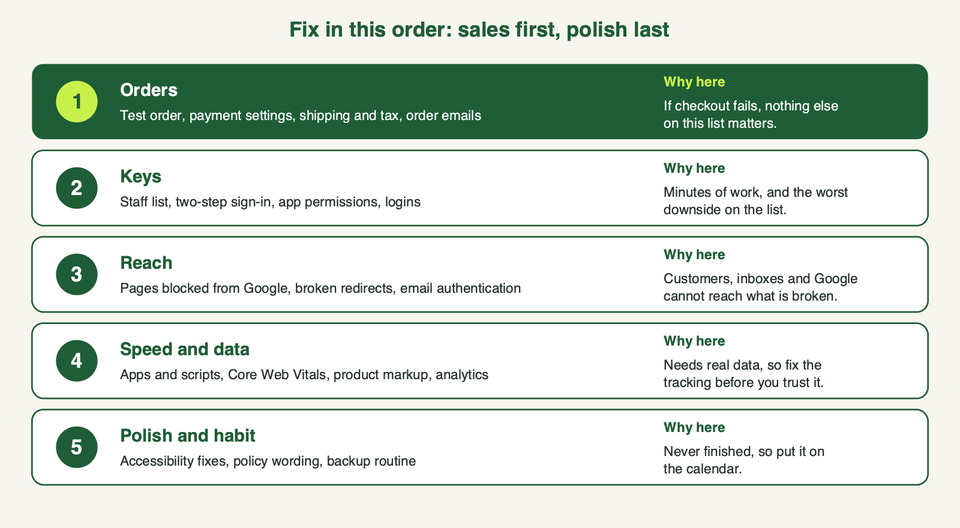
- Orders. Rows 1.1 and 1.2 scoring 0. If checkout fails, the rest does not matter.
- Keys. Rows 11.1 and 11.2. They take minutes, and the downside of an account takeover is the worst on the list.
- Reach. Rows 4, 5 and 9: blocked pages, broken redirects and email authentication. Customers, inboxes and Google cannot find or hear from you.
- Speed and data. Rows 2, 3, 6 and 10. Fix the tracking first so you can trust your before and after numbers, then the apps and speed.
- Polish and habit. Rows 7, 8 and 12. They are never finished, so schedule them.
A note on accessibility: if a keyboard user cannot finish checkout, that belongs in step 1, because it is a checkout failure for those customers. Other accessibility fixes can follow.
Most of this audit needs only a browser, Search Console, your Shopify admin and a few free Google tools. If rows score 0 and you lack the time or access to fix them, talk to us and we will tell you which ones are worth paying for.
Your first step this week: place one real order on your phone, then turn on two-step sign-in for every account that can reach the store.