How to Delete a Shopify Account: Pause, Close, Transfer or Erase
Shopify has no single delete button. You can pause the store, close it, hand it to someone else, or ask for your data to be erased. Here is what each one does and what to do first.


Shopify has no delete button that we could find. It has four separate actions: pause, transfer, close (deactivate) and erase. This guide explains each, what it does to billing, domains, apps, gift cards, payouts and customer data, and what to do before you press anything.
The short answer: for most people who want to stop, the right move is to cancel the plan (that closes the store at the end of the billing cycle) after you have exported your data and moved your domain. Only ask for erasure if you are sure, because that part cannot be undone.
Every step below comes from Shopify's own help pages, which we read when we wrote this post. If a button on your screen has a different name, trust your screen and the linked page.
The four options at a glance
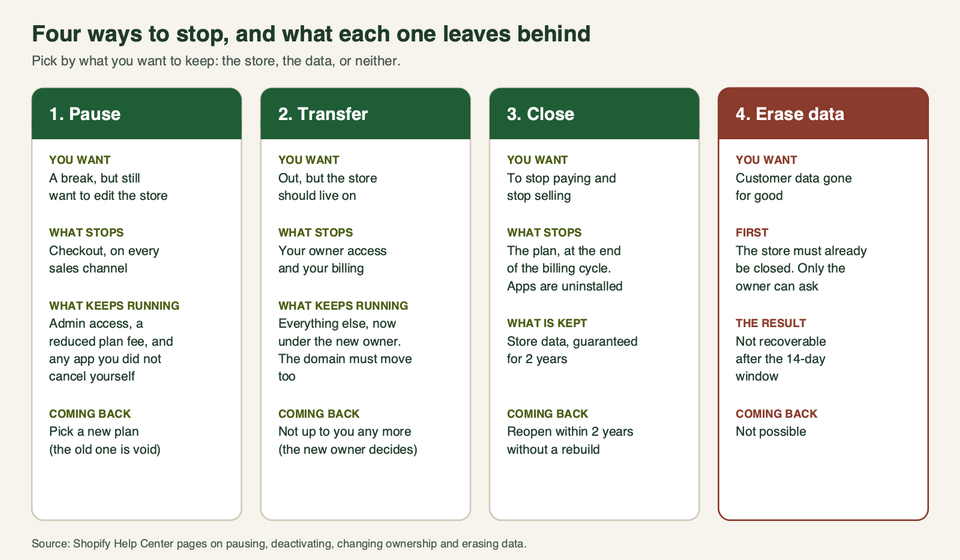
| Option | What it does | Can you come back? |
|---|---|---|
| Pause (Pause and Build plan) | Turns checkout off, keeps the admin open at a reduced fee | Yes, by choosing a new plan |
| Transfer ownership | Moves the store to another person | Not on your own |
| Close (deactivate) | Ends the plan at the end of the billing cycle | Yes, for 2 years, if data is not erased |
| Erase data | Removes customer personal data from a closed store | No |
Option 1: pause the store
If you only want a break, or your store is seasonal, pausing is the gentle option. Shopify calls it the Pause and Build plan.
What changes:
- Checkout is switched off on every sales channel, including point of sale.
- Customers can still see your products, but they cannot buy.
- You keep your admin, basic reports and your storefront.
- You pay a reduced monthly fee. We do not quote it here: check the current plan page in your admin.
Who can use it: the store owner, after the free trial, on a paid plan. Shopify Plus stores cannot use it.
Two traps:
- Apps stay active. Shopify's page says your apps keep running when you pause. Cancel the ones you do not need, one by one, or they can keep billing you.
- Your old plan is gone. When you reopen, you pick a new plan.
Pick this if you plan to sell again and want to keep working on the store. Skip this if you want to stop paying anything close to a full fee, or you are on Plus.
Option 2: transfer the store to someone else
If the store has value, closing it throws that away. Shopify's page on changing or transferring ownership covers two routes:
- To an existing user on your store: Settings > Users, click the owner, open the owner role menu, choose View stores, pick the store and click Change ownership. Enter their email.
- To someone outside your business: Settings > General, then the Transfer store section. Enter their email. They get a message to accept it, and you can cancel the transfer while it is still in progress.
Rules from the same page:
- Only the store owner can do this. An organization owner cannot, unless they are also the store owner.
- If you have used Shopify Capital or Shopify Credit, Shopify says you will be unable to transfer your store.
- If you hold a Shopify Balance, you must empty it and contact Support.
- If you have not met your billing threshold when the store moves, the new owner pays any outstanding bill.
- Your custom domain does not move on its own. You must transfer it to the new owner too.
- Update payout bank details, tax details, billing details and store contact emails to the new owner's.
Shopify says you must sell the store outside its platform, for example through third-party marketplaces such as Flippa, Business Exits or Acquire.com. Get a lawyer to draft the sale contract.
Pick this if the store makes money and someone wants it. Skip this if you cannot clear Capital or Credit, or you have no buyer.
Option 3: close (deactivate) the store
This is what most people mean by "delete my account". On Shopify the word is deactivate. When you cancel your plan, the store deactivates at the end of your current billing cycle. If you cancel today and the cycle ends in three weeks, the store stays up for three weeks.
Per Shopify's help page, the steps from a desktop admin are:
- Go to Settings > Plan.
- Click Cancel trial if you are still in the free trial, or Cancel plan if you pay.
- Read the options Shopify offers (downgrade, Pause and Build, or start a new store).
- Choose Cancel my plan and uninstall all apps, then Continue.
- Pick a reason for leaving, then Continue.
- Optionally tick Save payment details if you want to reopen faster later.
- Enter your password and confirm.
Shopify says Support cannot deactivate your store for you. You must log in as the store owner and pass any two-step authentication check. If you have lost your authentication method, Shopify's page lists a backup method, then recovery codes, then a reset.
One thing to know: Shopify's Terms of Service say you cancel by contacting Support, while the help page walks you through the admin. We found that mismatch on the pages we read (the version of the Terms we read was the Pakistan one; other regions may differ). If the Plan page in your admin does not offer a cancel button, contact Support and say so.
Shopify Plus: contact Plus Support or your Merchant Success Specialist. The admin route above is not for Plus.
Free trial: if you picked a paid plan before the trial ended, you must pause or deactivate by hand to avoid the charge. If you never picked a plan, you do not need to do anything.
Pick this if you are done selling and want billing to stop. Skip this if you might sell again soon (pause instead) or the store has a buyer (transfer instead).
What happens after you cancel
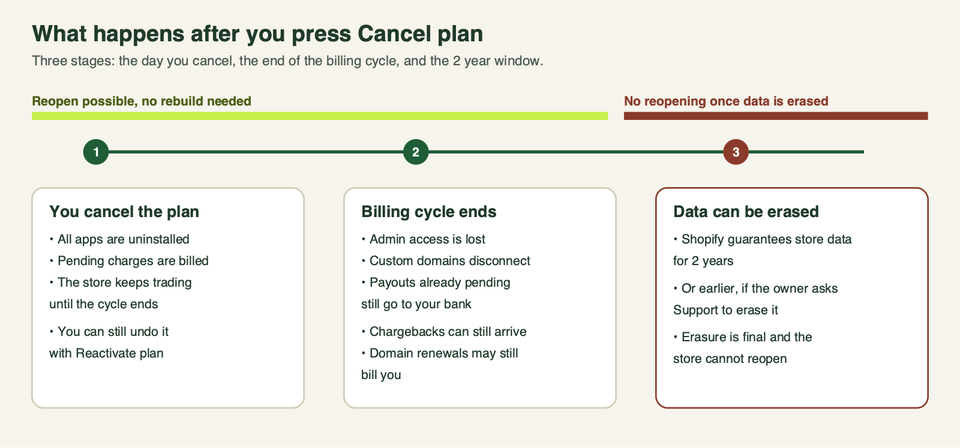
On the day you cancel, all apps are uninstalled and pending charges are billed. Those include app usage charges, transaction fees and shipping label charges. At the end of the cycle, you lose admin access. Your custom domains disconnect. Shopify says your store information is guaranteed for 2 years, so you can reopen without rebuilding.
You can still change your mind before the cycle ends: go to Settings > Plan and click Reactivate plan. After the cycle ends, reopening means logging in as the owner, clicking the re-open link, choosing a plan and paying any outstanding charges. If you reopen mid-cycle, Shopify says you are not charged again until the next regular billing date.
Option 4: erase your data
Closing a store does not delete it. Shopify keeps the data for two years in case you return. Erasure is a separate request, and Shopify's erase your data page splits it in two:
Customer data in a closed store. Only the owner can ask, by contacting Support, and only after the store is deactivated. Shopify says customer personal data is erased within 14 days after the request is completed, subject to exceptions in law. After that it cannot be recovered and the store cannot reopen. You can stop the request by contacting Support again before the 14 days pass.
Your own merchant personal data. This is the data about you and your staff, covering name, address, email and payment details across all your stores. Go to Shopify's privacy controls and click Erase my data. You must first deactivate all stores and all accounts tied to your email. Shopify says processing can take up to 30 days. It applies to every store you own.
We did not find a delete button for your Shopify login on the pages we read. The route is: close every store, then request erasure.
Pick this only if the store is closed for good and you want customer data gone. Skip this if you might reopen, because erasure cannot be undone.
What you cannot undo
- Erasure. Once the 14 days pass, the data is gone and the store cannot be reopened.
- The myshopify.com address. Shopify says you cannot use the same myshopify.com domain to create a new store. You can reuse the brand name, not the address.
- Plan fees already paid. Shopify's refund policy says plans are generally non-refundable, including on cancellation. Support reviews some requests case by case within set windows, and nothing is guaranteed.
- Theme purchases and third-party app charges. Themes are final sale. Shopify cannot refund third-party apps, so ask the app developer.
- A transfer, once accepted. You lose owner rights. Cancel while it is in progress, not after.
- Credits. Shopify says account credits stay for 60 days after deactivation, then expire.
Pre-closure checklist
Do these before the end of the billing cycle, because after that you lose the admin.
1. Export your data
Shopify's backup page says you can export CSV files for products, customers, orders, gift card codes, discount codes and financial data, and download your theme.
That list does not mention blog posts, pages or menus. For a store copy, Shopify tells you to copy and paste blog posts and pages and rebuild menus by hand. Export or copy them yourself, and keep your product images.
Also export your billing history, and your payout history and transactions if you use Shopify Payments. Keep these for your accountant.
2. Sort out your domain
- Bought through Shopify: transfer it before you close, per Shopify's domain transfer page. It works from a paused or closed store too, through a limited Domains page.
- Generic domains (.com, .net, .org): they cannot be transferred out until 60 days after you bought them, transferred them in, or changed contact details. Shopify says this is an ICANN rule.
- .uk and some other extensions: these need Shopify Support, and .uk needs an IPS tag from your new provider.
- Bought elsewhere: remove it from your store and turn off auto-renew at your registrar if you do not want it.
- Renewals: Shopify's help pages say canceling the store does not cancel domain renewals. Its Terms of Service say Shopify-bought domains stop auto-renewing after termination. The pages disagree, so turn renewal off yourself.
- Security errors: if you move the domain to a host without HTTPS, browsers can show a certificate error for 90 days after you leave, because Shopify's HSTS policy stays in force.
3. Cancel apps and external subscriptions
Shopify uninstalls apps when you cancel the plan and charges any usage fees. But apps billed outside Shopify may keep charging. Check each one, and cancel email tools, review tools and subscription apps at the source. If you paused rather than closed, cancel each app yourself, because they stay active.
4. Settle money
- Payouts. Shopify says pending Shopify Payments payouts keep going to your bank after closing. If a payout fails, you cannot fix it without reopening. Check your bank details first and wait until payouts have landed.
- Chargebacks. Cardholders can still file them after you close, and you cannot submit evidence without admin access. Reopening is the way to defend one. Wait before closing if you have open disputes.
- Final bill. All pending charges are billed at cancellation. Check Settings > Billing so there are no surprises.
5. Deal with customers
- Gift cards. Export the gift card CSV and decide how to honour or refund outstanding balances.
- Subscriptions and pre-orders. Open orders do not disappear. Fulfil or refund them. See our guides on subscription apps and pre-order apps if you run either.
- Order tracking. Shopify upgrades your Thank you and Order status pages when you close, so customers can still view order details.
6. Keep records
Keep tax records, invoices and sales exports. The Shopify pages we read do not say how long your local law requires you to hold them, and Shopify's 2-year store guarantee is not a records policy. Ask your accountant how long to keep them in your country. Doing this before you close is far easier than after.
Questions people ask
Can I delete my Shopify account without paying?
If you are still on the free trial and have not chosen a paid plan, Shopify says no extra steps are needed to end it. On a paid plan, cancelling the plan ends billing at the end of the cycle. Fees for the current cycle are not refunded.
Will I be charged after I close the store?
You can still receive invoices for third-party charges, chargebacks or other Shopify stores you own. Apps billed outside Shopify and domain renewals also continue unless you stop them.
Can I get a refund for the rest of the month?
Shopify's policy says plans are generally non-refundable. There are review windows (for example, 7 days for a monthly invoice), but meeting them does not guarantee anything. Contact Support if you think you were billed in error.
Can I reopen my store later?
Yes, for up to 2 years, as long as the store data has not been erased. You will need to choose a plan, pay anything outstanding, and reconnect your domains.
When to ask for help
Most closures are simple. They get messy with a busy domain, custom apps, a Plus plan or a store with real revenue. If you are moving to another platform, we can plan the export and redirects so you keep your search traffic. Talk to us before you cancel, not after. Starting again? Our guide to setting up a Shopify store helps, and Shopify vs Shopify Plus explains why Plus has different rules.