Free Shopify Themes: Which to Pick, What "Free" Includes and Where It Stops
A plain guide to the free themes in the Shopify Theme Store: what each is for, what free includes, how to test one with your own products, and when to move to a paid or custom theme.
Shopify's Theme Store has 24 free themes, all made by Shopify, and most stores can launch well on one of them. This guide tells you what each theme is for, what "free" does and does not include, how to test a theme with your own products, and when a paid or custom theme is the better call.
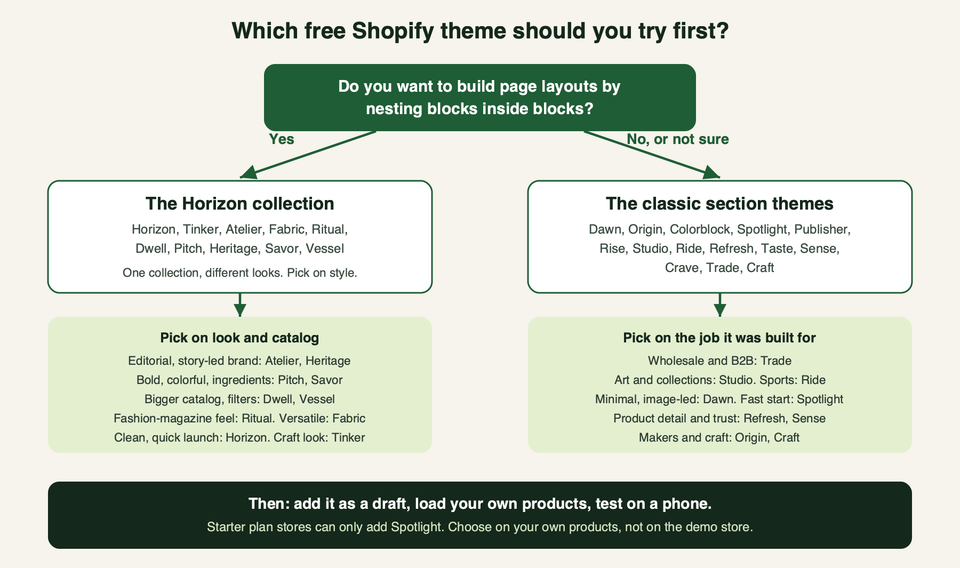
The short answer: on the Starter plan, use Spotlight. On any other plan, test Dawn against Horizon on your own products. Pick Horizon if you will build custom layouts in the editor, and Dawn for the plain, well-known baseline. Then check the other themes below if your catalog or style is specific.
What the free themes are
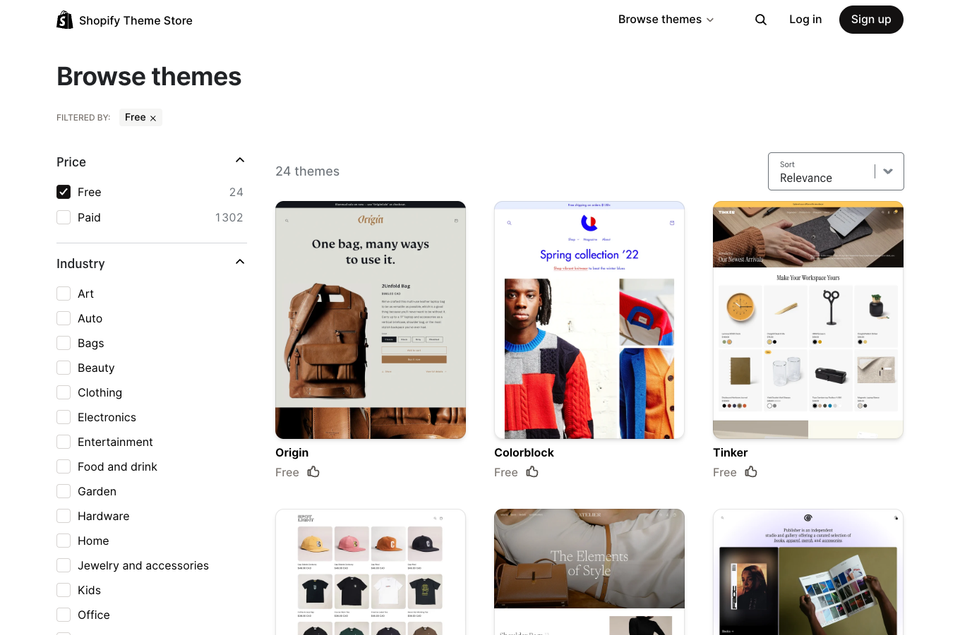
Filter the Theme Store by price and you get the free list. Shopify's Help Center says free themes are developed by Shopify, while paid themes come from third-party designers. 24 themes appear on that list, in two families.
The Horizon collection (10 themes). Horizon, Tinker, Atelier, Fabric, Ritual, Dwell, Pitch, Heritage, Savor and Vessel. Their listings describe the collection as built on nested theme blocks. In plain terms, you can put blocks inside blocks to shape a layout, instead of only choosing from fixed section designs.
The classic section themes (14 themes). Dawn, Origin, Colorblock, Spotlight, Publisher, Rise, Studio, Ride, Refresh, Taste, Sense, Crave, Trade and Craft. These use sections that hold blocks, the model most Online Store 2.0 themes use.
Shopify's Theme Store requirements apply to every listed theme. They include support for "Sections Everywhere" (the Online Store 2.0 standard) and for app blocks in the main product section and the featured product section. So you can expect all 24 free themes to let you add and move sections on every page type and to take app blocks where the app supports them.
The Horizon collection at a glance
Style notes below paraphrase each theme's own listing. "Pick this if" is our read of those descriptions, not a test result.
| Theme | Style, per its listing | Pick this if |
|---|---|---|
| Horizon | Clean, minimal, quick to launch | You want a tidy start and room to rebuild layouts later |
| Tinker | Smart, modern, bento-style collection cards, video blocks | You sell made or creative goods and want story blocks |
| Atelier | Airy galleries, large media heroes, editorial | You sell design-led goods and plan to tell the brand story |
| Fabric | Edge-to-edge grids, large swatches, lifestyle blocks | Your range spans several categories |
| Ritual | Bold, magazine-style, designer-inspired | You want a luxury, fashion-led look |
| Dwell | Warm, neutral, serif type, vertical filters | You sell home goods or a bigger catalog |
| Pitch | Bright, bold, ingredient and benefit showcases, swatches | You sell beauty or wellness and need to show ingredients |
| Heritage | Editorial, asymmetrical galleries, tactile | Texture, craft and brand story are your selling points |
| Savor | Vibrant, appetizing, edge-to-edge imagery | You sell food, drink or taste-led products |
| Vessel | Open, airy, search and filtering | You want space around products and decent product discovery |
The classic section themes at a glance
| Theme | Style, per its listing | Pick this if |
|---|---|---|
| Dawn | Minimalist, image-led, media-forward product page | You want the plain, well-known baseline |
| Origin | Neutral palette, quirky type, buyer story layouts | You sell handmade or unique pieces |
| Colorblock | Colorful blocks, lookbook feel, advanced filtering | You sell fashion, especially a big catalog |
| Spotlight | Streamlined, fast setup | You want to launch in an afternoon (the only theme a Starter plan can add) |
| Publisher | Moody, gradients, dark product imagery | Your brand is arty, studio-like or editorial |
| Rise | Detail-focused layouts for small or large catalogs | You need information-rich product pages |
| Studio | Colorful accents, collection navigation, artist profiles | You sell art or limited collections |
| Ride | Dark, bold, asymmetrical, sports-centred | You sell sporting goods |
| Refresh | Bold headings, quality and ingredient detail | You need to show testimonials, certifications or quality detail |
| Taste | High contrast, thin strokes, industrial fonts, larger product cards | You sell speciality products with bold branding |
| Sense | Fresh colors, soft curves, extensive product detail | Buyers need videos, testimonials and long descriptions |
| Crave | Vibrant, playful, mobile-first, dynamic checkout | Your shoppers are mostly on phones |
| Trade | Professional, built for wholesale | You sell B2B (its listing ties quantity rules and volume pricing to Shopify Plus) |
| Craft | Refined, generous spacing, storytelling templates | You sell craft products and want calm design |
Skip this if: notes for the main picks
- Skip Dawn if you want pre-order, slide-out cart, quick view or back-in-stock alerts straight from the theme. Its listing does not list them, though an app or code may add them.
- Skip Horizon if you only want a plain, familiar setup and will not use the editor's nested blocks. That is our read; the extra flexibility is only worth it if you use it.
- Skip Spotlight if you need more than a fast start. Its listing does not list pre-order, quick view, back-in-stock alerts or an account menu.
- Skip Trade if you are not on Shopify Plus. Its listing ties quantity rules and volume pricing to Plus.
- Skip Colorblock if your brand is quiet or neutral. Its listing describes a striking, colorful, atypical look built for high-end fashion.
Dawn or Horizon: the choice most people face
Both are free, both are made by Shopify and both have public repositories on GitHub (Dawn, Horizon). The listings differ in what they claim.
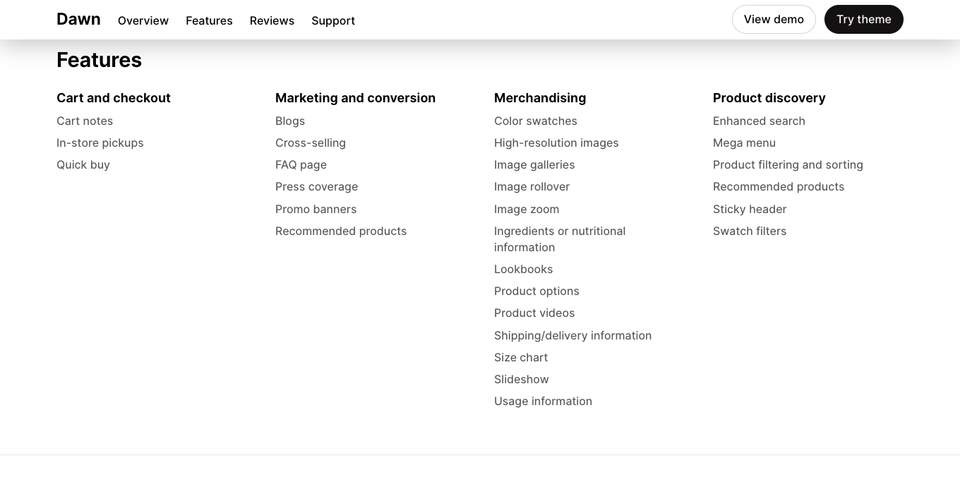
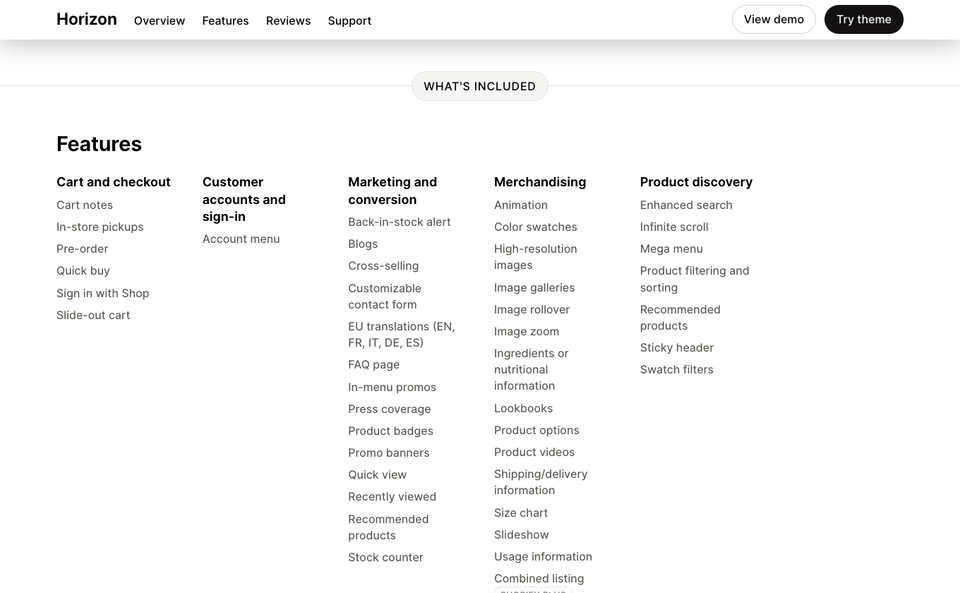
Horizon's listing includes pre-order, slide-out cart, back-in-stock alert, quick view, product badges, recently viewed, account menu and Sign in with Shop. We did not find those on Dawn's listing. That does not prove Dawn cannot do them with an app or code. It means that, out of the box, the listing does not promise them.
Where the two differ most is how you build. Shopify's Help Center says blocks that support nesting can go up to eight levels deep, and that a section accepts either theme blocks or section blocks, not a mix of both. Horizon-collection themes are built around nested theme blocks. If you want to design your own home page layout in the editor, that matters. If you just want a plain store that looks like a normal Shopify store, Dawn does the job. We cover Dawn's editor work in our Dawn customization guide, and the section and block model in our sections and blocks explainer.
What "free" includes
The theme and its updates
You add a free theme from the Online Store page in your admin (it lands in Draft themes), then publish it when ready. Shopify's Help Center says that if you install any free or paid theme from the Theme Store, you can add its updated versions to your draft themes for free when they come out.
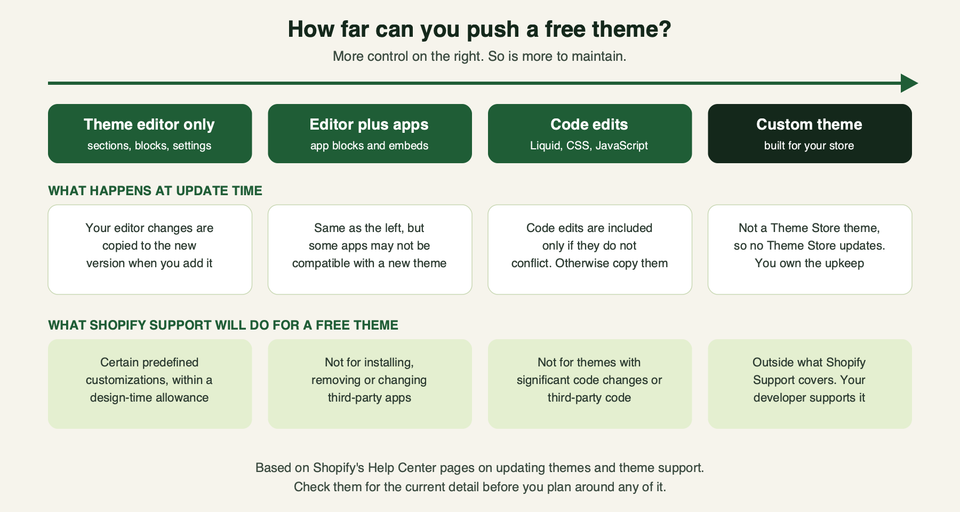
Updating is manageable, but not automatic. Shopify's Help Center says upgrading a theme can be complex and that some apps might not be compatible with a new theme. Theme editor changes (settings, sections, blocks, templates, app embeds) are copied to the updated version. Code edits come across only if they do not conflict with the update. If a new feature needs a new theme architecture, it will not be applied to your old theme, so you would add a different theme to get it.
Support
The support route is part of what you get with a free theme, and it is narrower than many people assume:
- Shopify Support may help with certain predefined customizations on free Shopify themes.
- On the Basic plan or higher you can use up to 60 minutes of complimentary design support, tracked in 15-minute steps.
- Shopify Support does not write custom code or make arbitrary code changes. The Help Center also lists things it cannot help with: editing checkout, themes with significant code changes, third-party apps and third-party code, adding new fonts, and editing images.
For the current rules, read Shopify's theme support page.
Plan limits
If you are on the Starter plan, you can only add the Spotlight theme. Stores on Basic, Grow and Advanced can add up to 20 themes, so you can test several side by side. The Help Center also says you can generate a free personalized theme with AI, from the Shopify app or a mobile browser rather than the desktop admin.
Layout limits
Per the Help Center, each template can have up to 25 sections and up to 1,250 blocks in total. Most stores never get near that, but it tells you the editor is not the limit for a normal store.
Where free themes stop
None of this is a flaw. It is what you get for no theme fee. Know it before you plan around it.
- Your store will look like other stores. A free theme is open to every store, so others can use the same one. Photography, copy, color and type choices do the differentiating. If brand design is your edge, plan for more than a theme swap.
- Customization depth ends at the editor and your code skills. The editor lets you change settings, rearrange sections and blocks, and use dynamic data. Anything beyond that needs code. Shopify Support will not take that on, as above.
- Features come from the theme or from apps. If your listing does not show a feature you need (say, bundles, a custom size guide, or complex filtering), that is an app or a code job. Apps add weight, which brings us to speed.
- Support is thin for code. Free themes get predefined customizations and a design-time allowance. They do not get a developer who will tune your theme for you.
How to test a theme with your own products
Demo stores use photography and short product names chosen to flatter the theme. Your catalog will not. So test on your own.
- Shortlist two or three. Use the feature list on each listing, the catalog-size tag and the demo. Read the written reviews on the listing for repeat complaints rather than a single bad day.
- Add them as drafts. From Online Store in your admin, add each free theme. You can preview up to your plan's theme limit and can customize a theme while previewing.
- Load your hardest products. Use the one with the longest title, the one with the most variants, one with no second image, and one with a big description. Themes that look great with five clean products often wobble here.
- Build your real navigation. Add your actual menu depth, your actual collection filters and your actual tags. Mega menus and filters show their weaknesses fast.
- Add the apps you already know you need. Reviews, subscriptions, bundles. Check that each app's block or embed can sit where you need it. A theme can support app blocks and still not give the app a good spot.
- Use your phone. Do the whole flow: home, collection, product, cart. Do it on a mid-range handset on mobile data, not just on your laptop.
- Check the basics of accessibility. Tab through the header and product form with the keyboard, and zoom the text. Our accessibility guide covers what to look for.
- Measure speed (below), then decide.
If you want a second opinion on a shortlist before you commit to months of content work, talk to us. Choosing a theme is cheap. Rebuilding on the wrong one is not.
How to check speed on a free theme
Two numbers get confused here, so separate them.
What Shopify requires of every Theme Store theme. Shopify's theme requirements say a theme needs a minimum average Lighthouse performance score of 60, and an accessibility score of 90, across the home, product and collection pages, on both desktop and mobile. The tests use a benchmark dataset, and the sections must contain real images and content. That is an entry bar, not a promise about your store.
What your store scores. Your store adds your images, your app scripts and your content, and those usually matter more than the theme. Shopify's own performance guidance for themes calls out, among others: never lazy-load the main (LCP) image, remove render-blocking app scripts, and reserve space for app-injected content so the page does not jump.
To test, follow Shopify's own method in Testing for performance:
- Use the preview link of the draft theme and add
?pb=0to each URL so the preview bar does not skew results. - Test a home page, a product page and a collection page.
- Run Lighthouse in an Incognito window, at least three times per URL, and take the median.
- Treat Lighthouse as lab data. Shopify's docs say real-user data is what tells you how real visitors fare, and that lab scores can differ a lot from it. Real-user data can be thin on a new store, so use lab runs to compare themes and the Shopify Web Performance Dashboard to watch the live store later.
Run the test twice: once on the bare theme with your products, then again with your must-have apps installed. The gap between the two is the real cost of your setup. For fixes once you are live, see our theme performance guide.
A note on "Built for Shopify": that is Shopify's quality program for apps, according to shopify.dev. We found no equivalent badge for themes on the pages we read. For a theme, the signals to use are the Theme Store listing, the Lighthouse floor above and your own tests.
When to move to a paid or custom theme
Stay on a free theme while it does what you need with the editor and a few apps. Consider a move when one of these is true.
- You keep paying for features the theme lacks. If you stack app on app to fake something a different theme does natively, speed and cost both suffer.
- Your code edits are growing. Once you are carrying custom Liquid and CSS across updates, the "free" theme is a maintenance project.
- Your brand needs a layout no free theme offers. A paid theme gives you more choice. A custom build gives you exactly your layout.
- Your product pages need real logic. Complex bundles, configurators, or per-market behaviour are theme-level work.
- You are scaling and need fewer surprises. At that point, a theme built around your catalog and your content model removes a lot of rework.
Know the trade between the two options:
| Free Shopify theme | Paid Theme Store theme | Custom theme | |
|---|---|---|---|
| Who makes it | Shopify | Third-party designer | Built for your store |
| Where support comes from | Shopify Support, for predefined customizations | The theme developer, who does not do customizations | Whoever built it |
| Updates | Added to drafts from the Theme Store | Added to drafts from the Theme Store | You own them |
| License | Free to add | Licensed to the one store it was bought for | Yours |
| Best for | Launch, testing a market, simple catalog | A distinct design without a build | A distinct design and specific functions |
If a paid theme is on your list, check its support route before you buy. Shopify's Help Center says third-party theme developers do not provide customizations and that you can hire a Shopify Partner for that. Our theme selection guide goes deeper on paid options. For the custom route, read our custom theme development guide.
Frequently asked questions
Are Shopify free themes really free?
Yes. There is no charge to add a free theme from the Theme Store, and updates for Theme Store themes are free to add. Your plan, apps and any developer time are separate costs.
Which free Shopify theme is best?
None is best for everyone. On Starter, Spotlight is your only free option. Otherwise, test Dawn against Horizon first: Horizon if you will build custom layouts, Dawn for the plain baseline. The other themes are tuned to a style or catalog type, so shortlist two or three from the tables above and test them on your own products.
Can I use a free theme on the Starter plan?
Only Spotlight. Shopify's Help Center says stores on the Starter plan can only add the Spotlight theme. Stores on Basic, Grow and Advanced can add up to 20.
Do free themes get updates?
Yes. When a new version of a Theme Store theme is released, you can add it to your drafts for free. Your editor changes are copied over, and code edits carry over only if they do not conflict.
Will a free theme slow my store down?
Every Theme Store theme must clear Shopify's Lighthouse performance floor of 60, but the floor is low and your store adds its own weight. Apps and images are the usual culprits. Test the bare theme and the theme with your apps, as above.
Can I edit the code of a free theme?
You can edit theme code, but Shopify Support will not help with significant code changes or third-party code. Keep a copy of your changes and know that updates may not carry them over.
What happens to my content if I switch themes later?
Your products, pages and orders live in your admin, not in the theme. Layouts and settings you build in the editor belong to each theme, so expect to rebuild them in a new one. Your old theme stays on the Themes page, so you can compare side by side.
When should I hire someone instead of using a free theme as is?
When you need something the editor cannot do, such as custom product-page logic, a layout no listing offers, or changes that would put your theme outside Shopify Support. A developer can also review a shortlist before you commit. Get in touch if you want that.