Shopify Sections and Blocks Explained
A Shopify page is built from a JSON template, or a section group for the header and footer, that lists sections in order. Each section is a Liquid file with a schema, and inside it merchants add, remove and reorder blocks. Blocks come in three kinds: section blocks, theme blocks that can nest, and app blocks supplied by installed apps.
A Shopify page is assembled from a JSON template (or a section group for the header and footer) that lists sections in order. Each section is a Liquid file with a {% schema %} tag. Inside a section, merchants add, remove and reorder blocks, and blocks come in three kinds: section blocks, theme blocks (which can nest), and app blocks.
This guide is for store owners who want to understand what the theme editor is doing, and for developers who build or edit themes. We rewrote it and checked every fact against Shopify's documentation on 17 October 2026. It does not retell the history of Online Store 2.0, which our Online Store 2.0 guide covers, or teach Liquid itself, which our Liquid guide does.
How one page is assembled
Four layers decide what a visitor sees.
- A layout (usually
layout/theme.liquid) is the frame around every page. - Section groups fill the parts of the frame that repeat, normally the header and footer.
- A template fills the middle. A JSON template is a data file that lists which sections appear and in what order.
- Sections hold the markup and settings, and blocks are the smaller pieces merchants arrange inside a section.
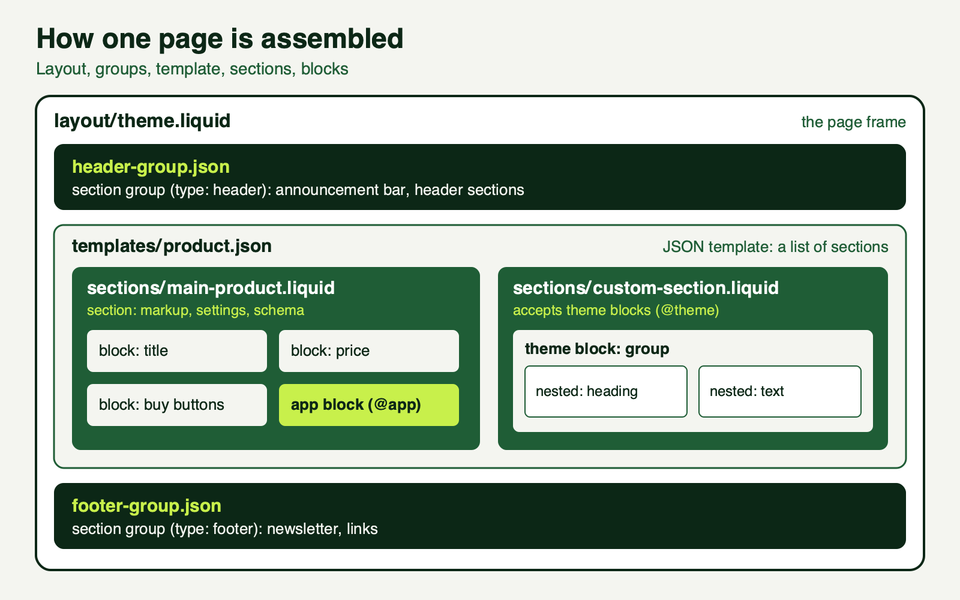
Because the sections and blocks in a template are plain data, merchants can change them in the editor without touching code.
JSON templates, section groups and static sections
JSON templates
A JSON template has two required keys. sections is an object whose keys are section IDs, and order is the list of those IDs in render order. Each section entry names its type (the section's filename without the extension), its settings, its blocks, and a block_order. Here is a small product template:
{
  "sections": {
    "main": {
      "type": "main-product",
      "settings": {}
    },
    "faq": {
      "type": "faq-list",
      "blocks": {
        "q1": {
          "type": "question",
          "settings": { "question": "Do you ship worldwide?", "answer": "<p>Answer goes here.</p>" }
        },
        "q2": {
          "type": "question",
          "settings": { "question": "How do I care for it?", "answer": "<p>Answer goes here.</p>" }
        }
      },
      "block_order": ["q1", "q2"]
    }
  },
  "order": ["main", "faq"]
}
Shopify renders the sections in order with no markup between them. A section marked "disabled": true is skipped on the page but can still be edited. The template can also name a different layout, or false to render without one (those pages can't be customised in the editor).
Section groups
A section group is the same idea for the parts of a layout that repeat. It is a JSON file in sections/ with a type (header, footer, aside, or custom.<name>), a name, sections and order. You put it in the layout with the sections tag:
{% sections 'header-group' %}Shopify says that in most themes section groups should cover the header and footer only. Merchants can add, remove and reorder sections inside a group, which is how an announcement bar ends up above the header without a code change. When a merchant adapts a group for a market or for B2B, Shopify writes a separate contextual file such as header-group.context.ca.json that holds only the overrides.
Static and dynamic sections
A dynamic section is one listed in a JSON template or section group. Merchants control it. A static section is rendered straight from Liquid with {% section 'featured-product' %}. Merchants can't remove or reorder it, and there is only one instance of it across every place it is rendered, so a settings change in one place changes all of them. Shopify's advice is to avoid static sections wherever you can and to migrate old ones to section groups. Its migration guide copies the merchant's existing static settings across during a theme update.
Sections and their schema
A section file lives in sections/ and has three parts: markup (HTML and Liquid), optional assets ({% stylesheet %} and {% javascript %} tags), and the schema. The schema is required. Each file can have exactly one {% schema %} tag, containing only valid JSON, and it can't sit inside another Liquid tag. Two schema tags, or a nested one, is a syntax error.
The schema keys that matter
| Key | What it does |
|---|---|
| name | The title in the editor. Shopify's limits page caps schema names at 25 characters. |
| tag | The wrapper element. One of article, aside, div, footer, header, section. The default is a div with id="shopify-section-[id]". |
| class | Extra classes added to the wrapper, after shopify-section. |
| limit | Set to 1 or 2 to restrict how often the section can be added. |
| settings | Section-wide options. Every setting id must be unique in the section. |
| blocks | The blocks the section accepts (see below). |
| max_blocks | Lowers the default cap of 50 blocks. |
| presets | Ready-made starting points. Without one, merchants can't add the section from the editor. |
| default | Starting configuration for a section you render statically. |
| enabled_on / disabled_on | Limit the section to, or exclude it from, certain templates and groups. Use one, not both. |
| locales | Translations that travel with the section. |
A worked example
This is a complete FAQ section using section blocks. We wrote it for this guide and the structure follows the schema reference.
<section class="faq">
  {% if section.settings.heading != blank %}
    <h2>{{ section.settings.heading }}</h2>
  {% endif %}

  {% for block in section.blocks %}
    {% case block.type %}
      {% when 'question' %}
        <details {{ block.shopify_attributes }}>
          <summary>{{ block.settings.question }}</summary>
          {{ block.settings.answer }}
        </details>
    {% endcase %}
  {% endfor %}
</section>

{% schema %}
{
  "name": "FAQ list",
  "tag": "div",
  "class": "faq-wrapper",
  "settings": [
    { "type": "text", "id": "heading", "label": "Heading", "default": "Questions" }
  ],
  "blocks": [
    {
      "type": "question",
      "name": "Question",
      "settings": [
        { "type": "text", "id": "question", "label": "Question" },
        { "type": "richtext", "id": "answer", "label": "Answer" }
      ]
    }
  ],
  "max_blocks": 12,
  "presets": [
    {
      "name": "FAQ list",
      "blocks": [{ "type": "question" }, { "type": "question" }]
    }
  ],
  "enabled_on": { "templates": ["product", "page"] }
}
{% endschema %}
Points worth copying from it:
{{ block.shopify_attributes }}goes on the block's top element. The theme editor uses it to find the block.- A setting with the
idheading,titleortextbecomes the block's title in the editor sidebar. We usedquestion, so blocks show as "Question". Rename it totitleif you want the sidebar to show the actual question. - Never compare
block.idto a literal string, because IDs are generated and can change. Branch onblock.type.
The three kinds of block
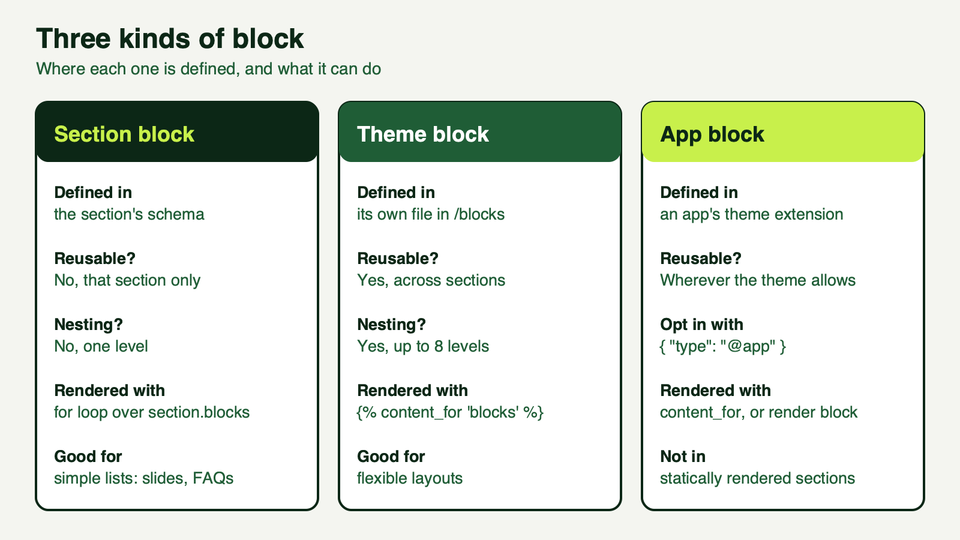
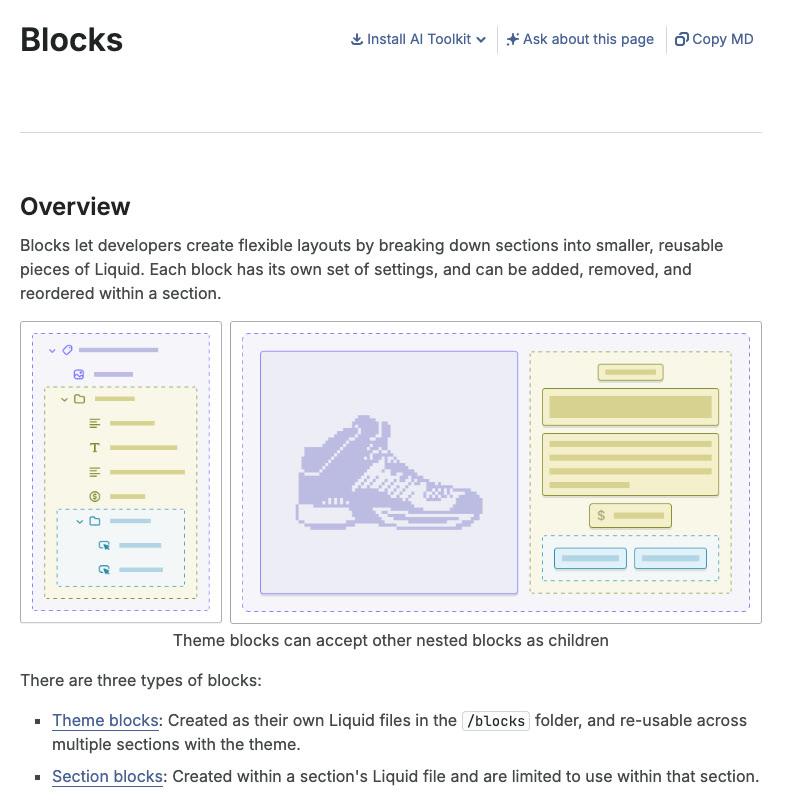
Section blocks are defined in the section's own schema, as in the FAQ example. They work only in that section and can't nest. Theme blocks are their own Liquid files in /blocks, usable across sections and able to contain other blocks. App blocks come from apps installed on the shop.
One rule catches people out: a section either defines blocks locally or opts in to theme blocks, but not both. Shopify's docs and the Help Center both say so. If you want to change an older section to theme blocks, you convert its blocks, you don't add to them.
Theme blocks, nesting and static blocks
A theme block and a section that accepts it
A theme block is a file in /blocks with markup and a schema. It reads its own settings through the block object. Here is a card block, then a section that holds cards:
<h3>{{ block.settings.heading }}</h3>
{{ block.settings.text }}

{% schema %}
{
  "name": "Card",
  "tag": "article",
  "class": "feature-card",
  "settings": [
    { "type": "text", "id": "heading", "label": "Heading", "default": "Free returns" },
    { "type": "richtext", "id": "text", "label": "Text" }
  ],
  "presets": [{ "name": "Card" }]
}
{% endschema %}
<div class="feature-columns" style="--columns: {{ section.settings.columns }}">
{% content_for 'blocks' %}
</div>
{% schema %}
{
"name": "Feature columns",
"settings": [
{ "type": "range", "id": "columns", "label": "Columns", "min": 1, "max": 4, "step": 1, "default": 3 }
],
"blocks": [{ "type": "_card" }, { "type": "@app" }],
"presets": [
{ "name": "Feature columns", "blocks": [{ "type": "_card" }, { "type": "_card" }, { "type": "_card" }] }
]
}
{% endschema %}{% content_for 'blocks' %} renders every block the merchant has added, in the order stored in the template. Three details do the work:
- Presets make a theme block selectable. A theme block appears in the block picker only if it defines
presets. Each preset can also include child blocks, which is how you ship ready-made nested layouts. @themeand named types control availability.{ "type": "@theme" }accepts every theme block. Naming a block ("type": "_card") accepts only that one. By default a block with presets is offered everywhere.- The underscore prefix makes a block private. A file such as
_card.liquidis left out of the picker for@themesections and appears only where a schema names it. Use this for pieces like slides that make sense in one section.
To nest, give a theme block its own blocks array, for example [{ "type": "@theme" }, { "type": "@app" }], and render children with {% content_for 'blocks' %}. Shopify allows 8 levels of nesting, not counting the section. Our view: stop at two or three. Every extra level is another thing a merchant can rearrange into something that looks wrong.
Theme blocks also differ from snippets. They show settings in the editor and can read their parent section and global objects, but they can't receive variables from the code that renders them. Use snippets for repeated markup and blocks for things merchants should edit.
To feature favourites in the picker, put @theme in the blocks array and name your favourite blocks after it. The named ones show first and the rest sit behind "Show all".
Static blocks
A static block is rendered in a fixed place by the theme author, with an id you choose:
{% content_for 'blocks' %}

{% if section.blocks.size > 1 %}
  {% content_for 'block', type: '_slideshow-controls', id: 'controls' %}
{% endif %}
Merchants can hide and customise a static block, but not drag, remove or duplicate it. Because it is plain Liquid, you can render it inside an if or a loop, and you can pass your own parameters (color: "#111", read in the block as {{ color }}). Static blocks also don't count toward the section's block limit.
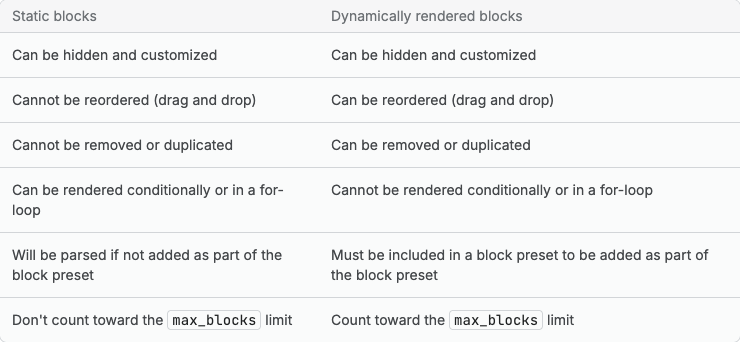
In saved JSON, static blocks carry "static": true and don't appear in block_order, because merchants can't reorder them.
Dynamic sources
Theme block settings can be connected to data such as the product on the page, a metafield or a metaobject. Inside a nested block you often don't know where the data came from, so Shopify provides a closest access path that finds the nearest resource of a type, whether it came from the template, the section or a parent block. If you use metafields for this, see our metafields guide.
App blocks
App blocks let an app put content in a theme without editing theme code. They are built with theme app extensions. To accept them, add a generic entry to the section or theme block schema:
"blocks": [{ "type": "@app" }]Rules that matter:
@appblocks can't take alimit. Adding one is an error.- They aren't supported in statically rendered sections.
- A theme block or section using
content_for 'blocks'renders them automatically. A section that loops over its own blocks must handle the type itself:{% when '@app' %}{% render block %}. - If a merchant adds an app as its own section, Shopify wraps it in an
apps.liquidsection. You can supply your own. It must accept@appblocks, have a preset, and not use thetemplatesattribute. If you have noapps.liquid, Shopify looks for_blocks.liquid, which should accept both@themeand@app.
Shopify's advice is to offer app blocks where an app can genuinely help the purchase decision, such as a product page, and not in a layout that would break when an unexpected block turns up.
What shipped and when
| Date | What changed | Source |
|---|---|---|
| 31 January 2024 | Theme blocks announced in developer preview, with nesting up to 8 levels | Shopify Partners blog |
| 21 May 2025 | Recommended blocks in the picker, block previews, parameters for static blocks | Changelog: recommended blocks, block previews, static block parameters |
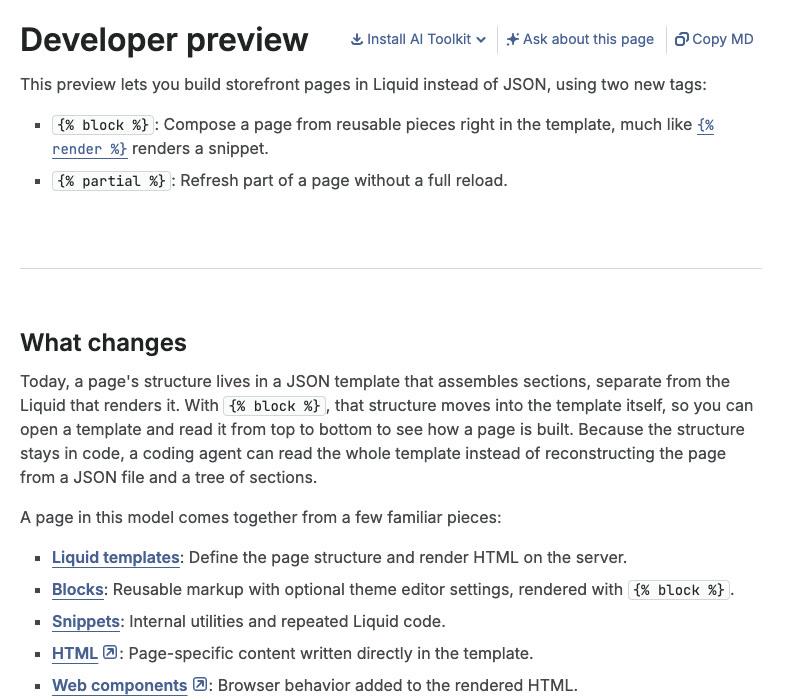
| 21 July 2026 | Liquid July '26 developer preview adds {% block %} and {% partial %} | Changelog |
We could not find a dated announcement saying theme blocks left preview. Shopify's current docs and Help Center present them as a normal feature, with no preview caveat. Treat any exact "general availability" date you read elsewhere with caution.
The newest item is the one to watch. The Liquid July '26 preview lets a template compose a page directly with {% block %} instead of listing sections in JSON. Shopify says existing themes keep working with sections, theme settings and JSON templates, and that tag behaviour can change before general availability. Don't rebuild a live theme around it yet.
Limits, and what to avoid
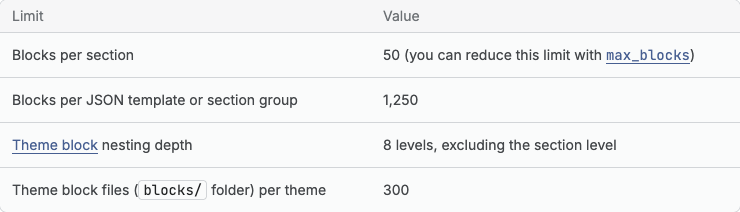
| Limit | Value |
|---|---|
| JSON templates per theme | 1,000 |
| Sections per JSON template or section group | 25 |
| Section groups per theme | 20 |
| Section or block schema name | 25 characters |
| JSON template or section group file | 512 KB |
| Other Liquid files | 256 KB |
Going over a limit gives an error in the editor or when the theme is saved or uploaded. Every .liquid file in /blocks counts toward the 300 theme block files, including unused ones and AI-generated blocks.
What to avoid, drawn from the docs and our own work on themes:
- Static sections for content merchants will want to move. Use a template or section group.
- Mixing section blocks and theme blocks in one section. Pick one.
- Sections with no preset. They can't be added in the editor, and a section added by hand can't be removed there.
- Hard-coded block IDs. Branch on
block.type. - Duplicate IDs. Setting IDs must be unique in a section or block, and block types and names unique in a section.
- A block with
"tag": nulland no{{ block.shopify_attributes }}. The editor can't find it. - JavaScript that only runs on page load. The editor re-renders sections in place. Listen for
shopify:section:loadandshopify:section:unload, and useShopify.designModeorrequest.design_modeto detect the editor. - Adding your own custom CSS setting. Shopify exposes one in the editor and says theme developers shouldn't add or edit it.
- Deep nesting and over-granular blocks. Shopify's example: author, date and comment count belong in one block or in settings, not three blocks.
Related reading: best practices for theme customisation, customising Dawn and theme performance.
Frequently asked questions
What is the difference between a section and a block?
A section is a Liquid file that forms a full-width part of a page, and it is added to a template or section group. A block is a smaller piece inside a section, such as a heading, a button or a slide. Sections are arranged at the template level, and blocks are arranged inside a section.
Can I use section blocks and theme blocks in the same section?
No. Shopify's documentation says a section can define blocks locally or opt in to theme blocks, but not both at once. A theme can contain some sections of each kind. If you want theme blocks, move the section's blocks into /blocks and accept them with @theme or named types.
Why doesn't my section appear in the Add section list?
Usually the section has no presets in its schema, or its enabled_on or disabled_on setting excludes the current template. Sections without presets must be added to the JSON file by hand and then can't be removed in the editor. Check the schema is also valid JSON with a single schema tag.
Do app blocks work in every section?
No. A section or theme block must include { "type": "@app" } in its schema, and statically rendered sections can't take app blocks. Whether an app block is available also depends on what the app itself provides. Merchants can still add an app as its own section, wrapped by apps.liquid.
Will the new block and partial tags replace sections?
Shopify hasn't said so. The July 2026 developer preview adds the tags alongside the current model and states that sections, theme settings and JSON templates keep working. It is a preview and the behaviour can change, so keep building production themes on sections and blocks.
How do I know if my theme uses theme blocks?
Open the theme's code editor from the Online Store page and look for a blocks folder in the sidebar. The Shopify Help Center says that folder means the theme supports theme blocks. Your theme's documentation should also say. Some sections in the same theme may still use section blocks.
Where we can help
We build and maintain Shopify themes, including custom sections and theme blocks that merchants can edit without a developer. If you want a section built properly, an old theme moved to blocks, or an audit of what your editor allows, see our services or get in touch. You may also like our overview of custom theme development.