Shopify Dawn Theme Customization: A Practical Guide
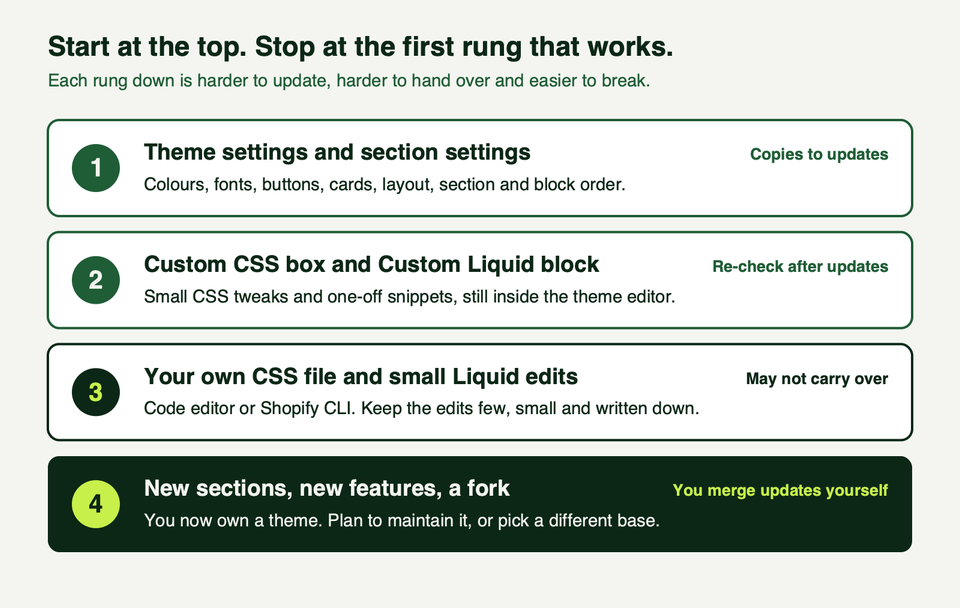
Dawn is Shopify's free reference theme, maintained by Shopify and free to use on any store. Most changes belong in the theme editor, small ones in custom CSS, and only the leftovers in code. Work on a duplicate, preview it, publish it, and keep edits few, because every code edit is something you must carry through future theme updates.
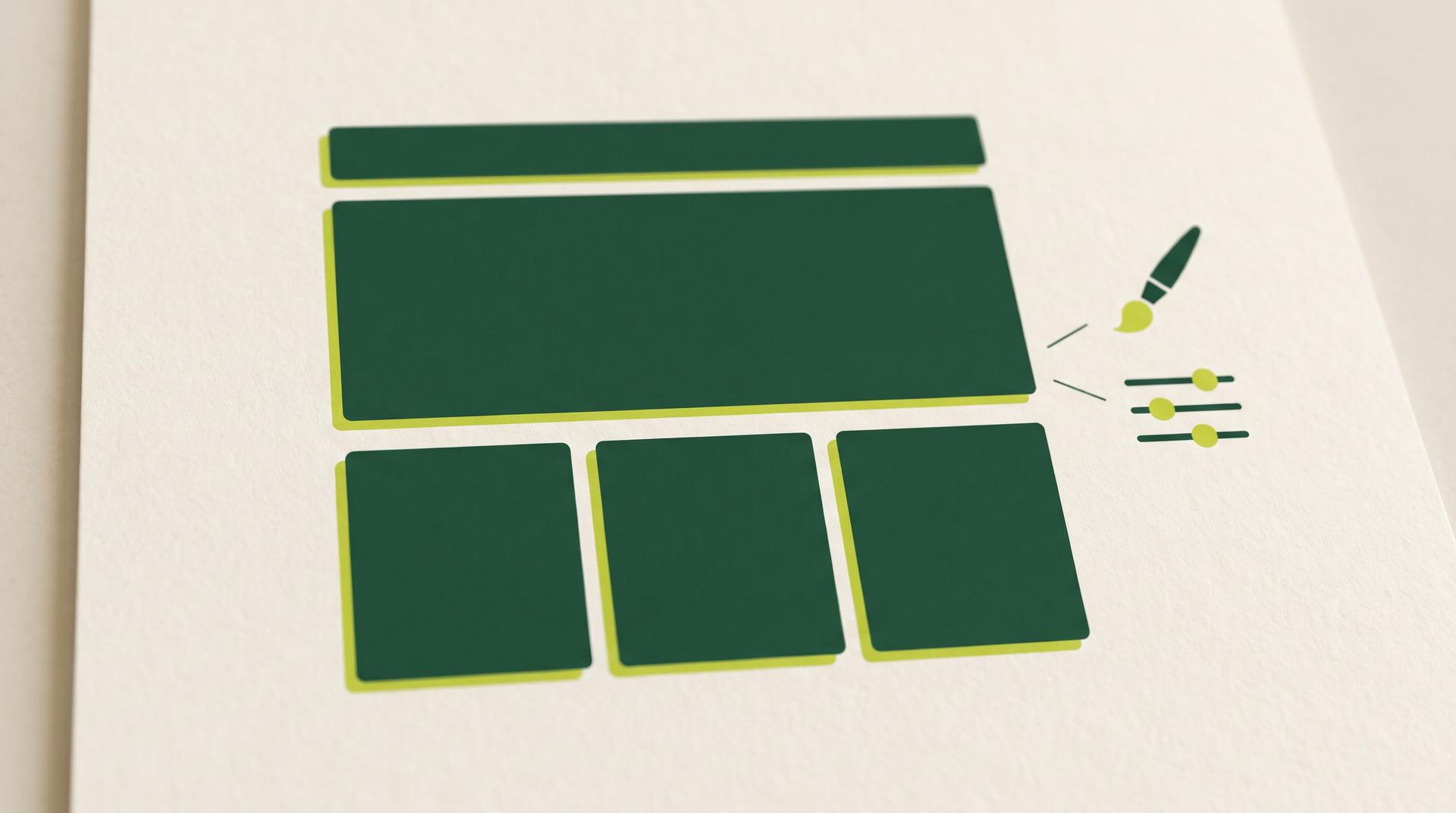
Dawn is Shopify's free reference theme, and you can customize most of it without writing code. Use the theme editor first, the custom CSS boxes second, and your own code last. Do all of it on a duplicate of your live theme, so a mistake never reaches customers and a rollback is a single click.
This guide is for store owners who have just picked Dawn and for developers who inherit a Dawn store. We rewrote it and checked it on 17 October 2026. Dawn changes a few times a year, so the dates matter.
What Dawn is in October 2026
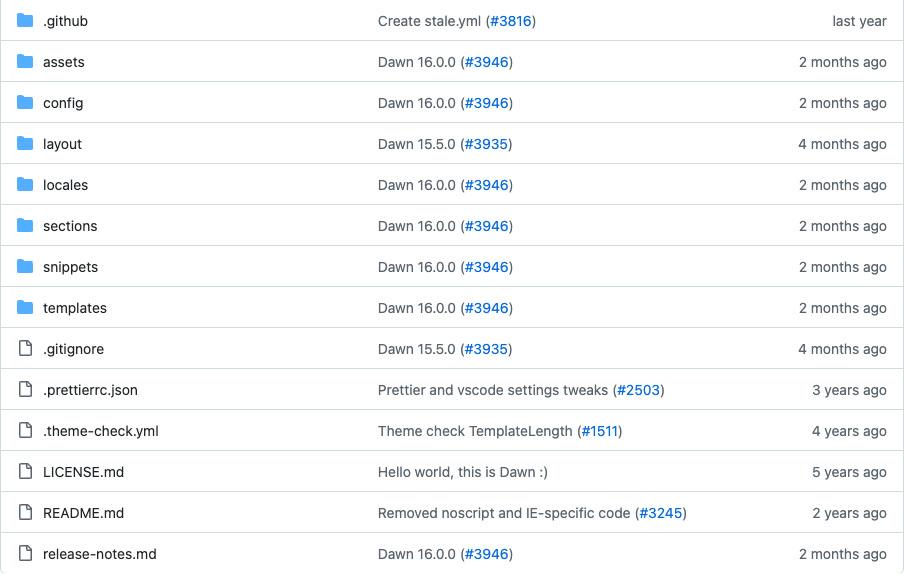
Dawn is a free theme made by Shopify. Its README calls it Shopify's first source available reference theme, with an HTML-first, JavaScript-only-as-needed approach.
Who maintains it, and what "source available" means
Shopify makes and maintains Dawn: the Theme Store lists Shopify as its designer, and the public repository at github.com/Shopify/dawn lives in Shopify's own GitHub organization. The README also welcomes pull requests.
Read the licence before you copy code out of it. The LICENSE.md allows use, modification and distribution, but only to develop themes that integrate with Shopify software or services, and to distribute those themes through the Theme Store. That is why it is called source available, not open source. For a store owner this changes nothing. For anyone building a product on top of Dawn, it matters.
Versions: what the repository and the Theme Store say
On 17 October 2026 the two public sources showed different versions.
| Source | Version | Date |
|---|---|---|
| GitHub release and settings_schema.json on main | 16.0.0 | 10 August 2026 |
| Theme Store listing | 16.1.0 | 9 October 2026 |
The README explains it: main may hold code for features not yet released, and the stable version is the one in the Theme Store. We found no 16.1.0 tag in the repository. Treat the Theme Store as the version merchants receive.

A short history of the recent releases, from the GitHub releases page:
- 15.5.0 (19 June 2026): standard storefront events, so apps, agents and AI tools can interact with the cart without a page reload, plus a product disclosures section and block.
- 16.0.0 (10 August 2026): the header account icon opens Shopify's customer account popover, and the legacy customer account templates are removed. Stores on legacy customer accounts must upgrade before publishing this version.
- 16.1.0 (9 October 2026, Theme Store): product disclosures show only to buyers in the jurisdictions they apply to.
How a Dawn theme is organised
Shopify's theme architecture page describes the standard layout, and Dawn follows it.
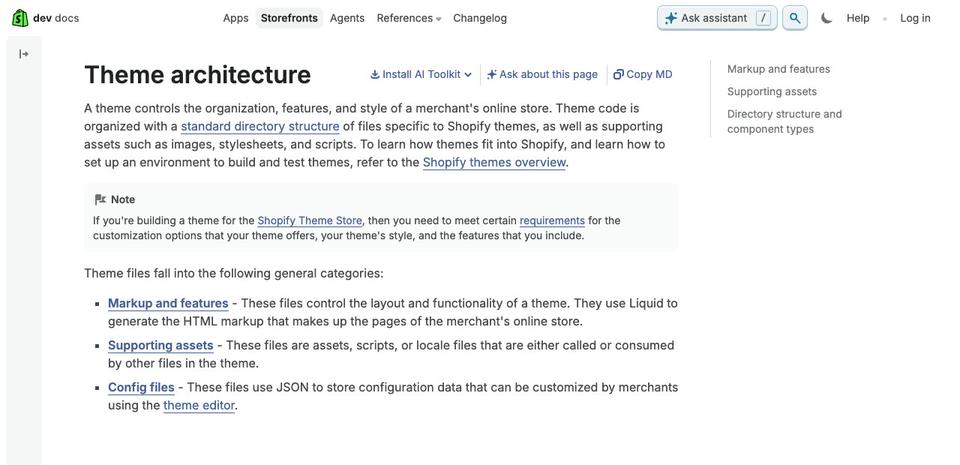
| Folder | What it holds | Typical reason to touch it |
|---|---|---|
| layout | theme.liquid, the wrapper around every page | Load a custom stylesheet or script |
| templates | JSON files listing which sections each page uses | Rarely by hand; the editor writes them |
| sections | The building blocks of each page | Change how a section renders, or add one |
| snippets | Small reusable pieces, such as product cards and price | Change a card or a badge |
| assets | CSS, JavaScript and images | Add custom.css |
| config | Theme settings and their saved values | Avoid editing settings_data.json by hand |
| locales | Translations of every visible string | Change wording, add a language |
Two details matter. A JSON template can render up to 25 sections, each with up to 50 blocks (JSON templates). And Dawn's repository has no blocks folder: its blocks are defined inside each section file. Our guide to sections and blocks covers the model.
What you can change in the theme editor
The editor is the right tool for most requests. What you change there is stored as data, in config/settings_data.json and the template files.

Theme settings
Dawn's settings_schema.json defines these groups, which appear in the editor under Theme settings:
- Logo, colors, typography, layout and animations
- Buttons, variant pills, inputs, badges, popups and drawers
- Product, collection and blog cards, content containers and media
- Brand information, social media, search, currency format, cart and customer accounts
Colors work through color schemes. Dawn writes each scheme into CSS custom properties such as --color-background, --color-foreground and --color-button, and every section picks a scheme. So the cleanest way to rebrand Dawn is to edit the schemes once, not to override colors in CSS.
Section and block settings
Each section has its own settings, such as alignment, padding and color scheme, and you can add, remove, hide and reorder sections on every template. All of this is copied into updated theme versions (updating themes).
Shopify's help page says Sidekick can adjust colors, fonts and layout settings from inside the editor.
The two code-shaped boxes inside the editor
Dawn gives you two places for code without opening a file:
- Custom CSS. Theme settings has a Custom CSS box for the whole theme, and each section has its own at the bottom of its panel. Shopify's custom CSS page lists the limits: 1,500 characters for theme-wide rules, 500 for a single section, no
@import, and nocontentproperty. It is also not applied on the checkout page. - Custom Liquid. Dawn has a Custom Liquid section, and its product page has a Custom Liquid block. Both accept Liquid and HTML.
A safe workflow: duplicate, preview, publish, roll back
Shopify's help pages advise making a backup copy before you customize a theme, so you can discard changes and start again. Make that a rule.
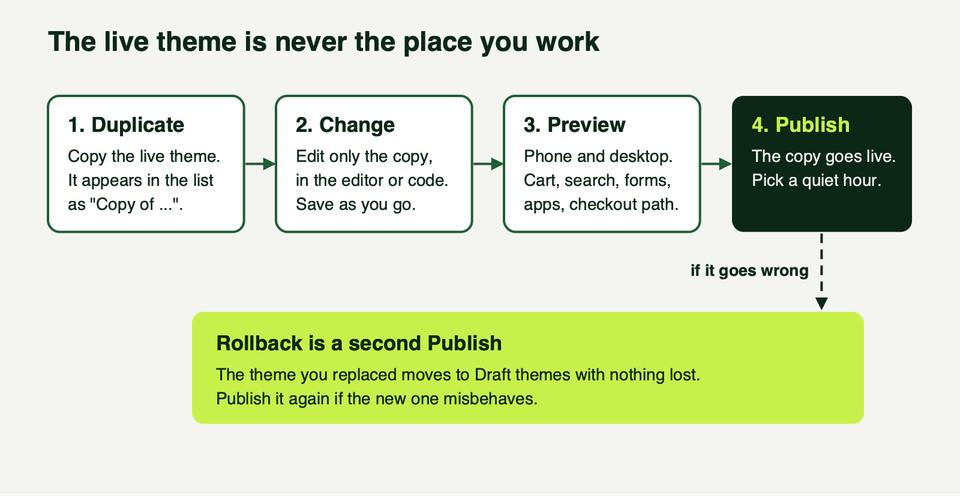
- Duplicate. In Online Store, open the actions menu on the live theme and choose Duplicate. The copy is named Copy of plus the theme name (duplicating themes). A store can hold 20 themes, so delete an old one if you are at the limit. Deleting is permanent, so download it first if you might want it.
- Change the copy. Use the editor or the code editor. In the code editor, each file has a Timeline view that restores one earlier version of that file. It does not restore a whole theme, and history is finite (editing theme code).
- Preview. Check phone and desktop, then run the real paths: add to cart, change a variant, search, a contact form, each installed app, and the route to checkout.
- Publish. Only one theme is live at a time. When you publish, the previous theme moves to Draft themes, and none of your changes are lost (publishing themes).
- Roll back if needed. Publish the previous theme again.
For developers: Shopify CLI and Git
If you work in code, use Shopify CLI instead of the browser editor. A development theme is a temporary, hidden copy that reloads CSS and section changes as you save, and it does not count towards the 20-theme limit.
# Pull a copy of the theme you want to work from
shopify theme pull --store your-store.myshopify.com

# Preview your local changes against real store data
shopify theme dev --store your-store.myshopify.com

# Lint before you push
shopify theme check

# Upload as a new unpublished theme, never over the live one
shopify theme push --unpublished
Pair that with the Shopify GitHub integration, which commits edits made in the admin back to a connected branch. That page notes this cannot be turned off, so plan for merchants' editor changes to arrive as commits.
CSS changes worth making
Most Dawn stores need a small stylesheet. Settings already cover radius, shadows, spacing and colors, so write CSS only for what settings cannot do. For the wider subject, see our CSS guide and theme customization best practices.
For anything over a few lines, use a file. Create assets/custom.css, then load it just before </body> in layout/theme.liquid. Dawn loads several component stylesheets from inside its sections, below the <head>, so a link in the head can lose a tie on specificity:
{{ 'custom.css' | asset_url | stylesheet_tag }}First, long product titles break the rhythm of a grid. This keeps cards level:
/* assets/custom.css */
.card__heading {
  display: -webkit-box;
  -webkit-line-clamp: 2;
  -webkit-box-orient: vertical;
  overflow: hidden;
}
We tested this on the public Dawn demo store with a deliberately long title. A title that ran to four lines was cut to two, and Dawn's link overlay still covered the full height of the card, so the whole card stayed clickable. Test your own grid the same way, and mind the order: our check added the rule after Dawn's own CSS, which is where the </body> placement puts it.
Second, a style for a small badge, reusing Dawn's own tokens so it follows the color scheme and the corner radius you chose in the editor:
.ec-save {
  display: inline-block;
  padding: 0.2rem 0.8rem;
  border-radius: var(--badge-corner-radius);
  background: rgb(var(--color-badge-background));
  color: rgb(var(--color-badge-foreground));
  border: 1px solid rgba(var(--color-badge-border), 0.1);
  font-size: 1.2rem;
}
Two habits keep CSS from breaking later. Reuse Dawn's variables (--color-*, --badge-corner-radius, --page-width) instead of hard-coding values, and prefer a setting to an override, because CSS that fights a setting is the first thing to break. Dawn scales the root font size to 62.5% in theme.liquid, so 1rem is about 10px at default settings. Before adding fonts or scripts, read our theme performance guide.
Liquid and section changes worth making
Our Liquid guide covers the language. In Dawn, three kinds of change are common and reasonable.
A conditional note, with no file edit at all
Add a Custom Liquid block to the product page in the editor and paste:
{%- if product.tags contains 'made-to-order' -%}
  <p>Made to order. Please allow extra time before dispatch.</p>
{%- endif -%}
Tag a product made-to-order and the note appears. It is stored with the page template, so it travels with theme updates. For richer product data, such as care notes, use metafields instead of tags.
A savings badge on product cards
This one edits snippets/card-product.liquid, so it is a code change. Place it inside the card's information area, near the price. It works out the percentage from the first available variant:
{%- assign variant = card_product.selected_or_first_available_variant -%}
{%- if variant.compare_at_price > variant.price -%}
  {%- assign pct = variant.compare_at_price | minus: variant.price | times: 100.0 | divided_by: variant.compare_at_price | round -%}
  <span class="ec-save">Save {{ pct }}%</span>
{%- endif -%}
Check products with several variants, because a product can have different compare-at prices per variant. If your store sells in more than one language, move the "Save" text into the locales files and output it with the t filter, as Dawn does for its own strings.
Wording and the footer credit
Many "code" requests are really translation edits. Dawn keeps visible text in locales/en.default.json, so wording changes are safer there than in a section file. The footer credit comes from a powered_by_link output in sections/footer.liquid; we cover it in removing "Powered by Shopify".
Run shopify theme check after any Liquid edit, to catch slips before a customer does.
Adding a new section
Dawn already has banners, image with text, multicolumn, featured collection, collapsible content and a video section. Combine those first, because a page built from existing sections needs no code. When none will do, add a new file in sections/. This minimal strip has a color scheme, padding and up to four message blocks:
{%- style -%}
  .ec-strip-{{ section.id }} { padding-block: {{ section.settings.padding }}px; }
{%- endstyle -%}

<div class="color-{{ section.settings.color_scheme }} gradient ec-strip-{{ section.id }}">
  <div class="page-width">
    {%- for block in section.blocks -%}
      <p {{ block.shopify_attributes }}>{{ block.settings.text }}</p>
    {%- endfor -%}
  </div>
</div>

{% schema %}
{
  "name": "Message strip",
  "tag": "section",
  "settings": [
    { "type": "color_scheme", "id": "color_scheme", "label": "Color scheme", "default": "scheme-1" },
    { "type": "range", "id": "padding", "min": 0, "max": 60, "step": 4, "unit": "px", "label": "Vertical padding", "default": 16 }
  ],
  "blocks": [
    {
      "type": "message",
      "name": "Message",
      "limit": 4,
      "settings": [
        { "type": "inline_richtext", "id": "text", "label": "Text", "default": "Your message here" }
      ]
    }
  ],
  "presets": [ { "name": "Message strip", "blocks": [ { "type": "message" } ] } ]
}
{% endschema %}
The block.shopify_attributes output lets the editor select a block when you click it, and the presets entry puts the section in the editor's Add section list. This file is yours, so Shopify's updates will not touch it, and will not fix it either.
One limit specific to Dawn: its blocks belong to individual sections. Shopify's newer "theme blocks" live in a blocks folder, can be reused across sections and can nest (quick start). Dawn's repository has no such folder today.
How updates reach a customized Dawn
When Shopify releases a new version of a Theme Store theme, you see a notice by the version number in Online Store and choose Add to draft themes (updating themes). Here is what happens next:
- The new version arrives as a draft named Updated copy of, followed by your theme's name. Your live theme is untouched.
- Editor customizations are copied across: theme settings, section layout and settings, new templates, app embeds.
- Code edits are included only if they do not conflict. The theme card then says either that code edits were included or that they could not be.
- If they could not, you must re-apply them by hand. Shopify's help also warns that code changes incompatible with an update are dropped in the new copy (editing theme code).
So the working rule is simple. Every code edit is a debt. Keep a list of them, with the file name and the reason, in a note or a commit message. Before you publish an updated copy, compare it with the old one, check that your CSS selectors still exist, and test the cart and product page again.
Two Dawn-specific warnings. If your store still uses legacy customer accounts, Dawn 16.0.0 and later removes those templates, so upgrade your accounts first. And automated updates exist too, but Shopify says they are for bug and security fixes and do not change look, content or settings.
Developers who keep Dawn in their own repository can follow the README's method: add Shopify's repository as a remote called upstream, then fetch and pull. Expect conflicts in any file you edited, and merge a tagged release, because main can run ahead of the Theme Store.
When Dawn is the wrong base
Dawn is a good default, not always the best choice. Its README says functionality and design default to "no" until a feature earns its place. Consider another base when:
- You need deeply nested layouts. Shopify's Horizon family, listed as free on the Theme Store (version 4.3.0 on 9 October 2026), advertises nested theme blocks on its Theme Store page. We did not open Shopify's launch announcement, so check its page before comparing.
- Your design is far from Dawn's. If most sections need rewriting, you are building a custom theme with extra steps. Read about custom theme development before you start.
- You need features Dawn leaves out and each one means more code to carry through updates.
- You are still comparing. Our guides on free themes and choosing a theme help.
If your store is "Dawn plus 20 code edits," you have already forked it. Treat that as a decision with its own maintenance plan.
Frequently asked questions
Is Dawn really free, and who owns it?
Yes. Dawn is listed as free on the Shopify Theme Store and is made and maintained by Shopify. The source is public on GitHub under a licence that limits reuse to developing themes for Shopify, so it is source available, not open source.
Will my customizations survive a Dawn update?
Editor changes carry over to the updated copy. Code edits carry over only when they do not conflict with the new version, and Shopify tells you which case you are in on the theme card. Always keep a list of your code edits and review the updated draft before publishing.
Can I edit Dawn without knowing code?
Yes, for most things. The theme editor covers colors, fonts, buttons, cards, layout, and the order and content of every section. Shopify's help pages recommend code edits only when an app or the editor cannot do the job, and advise duplicating the theme first.
How do I undo a change that went live?
Publish the previous theme again. When a new theme goes live, the old one moves to Draft themes with nothing lost. For a single file edited in the code editor, the Timeline view can restore an earlier version of that one file, but not a whole theme, and history is limited.
Should I fork Dawn from GitHub or use the Theme Store copy?
For a merchant store, use the Theme Store copy: it receives Shopify's updates through Add to draft themes. Fork from GitHub when a developer team wants Git history, code review and a build process. The main branch may be ahead of the Theme Store, so base work on a tagged release.
Where we can help
We build and maintain Shopify themes, including Dawn stores that have grown past what the editor can do. If you want a careful audit of your code edits, a safe update to the latest version, or a decision on whether to stay on Dawn, see our services or get in touch.