Shopify Theme Performance: A Practical Speed Guide
Most slow Shopify themes are slowed by the same few things: third-party app scripts, a hero image the browser finds too late, images that are bigger than the screen needs, fonts that swap in and shift the page, and JavaScript that blocks taps. Measure with real visitor data first, then fix those in order, and check the result against what visitors actually see.

The fastest way to speed up a Shopify theme is to work in this order: measure with real visitor data, cut third-party scripts, make the hero image easy for the browser to find, serve images at the size the screen needs, reserve space so nothing jumps, and keep JavaScript off the main thread while people tap. Most of that is a handful of attributes and a few deleted apps, not a rebuild.
This guide is for store owners who want to know what to ask a developer, and for developers who have a slow theme on their desk. We rewrote it and checked every claim against Google and Shopify documentation on 17 October 2026. Where we show numbers from a test, they come from one run on one day and are not a promise about your store.
What "fast" means: the three Core Web Vitals
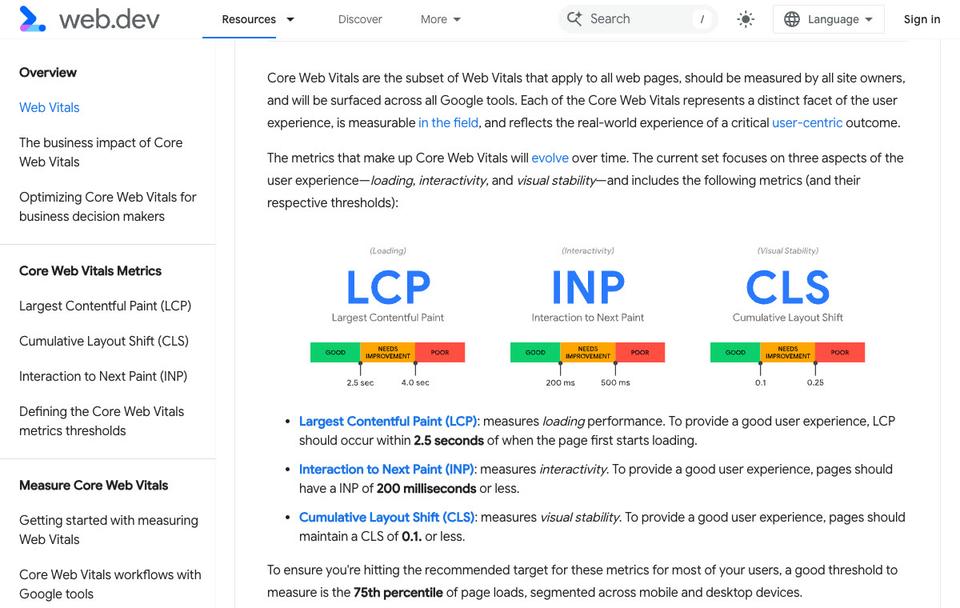
Google's Core Web Vitals are three measurements of real visits. A page passes when it meets the target at the 75th percentile of page loads, segmented across mobile and desktop, for all three (web.dev, Web Vitals).
| Metric | What it measures | Good | Poor |
|---|---|---|---|
| Largest Contentful Paint (LCP) | How soon the main content appears | 2.5 seconds or less | More than 4 seconds |
| Interaction to Next Paint (INP) | How quickly the page responds to taps and clicks | 200 milliseconds or less | More than 500 milliseconds |
| Cumulative Layout Shift (CLS) | How much the layout jumps around | 0.1 or less | More than 0.25 |
The good and poor lines above are the ones PageSpeed Insights documents and web.dev shows in its own chart. Anything between is "needs improvement". INP is the responsiveness metric that replaced First Input Delay, and web.dev lists all three as stable.
So one fast test run says little. A store can fail because its slowest quarter of visitors, often on older phones, has a bad time while your own laptop looks fine.
Measure first: field data and lab data
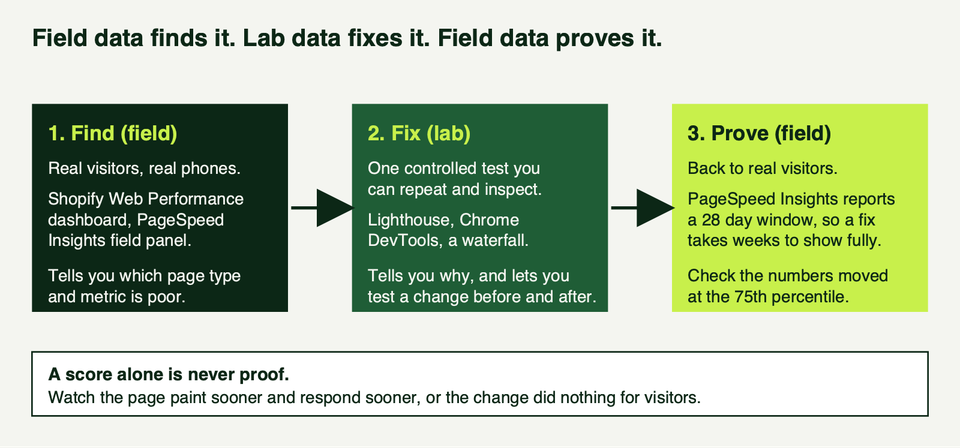
There are two kinds of data and they answer different questions. Field data is what real visitors experienced. Lab data is one controlled test you can repeat. Shopify's developer docs put it plainly: use field data to find problems, lab data to debug them, and field data again to verify the fix (Testing for performance).
The tools, and what each one is good for
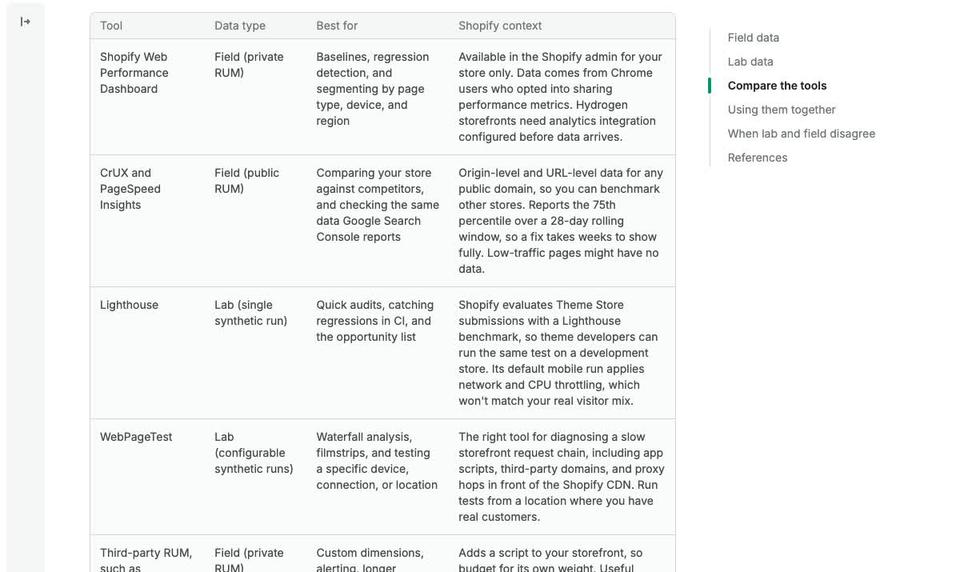
- Shopify's Web Performance dashboard. Shopify announced it on 31 January 2024 and said it replaces the old Speed Score, which was a single Lighthouse number (Performance @ Shopify). It shows the three vitals from real visits, at the 75th percentile, and you find it on the Themes page of the online store. With low traffic the numbers jump around, so look at weeks, not days.
- PageSpeed Insights. It shows field data from the Chrome User Experience Report over the previous 28 days, plus a Lighthouse lab run. If a page lacks enough data it falls back to the whole site, and if the site lacks it too, there is no field data at all.
- Lighthouse. A single synthetic run. Good for a quick audit and for catching regressions. Its default mobile run applies network and CPU throttling that will not match your real visitors.
- Chrome DevTools, Performance panel. It shows your local LCP and CLS as soon as you open it, and can pull in field data for comparison (Chrome for Developers).
- A waterfall tool. Shows the order things load and which script holds up which.
Because PageSpeed Insights reports a 28 day window, a fix takes weeks to show fully in field data. Do not judge a change from yesterday's number.
One run, shown honestly
To have something concrete, we ran Lighthouse 13.5.0 with its default mobile settings against the public Dawn demo store (theme-dawn-demo.myshopify.com, Dawn 15.0.0 according to the page source) on 17 October 2026. The PageSpeed Insights website would not return a result for our automated browser, so we ran Lighthouse locally. This is Shopify's demo, not our store, and not a benchmark.
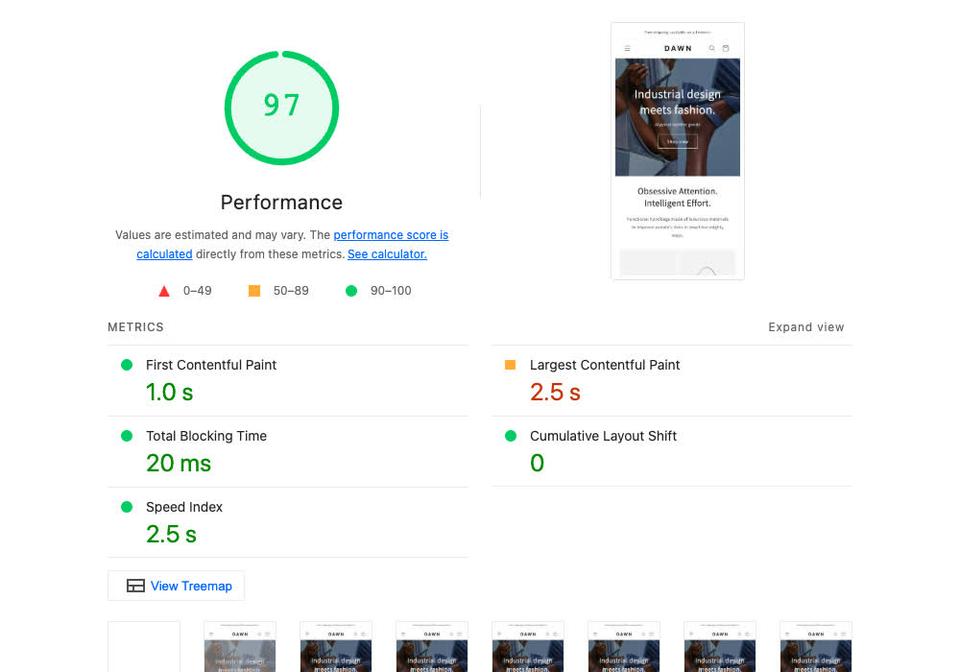
The score was 97, yet Lighthouse still marked LCP amber at a displayed 2.5 seconds, right at the edge of the good line. The LCP breakdown in the same run is worth reading:
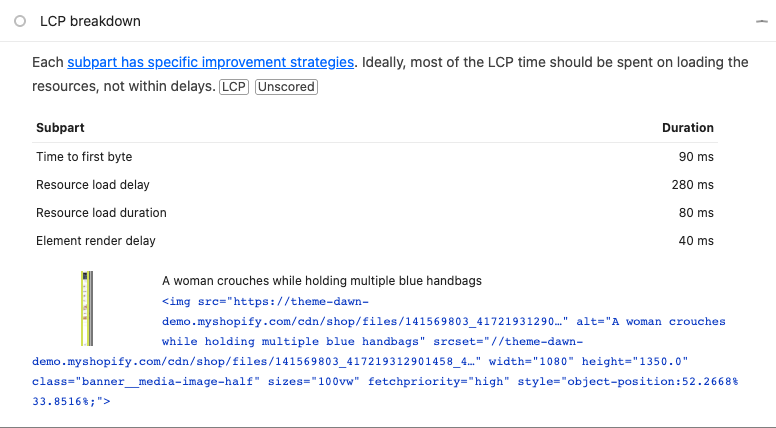
Most of that time was resource load delay, the gap before the image download begins, and this was with the image already set to fetchpriority="high", not lazy and discoverable in the HTML. The lesson: a high score does not guarantee a good LCP, and a throttled simulated phone is a harsh test, so compare it with field data before panicking.
Fix 1: audit apps and third-party scripts
Shopify's own guidance calls auditing and removing unused apps, tracking pixels and third-party scripts the highest-impact optimisation for responsiveness (Audit and remove third-party scripts). Every script competes for the same main thread, which hurts INP directly and can delay LCP when it delays resource discovery.
A practical audit:
- List every third-party origin. Run a Lighthouse test and open the Treemap link to see JavaScript grouped by origin and size.
- Open Chrome DevTools, More tools, Coverage, and reload. Do this on the home, collection and product pages, because a script unused on one template may be doing real work on another.
- Ask whoever owns each script whether it is still needed. Common bloat: two analytics tools measuring the same thing, an A/B testing snippet with no live test, a chat widget on every page, and review or email-capture scripts loading where they never show.
- Check that "removed" apps are really gone. Shopify's INP guidance tells you to confirm that uninstalled apps no longer inject code into the theme, so search the theme files for leftover snippets and app embeds.
- Re-test, then repeat after any new app.
Our posts on free apps, review apps and pop-ups cover what those apps do. This audit is about what they cost in load time.
Scripts you keep should not block the page. Use defer for theme scripts and async only for independent third-party ones (Shopify on defer and async):
<script src="{{ 'theme.js' | asset_url }}" defer></script>
<script src="{{ 'cart-drawer.js' | asset_url }}" defer></script>
<script src="https://example.com/independent-tracker.js" async></script>
Some scripts must stay synchronous by design, such as an A/B test anti-flicker snippet (remove it if no test is running). For heavy features, load the code only when it is wanted:
// Load the chat code on the first click, once.
const openChat = document.querySelector('#open-chat');
openChat.addEventListener('click', async () => {
  const { default: Chat } = await import(openChat.dataset.url);
  Chat.init();
}, { once: true });
Here the button is written as <button id="open-chat" data-url="{{ 'chat-widget.js' | asset_url }}">, so Liquid, not JavaScript, builds the file URL.
Be careful with "speed optimisation" apps and services. Shopify warns that some detect test tools and serve a different page to them, so the score improves while visitors see nothing (Shopify docs).
Fix 2: make the hero image easy to find
On most stores the LCP element is the hero image or the main product image. The browser can only start downloading it once it knows it exists, and several common patterns hide it:
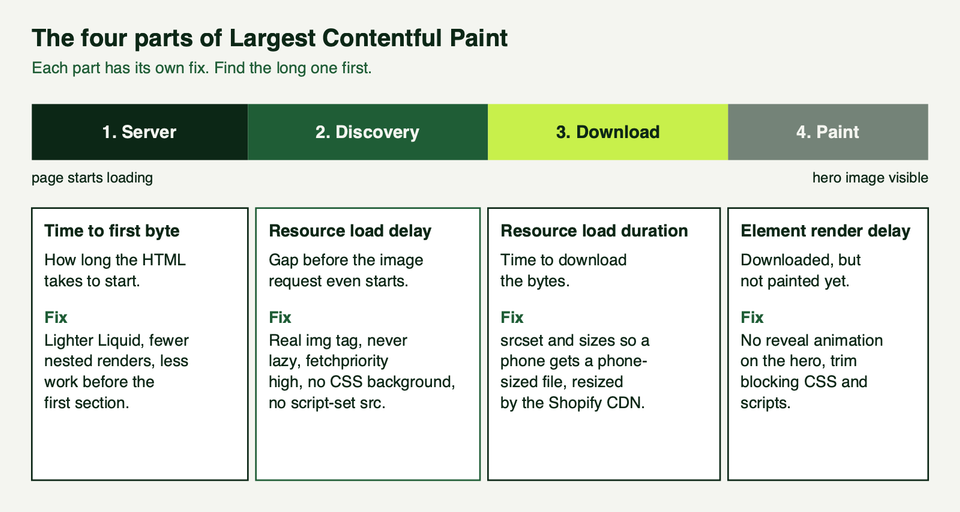
loading="lazy"on the LCP image. Shopify calls this one of the most common and damaging anti-patterns, because lazy loading deprioritises the image (Never lazy-load the LCP image).- A JavaScript lazy-loading library that swaps
srcfordata-src. That hides the URL from the browser's preload scanner until a script runs. - A CSS background image. The browser finds it only after the CSS downloads and parses, so use an
<img>and position it with CSS (Shopify guidance). - A reveal animation. Chrome ignores elements at
opacity: 0for LCP, so a fade-in that waits for JavaScript can push LCP out to when the animation fires, long after the image arrived (Shopify guidance). Dawn's banner section adds a fade-in class when its "reveal on scroll" setting is on, so check that setting on your own theme. - A pop-up or cookie banner that is larger than the hero can become the LCP element and reset the clock (Shopify guidance). Keep dialogs small or delay them until the visitor acts.
The fix is to render the hero with Liquid's image_tag, mark only that image as high priority, and let sections further down the page load lazily. This is our own version of the pattern Shopify documents:
{%- liquid
  assign hero_loading = 'eager'
  assign hero_priority = 'auto'
  if section.index == 1
    assign hero_priority = 'high'
  elsif section.index > 3
    assign hero_loading = 'lazy'
  endif
-%}
{{ section.settings.image
  | image_url: width: 1600
  | image_tag:
    loading: hero_loading,
    fetchpriority: hero_priority,
    widths: '400, 600, 800, 1200, 1600',
    sizes: '100vw',
    class: 'hero__image' }}
Note the shape of the lazy test. section.index is nil in the theme editor, in static sections and in Section Rendering API responses, and a comparison against nil is false in Liquid. Writing section.index > 3 for the lazy branch means those cases fall through to eager, which is what you want. Writing section.index <= 3 would do the opposite.
Dawn does the same job in its banner: it sets fetch_priority to high when section.index == 1 and passes it into image_tag (see image-banner.liquid on GitHub). Use fetchpriority="high" on one image per page only. Shopify warns that overusing it interferes with the browser's own prioritisation.
Fix 3: serve images at the size the screen needs
A phone should not download a desktop-sized file. image_tag generates a srcset for you and adds width and height automatically, and you tell the browser how wide the image will be with sizes (Use responsive images):
{{ product.featured_image
  | image_url: width: 1000
  | image_tag:
    widths: '400, 600, 800, 1000',
    sizes: '(min-width: 1000px) 900px, calc(100vw - 2rem)',
    alt: product.title }}
Rules that matter:
- Use four to six widths. More options hurt caching.
- Get
sizesright. A wrong value makes the browser pick the wrong file, too big and it wastes data, too small and the picture looks soft. With nosizesat all it assumes the largest. Describe the real layout width at each breakpoint. - For lazy images,
sizes: 'auto'lets the browser use the image's own layout width. It applies only toloading="lazy"images, and Shopify injects a polyfill for browsers without native support. Eager images, including the LCP image, still need a writtensizes. - Avoid hand-written
<img>tags with fixed URLs. You lose the generated dimensions and the CDN's resizing.
Resizing huge files before upload still helps: see our post on image resizers.
Fix 4: stop the layout jumping
CLS comes from a short list of causes: images without dimensions, fonts that swap and reflow text, and content injected after load.
Dimensions. Every <img> needs width and height, which image_tag adds. With img { max-width: 100%; height: auto; } the browser can reserve the right space before the file arrives. For containers, aspect-ratio does the same job. Theme Check flags missing dimensions through its ImgWidthAndHeight rule.
Fonts. Shopify's font_face filter does not add a font-display value unless you pass one, and without it Chrome treats the font like block, hiding text for up to three seconds. Pass font_display: 'swap' and preload the files, as Dawn's theme.liquid does:
{{ settings.type_body_font | font_face: font_display: 'swap' }}
<link rel="preload" as="font" href="{{ settings.type_body_font | font_url }}" type="font/woff2" crossorigin>
Set a unitless line-height such as 1.5 on text so a font swap cannot change line heights. If swapping still shifts text, the size-adjust, ascent-override, descent-override and line-gap-override descriptors can make a local fallback match your web font:
@font-face {
  font-family: 'Body fallback';
  src: local('Arial');
  /* Example values only. Measure your own font and fallback. */
  size-adjust: 100%;
  ascent-override: 90%;
  descent-override: 22%;
  line-gap-override: 0%;
}
body { font-family: 'Your Font', 'Body fallback', sans-serif; line-height: 1.5; }
Shopify treats that as an advanced step, after the common causes are fixed. Prefer fonts from Shopify's own library over an external font service, and self-host a licensed font in the theme assets folder with asset_url.
App-injected content. Review stars, shipping estimates and trust badges often appear after load and push content down. For apps built as app blocks, reserve space with section Custom CSS scoped to the container, for example .product__info-container .shopify-app-block { min-height: 3rem; }. Cookie banners and chat bubbles arrive through app embeds, not sections, so the fix there is a position: fixed overlay rather than reserved space (Shopify guidance). Custom CSS placement is covered in how to add custom CSS to Shopify.
Fix 5: keep taps responsive (INP)
INP reports the worst or nearly worst interaction across a whole visit, so one sluggish variant selector can define the page. Each interaction has three phases: input delay (the main thread was busy), processing time (your handlers) and presentation delay (the browser painting the result). Shopify lists variant selection, cart drawer open and close, mega menu expansion, search input and collection filters as the usual slow ones (Understanding INP).
The order of work is the same as before: remove JavaScript you do not need, then break up what is left. Any task over 50 milliseconds counts as a long task (web.dev, Optimize long tasks). Yield between chunks of work so the browser can paint:
function yieldToMain() {
  if (globalThis.scheduler && 'yield' in globalThis.scheduler) {
    return globalThis.scheduler.yield();
  }
  return new Promise((resolve) => setTimeout(resolve, 0));
}

async function applyFilters(jobs) {
  for (const job of jobs) {
    job();
    await yieldToMain();
  }
}
Browsers without scheduler.yield() still yield through the timeout, minus the prioritised continuation. Debounce handlers that fire on every keystroke, and show visible feedback, such as a changed button state, in the first frame after the tap.
What Shopify does for you, and the order of work
What the platform already handles
Not everything is on your list. Shopify serves theme assets through its CDN with compression and HTTP/3, and it inspects your <head> on each response to preload up to ten render-blocking resources and preconnect to the first three third-party origins (Shopify platform docs and preconnect guidance). A hand-written preconnect for those origins is redundant, and Theme Check flags redundant CDN hints.
Since June 2025 Shopify has also sent a default speculation rules configuration for Liquid storefronts, which prefetches links conservatively on touch or mouse down. Shopify reports this makes same-site navigations on Chromium roughly 220 ms faster at the median on desktop and about 20 ms on mobile (Use speculation rules). Safari and Firefox ignore it. Be careful with custom prerendering: it can fire analytics early and show stale content.
The order we would work in
| Order | Job | Metric it moves | Effort |
|---|---|---|---|
| 1 | Remove unused apps and leftover code | INP, LCP | Low |
| 2 | Defer or conditionally load remaining scripts | INP, LCP | Low to medium |
| 3 | Eager, high-priority, real <img> hero; no reveal animation | LCP | Low |
| 4 | srcset and sizes on every image | LCP | Medium |
| 5 | Dimensions, font settings, reserved space | CLS | Low to medium |
| 6 | Break up long tasks in cart, search and filters | INP | Medium to high |
Run shopify theme check as you work: it flags parser-blocking scripts, remote assets and images without dimensions (Theme Check). Keep the goal in proportion too. Shopify only asks a Theme Store theme to average at least 60 for Lighthouse performance across the home, product and collection pages, so a score is a floor for testing, not the finish line. What matters is that real visitors pass the three vitals.
For the wider picture, see Shopify custom theme development, best practices for theme customization, Dawn customisation and the launch checklist.
Frequently asked questions
Does Shopify still show a speed score?
Shopify retired the single Speed Score and replaced it with the Web Performance dashboard in a rollout it announced on 31 January 2024. The dashboard reports the three Core Web Vitals from real visitors instead of one Lighthouse number. Older articles that mention a Shopify speed score are describing the retired tool.
Why do PageSpeed Insights, Lighthouse and my dashboard show different numbers?
They measure different things. The dashboard and the top of PageSpeed Insights are field data, real visits at the 75th percentile over a window of days. Lighthouse is one simulated run with throttling. Different devices, networks and time windows give different numbers, so use field data to decide what to fix and lab data to debug it.
Should I lazy-load every image?
No. Lazy-load images below the fold and never the main image the visitor sees first. Shopify's image_tag sets loading automatically by section position, eager for the first three sections and lazy afterwards, and eager again where the section index is unknown. If you override it, never lazy-load the LCP image.
Do I need to add preload or preconnect tags?
Usually not. Shopify already preloads and preconnects for render-blocking resources it finds in your <head>. Add a hint yourself only for an origin the platform cannot discover from the rendered HTML, and test that it helps. Font preloads for your main text font are the common exception.
Will faster Core Web Vitals improve my search rankings?
Shopify's documentation says performance influences conversion rates, repeat business and search rankings, but we cannot promise any ranking change from a speed fix, and we will not quote a figure. The clearer win is a store that feels quick and does not jump around, which is worth having whatever search does.
Where we can help
We build and maintain Shopify themes, and speed work is a normal part of that: app audits, hero and image fixes, font and layout shift clean-up and slow interactions in the cart and filters. If you would like a second pair of eyes on a slow theme, see our services or get in touch.