Shopify Liquid: a practical guide for theme editors
Liquid is the template language Shopify themes use to turn store data into HTML on Shopify's servers. You print data with double curly braces, make decisions with tags, and reshape output with filters. Use render for snippets, check values with blank, limit your loops, and run Theme Check before you publish. This guide covers the current tags, patterns and 2026 changes.

Liquid is the template language that turns your theme files into the HTML a shopper sees. Shopify runs it on its own servers for every page request. You print store data with {{ }}, make decisions with {% %}, and reshape values with filters after a pipe. If you learn how render scopes variables, what counts as empty, and how to keep loops small, you can edit most of any theme without breaking it.
This guide is for store owners who edit theme code and developers who have a theme to maintain. We rewrote it and checked every claim and code sample on 17 October 2026. Where something is new or may change, we say when Shopify announced it and link the source.
What Liquid is and how a request becomes a page
Liquid is a template language created by Shopify and also available as an open source project. The version documented in the Liquid reference is the one for themes. Shopify uses slightly different versions for notification templates, Shopify Flow and order printer templates, so a tag that works in a theme may not work in an email.
Liquid has three parts:
- Objects hold data, such as
product,collection,sectionandsettings. - Tags hold logic: conditions, loops, and instructions like
render. They sit inside{% %}. - Filters change a value on its way out. You add them after a pipe, like
{{ product.title | upcase }}.
A theme is a set of files, and Shopify assembles them in layers. The theme architecture page describes them: the layout is the base of the theme, the template controls what a page shows, sections are reusable modules the template lists, blocks sit inside sections, and snippets are reusable pieces of Liquid you can render anywhere.
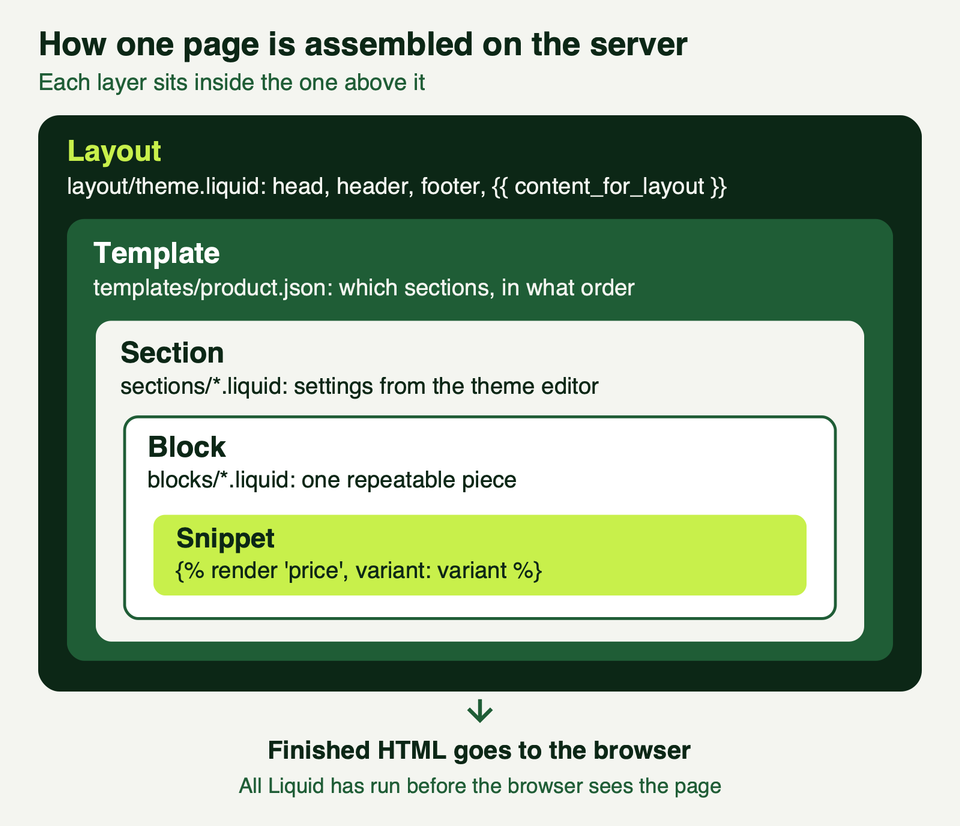
Two details matter:
layout/theme.liquidmust contain{{ content_for_header }}and{{ content_for_layout }}. According to the layouts page, without them you cannot save the file with the code editor or Shopify CLI.- A JSON template is data, not code. It lists sections and their order, and it can render up to 25 sections with up to 50 blocks each. A Liquid template contains code.
All of this happens before the browser sees anything. Shopify's performance guide says Liquid renders server-side on every page request, and that time sets time to first byte. For the wider picture, see our theme performance guide.
Objects, tags and filters in practice
Objects and handles
Objects expose properties with dots: {{ product.title }}. Resources with a handle, such as pages, can also be reached with square brackets, which is handy when the handle contains a hyphen:
<h1>{{ product.title | escape }}</h1>
<p>{{ product.vendor }}</p>
<a href="{{ pages['about-us'].url }}">About us</a>
Truthy, falsy and blank
In Liquid only nil and false are falsy, which surprises people. The Liquid basics page lists the results:
| Value | Treated as |
|---|---|
| nil (missing value) | falsy |
| false | falsy |
| Empty string | truthy |
| 0 | truthy |
| Empty array | truthy |
So {% if section.settings.heading %} is true when the setting holds an empty string. Compare with blank instead:
{% if section.settings.heading != blank %}
  <h2>{{ section.settings.heading | escape }}</h2>
{% endif %}
Liquid has the usual comparison operators plus and, or and contains. Operators are evaluated from right to left, and parentheses are not valid inside tags, so split long conditions into nested if blocks. A hyphen inside a delimiter, as in {%- if -%}, strips the whitespace Liquid would otherwise leave behind.
Filters
Filters chain from left to right and take arguments after a colon. Three you will meet constantly:
moneyformats a price using the store's currency setting. Prices come out of the objects as whole numbers in the currency's smallest unit, so1000becomes$10.00in the reference example.defaultswaps in a fallback when a value is nil, false or empty.image_urlreturns an image address. It needs awidthor aheight, or it returns an error, and an image is never made larger than the original.
One rule from the strict parser (more below): filters are only allowed in output tags, assign and echo. You cannot put one inside an if condition or a render argument. Assign the result to a variable first.
Snippets: why render replaced include
A snippet is a reusable file in snippets/. Merchants cannot see snippets in the theme editor, which makes them the right place for product cards, icons and price blocks.
Call one with render:
{% render 'product-card', product: item, show_price: true %}
{% render 'product-card' for collection.products as product %}
The first line passes named values. The second renders the snippet once per item, and as product names the current item inside the snippet. The render reference also documents with object as name for passing a single object.
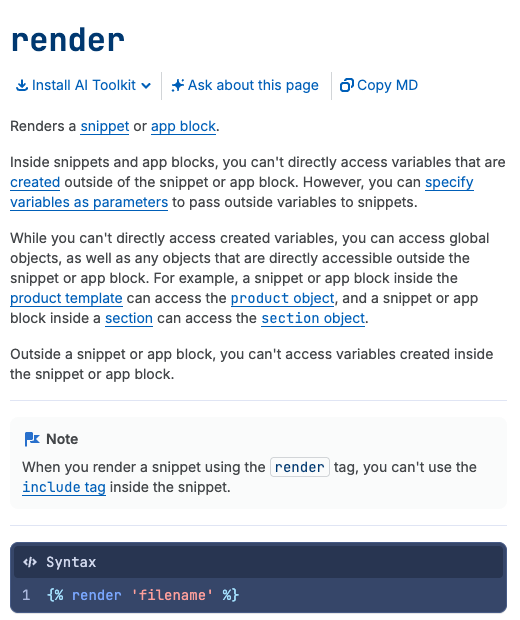
The key point is scope. A snippet cannot read variables you created outside it, but it can read global objects and any object directly accessible where it is rendered: section inside a section, product inside a product template. Variables it creates stay inside it.
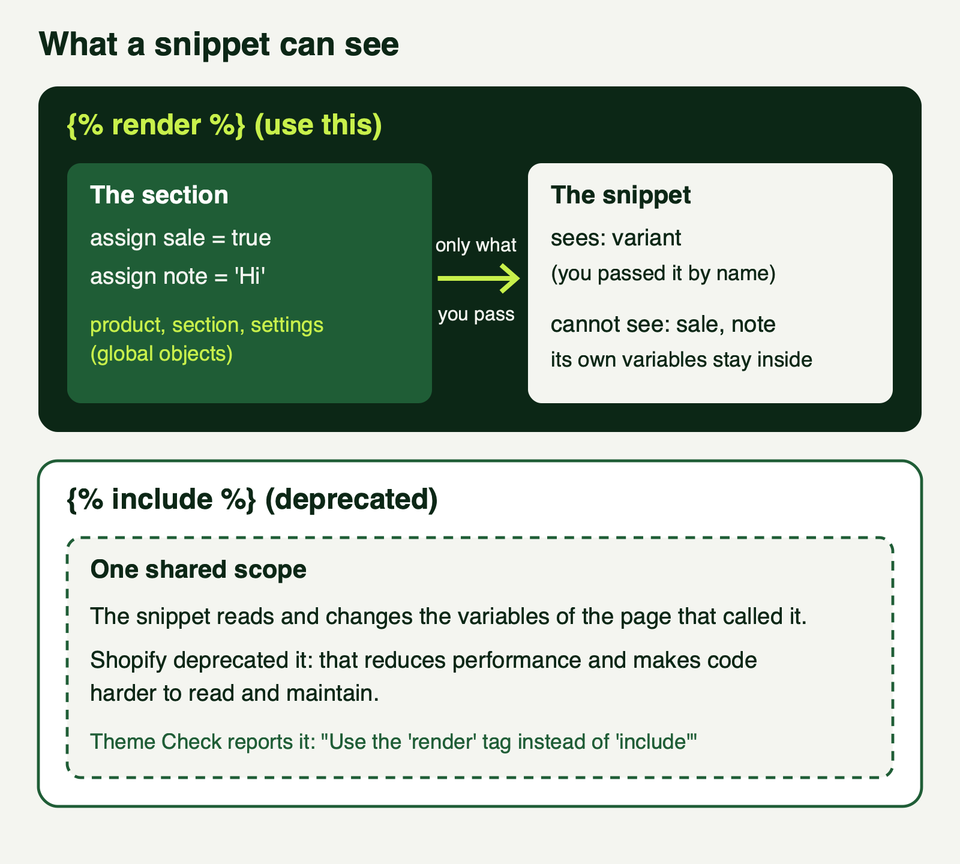
The older include tag shared one scope with the page, and the include reference marks it deprecated because that "reduces performance and makes code harder to both read and maintain". You also cannot use include inside a snippet that was rendered with render. If your theme still uses it, replace each call by passing the variables the snippet needs.
Document your snippets with LiquidDoc
Shopify announced LiquidDoc on 21 May 2025. A {% doc %} block at the top of a snippet or block file is read by editors and Theme Check, so a missing or misspelled parameter becomes a warning instead of a silent bug. Parameters are written @param {type} name - description, with square brackets for optional ones. The supported types are string, number, boolean and object.
Here is a price snippet with its documentation:
{% doc %}
  Prints the price of one variant, with a struck-through compare-at
  price when the variant is on sale.

  @param {object} variant - The variant to price
  @param {boolean} [show_compare_at] - Set to false to hide the compare-at price

  @example
  {% render 'price', variant: product.selected_or_first_available_variant %}
{% enddoc %}

{%- liquid
  assign on_sale = false
  if variant.compare_at_price and variant.compare_at_price > variant.price
    assign on_sale = true
  endif
-%}

<div class="price{% if on_sale %} price--on-sale{% endif %}">
  <span class="price__current">{{ variant.price | money }}</span>
  {%- if on_sale and show_compare_at != false -%}
    <s class="price__compare">{{ variant.compare_at_price | money }}</s>
  {%- endif -%}
</div>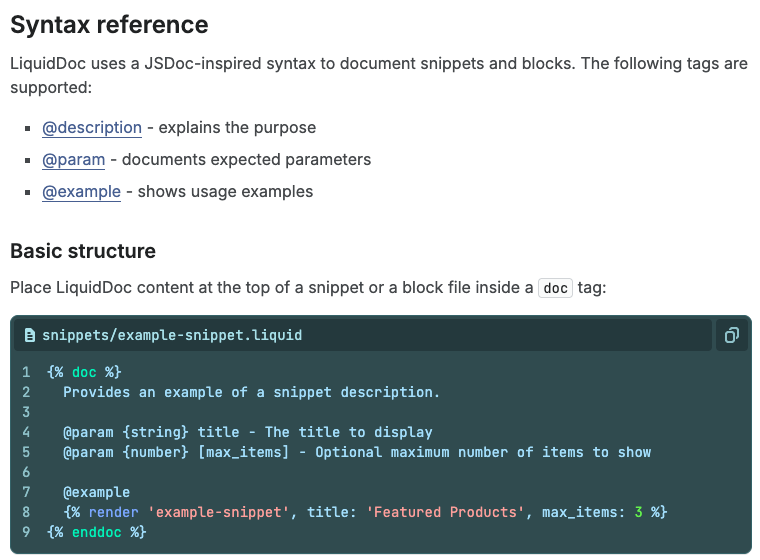
Sections and blocks in Liquid
A section file holds markup, a {% schema %} with the settings merchants edit, and optional presets that let it be added from the theme editor. Inside the file, section.settings reads those settings, and section.id identifies the instance. Our sections and blocks guide covers the editor side in depth; here is the Liquid side.
There are two ways to give a section repeatable content.
Theme blocks live in blocks/ and can be reused across sections. The section marks where they go with content_for 'blocks' and allows them with @theme in its schema:
<section class="feature-list" style="--columns: {{ section.settings.columns }}">
  {%- if section.settings.heading != blank -%}
    <h2>{{ section.settings.heading | escape }}</h2>
  {%- endif -%}
  <div class="feature-list__items">
    {% content_for 'blocks' %}
  </div>
</section>

{% schema %}
{
  "name": "Feature list",
  "settings": [
    { "type": "text", "id": "heading", "label": "Heading", "default": "Why shop with us" },
    { "type": "range", "id": "columns", "label": "Columns", "min": 1, "max": 4, "step": 1, "default": 3 }
  ],
  "blocks": [{ "type": "@theme" }],
  "presets": [{ "name": "Feature list" }]
}
{% endschema %}
<div class="feature" {{ block.shopify_attributes }}>
<h3>{{ block.settings.title | escape }}</h3>
<p>{{ block.settings.text | escape }}</p>
</div>
{% schema %}
{
"name": "Feature",
"settings": [
{ "type": "text", "id": "title", "label": "Title", "default": "Free returns" },
{ "type": "textarea", "id": "text", "label": "Text" }
],
"presets": [{ "name": "Feature" }]
}
{% endschema %}block.shopify_attributes outputs the data attributes the theme editor uses to identify a block. It returns nothing outside the editor.
Section blocks, the older style, are declared in the section's own schema and looped with section.blocks. They are still supported, and a section can hold at most 50 blocks. Branch on block.type, never on block.id: the section schema page warns that block IDs are generated and can change. This loop assumes the section's schema declares a block of type feature.
{%- for block in section.blocks -%}
  {%- case block.type -%}
    {%- when 'feature' -%}
      <div class="feature" {{ block.shopify_attributes }}>
        <h3>{{ block.settings.title | escape }}</h3>
      </div>
  {%- endcase -%}
{%- endfor -%}
A third option is a static block, placed in code instead of by the merchant: {% content_for 'block', type: 'feature', id: 'trust-badge' %}. Extra named arguments become variables inside the block. See the content_for reference.
Patterns you will use every week
Price with a compare-at price
The snippet above already does it. Two notes. Product price fields are the lowest across variants (product.price is the same as product.price_min), so on a product page price the selected variant instead, as the example does. And compare_at_price is empty (the variant reference shows null) when no compare-at price is set, so the snippet tests that it exists before comparing it with price.
Metafield output
Metafields are read with resource.metafields.namespace.key. You cannot create them in Liquid, only in the admin or through an app. Check for presence with blank, then print:
{%- assign ingredients = product.metafields.custom.ingredients -%}
{%- if ingredients != blank -%}
  <h2>Ingredients</h2>
  {{ ingredients | metafield_tag }}
{%- endif -%}

{%- assign note = product.metafields.custom.care_note.value -%}
{%- if note != blank -%}
  <p>{{ note | escape }}</p>
{%- endif -%}
metafield_tag chooses an HTML element by metafield type, and it does not yet support every list type. .value gives you the raw value, and .type gives the type. If a key is named size, first or last, use bracket notation (namespace["size"]), because those are also filter names. More in our metafields guide.
Loops with limits and forloop helpers
A for loop runs at most 50 iterations. Past that you need paginate. Add limit to stop early, offset to skip items, and else to handle an empty list.
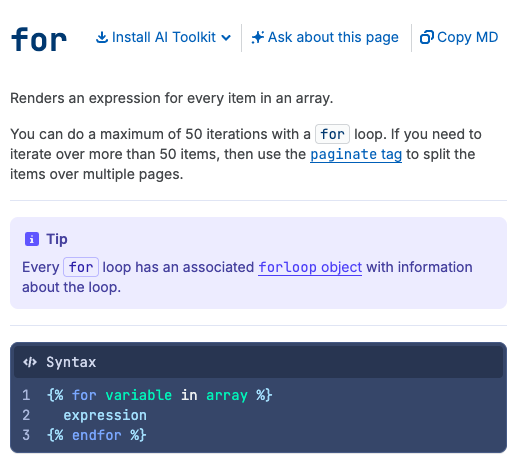
Inside a loop, the forloop object tells you where you are: first, last, index (starting at 1), index0, length, rindex and parentloop. This example numbers items and loads the first two images eagerly, because shoppers see them without scrolling:
<ul class="product-strip">
  {%- for item in collection.products limit: 4 -%}
    <li>
      <span>{{ forloop.index }} of {{ forloop.length }}</span>
      <a href="{{ item.url }}">{{ item.title | escape }}</a>
    </li>
  {%- else -%}
    <li>No products in this collection yet.</li>
  {%- endfor -%}
</ul>

{%- for item in collection.products limit: 8 -%}
  {%- liquid
    assign loading = 'lazy'
    if forloop.index <= 2
      assign loading = 'eager'
    endif
  -%}
  {%- if item.featured_image -%}
    <a href="{{ item.url }}">
      {{ item.featured_image | image_url: width: 600 | image_tag: loading: loading, widths: '300, 450, 600', sizes: '(min-width: 750px) 25vw, 50vw' }}
    </a>
  {%- endif -%}
{%- endfor -%}
image_tag adds width, height and a srcset for you. If you do not set preload, it also sets loading="lazy" for images in sections further down the page. For resizing images before upload, see our image resizer guide.
For more than 50 items, use paginate, which takes between 1 and 250 items per page and stops at the 25,000th item:
{% paginate collection.products by 24 %}
  {% for product in collection.products %}
    {% render 'product-card', product: product %}
  {% endfor %}
  {{ paginate | default_pagination }}
{% endpaginate %}
Array filters: find, has and reject
Shopify announced find, find_index, has and reject on 11 February 2025. They take a property name and a value, replacing many small loops:
{%- assign large = product.variants | find: 'title', 'Large' -%}
{%- if large and large.available -%}
  <p>Large is in stock.</p>
{%- endif -%}

{%- assign without_gift_cards = collection.products | reject: 'type', 'Gift Card' -%}
What is new, and what is going away
| Date | Change | Status |
|---|---|---|
| 11 Feb 2025 | find, find_index, has, reject array filters | Live |
| 21 May 2025 | LiquidDoc with the {% doc %} tag | Live |
| 13 Jan 2026 | Stricter Liquid parsing for all themes | Enforced |
| Not dated | include tag | Deprecated, use render |
| 21 Jul 2026 | {% block %} and {% partial %} tags | Developer preview |
Stricter parsing. On 13 January 2026 Shopify began enforcing a stricter parser for all themes. Code it cannot parse is rewritten automatically, with a comment in the changed file explaining what moved. New Theme Store and App Store submissions already had to be strict-parsable. The migration guide lists the usual failures:
- A filter inside a
renderargument. Assign it to a variable first. - A condition such as
settings.x or settings.yas arenderargument. Wrap therenderin anif. withcombined with key-value pairs, and a colon right afterwith.orandandinsideassignorcase. Logical operators belong inif.
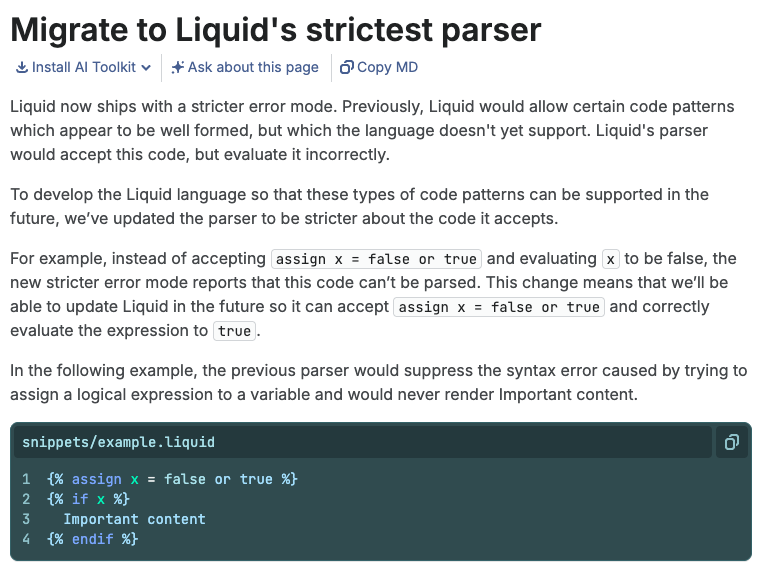
The corrected form for the first case looks like this:
{% assign alt_text = product.featured_image.alt | escape %}
{% render 'image', image: product.featured_image, alt: alt_text %}
Developer preview, not final. On 21 July 2026 Shopify announced a preview that adds two tags. {% block %} renders a theme block straight from a template, much like render does for a snippet. {% partial %} marks a named region of server-rendered HTML that JavaScript can refresh without a full page load. You switch it on with a feature preview on a development store. The developer preview page says existing themes keep working with sections, theme settings and JSON templates, and that tag behaviour and JavaScript helpers can change before general availability. We could not find a release date, so do not build a client theme on it yet.
Performance habits that pay off
Shopify's Liquid performance guidance blames loops that grow with catalogue size, nested loops, metafield access inside loops, and iterating more variants or products than are shown. In our words, it recommends:
- Avoid deeply nested loops. Each level multiplies the work as the catalogue grows.
- Read metafields once, outside the loop. Prefer theme settings over metafields for static data.
- Do not loop over all variants when the first render only needs a few.
- Limit what an array fetches. A
limitoncollection.productsreduces the fetch. Other arrays needpaginate. - Assign repeated values before the loop so a filter runs once, not once per item.
{%- assign card_sizes = '(min-width: 750px) 25vw, 50vw' -%}
{%- for item in collection.products limit: 12 -%}
  {%- if item.featured_image -%}
    {{ item.featured_image | image_url: width: 400 | image_tag: sizes: card_sizes }}
  {%- endif -%}
{%- endfor -%}
It also suggests section.index and section.location to treat above-the-fold sections differently. To find slow lines, use the Shopify Theme Inspector for Chrome, which shows Liquid render time as a flame graph. More habits are in our performance guide.
Debugging and Theme Check
Theme Check is Shopify's linter for the Liquid and JSON in a theme. It catches syntax errors, missing templates, unused variables, deprecated tags and performance problems. It runs through Shopify CLI and the Shopify Liquid extension for Visual Studio Code.
shopify theme check
shopify theme check --auto-correct
shopify theme check --list
The CLI also has --fail-level for CI and --init to generate a .theme-check.yml. When we ran it on a test theme on 17 October 2026, a snippet using include and a filter inside a render argument produced messages such as "Use the 'render' tag instead of 'include'" and "Filters cannot be used on arguments passed to the 'render' tag".
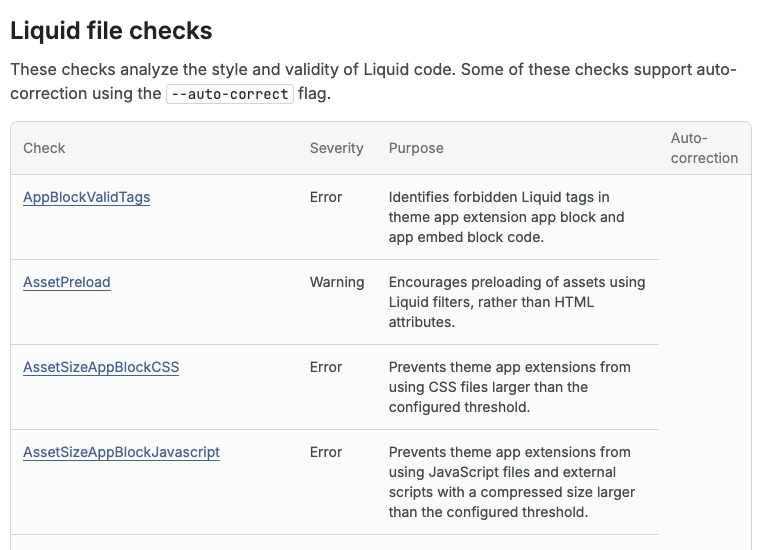
Checks worth knowing from the checks reference:
| Check | What it catches |
|---|---|
| UnknownFilter, UndefinedObject | Typos in filters and objects |
| UnusedAssign | Variables assigned and never used |
| DeprecatedTag | include and other deprecated tags |
| MissingRenderSnippetArguments | A required LiquidDoc parameter was not passed |
| ImgWidthAndHeight | <img> tags without width and height |
A debugging routine that works:
- Run Theme Check first. Most "my section disappeared" bugs are syntax errors it names.
- Print the value.
<pre>{{ product.tags | json }}</pre>shows what Liquid actually holds. Delete it before you publish. - Comment out with
{% comment %}or{% # inline %}to find the line at fault. - Edit a duplicate of the live theme, never the published one.
Frequently asked questions
Is Liquid a programming language?
It is a template language. It can branch, loop and format data, but its job is to read data Shopify provides, such as products, settings and metafields, and print HTML. It cannot even create metafields: those come from the admin or an app. Anything that must store data or talk to another system belongs in an app or in JavaScript on the page.
Should I use include or render?
Use render. Shopify deprecated include because shared variables reduce performance and make code harder to read. render isolates the snippet, so you pass in what it needs by name. Theme Check flags include, and you cannot use include inside a snippet that was rendered with render.
Why does my if statement pass when the field is empty?
Because an empty string is truthy in Liquid. Only nil and false are falsy. Compare with blank, as in {% if section.settings.heading != blank %}. The same applies to 0 and empty arrays, which are also truthy.
What happened with the January 2026 parser change?
From 13 January 2026 Shopify enforces stricter parsing on all themes. Code it cannot parse is rewritten automatically, and the changed file gets an explanatory comment. The usual causes are filters or conditions inside render arguments, and and or or in assign or case. Run Theme Check and read the migration guide.
Can I use the new block and partial tags in a live store?
Not yet. They are a developer preview announced on 21 July 2026, available through a feature preview on a development store. Shopify says tag behaviour and JavaScript helpers can change before general availability. Existing themes keep working with sections and JSON templates, so there is no need to migrate.
Where we can help
We build and maintain Shopify themes, and we are happy to review Liquid you inherited, clean up a theme that fails Theme Check, or build the sections and snippets your store needs. See our services or get in touch and tell us what you are trying to change.