Shopify metafields and metaobjects, explained
Metafields add your own fields to things Shopify already has, such as a care guide on a product or a tier on a customer. Metaobjects are standalone records with several fields, such as a size guide or an FAQ item. You create a definition, fill in values in the admin, then show them in your theme through dynamic sources or Liquid.

Metafields let you attach your own fields to things Shopify already stores, such as a care guide on a product or a loyalty tier on a customer. Metaobjects are standalone records with several fields, such as a size guide or an FAQ item, that you define once and reuse across the store. You create a definition, fill in values in the admin, then show them in your theme with dynamic sources or Liquid.
This guide is for store owners who want product pages to carry more than a title and a description, and for developers who have to wire that data into a theme. We rewrote it and checked every limit and code sample against Shopify's own documentation on 17 October 2026. Where we could not confirm something, we say so.
What metafields and metaobjects are
Shopify's built-in data models cover products, collections, customers, orders and so on. Metafields and metaobjects are the two ways to store anything those models do not include. Shopify's developer documentation describes the split like this:
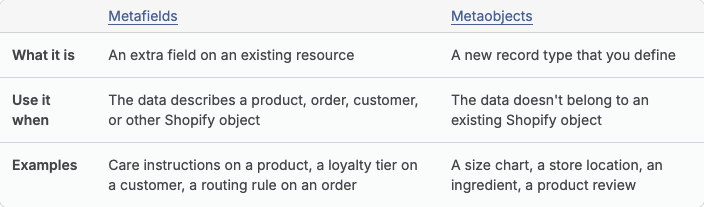
A metafield is a single extra field on an existing resource. It is a key-value pair identified by a namespace and a key (for example custom.care_instructions), with a value and a type. A metaobject is a record you design yourself, with as many fields as you need (up to 40, see the limits section), and any number of entries.
Most real stores use both. The metaobject holds the structured content, and a metafield on each product points at the right entry. The diagram below is the shortcut we use when deciding.
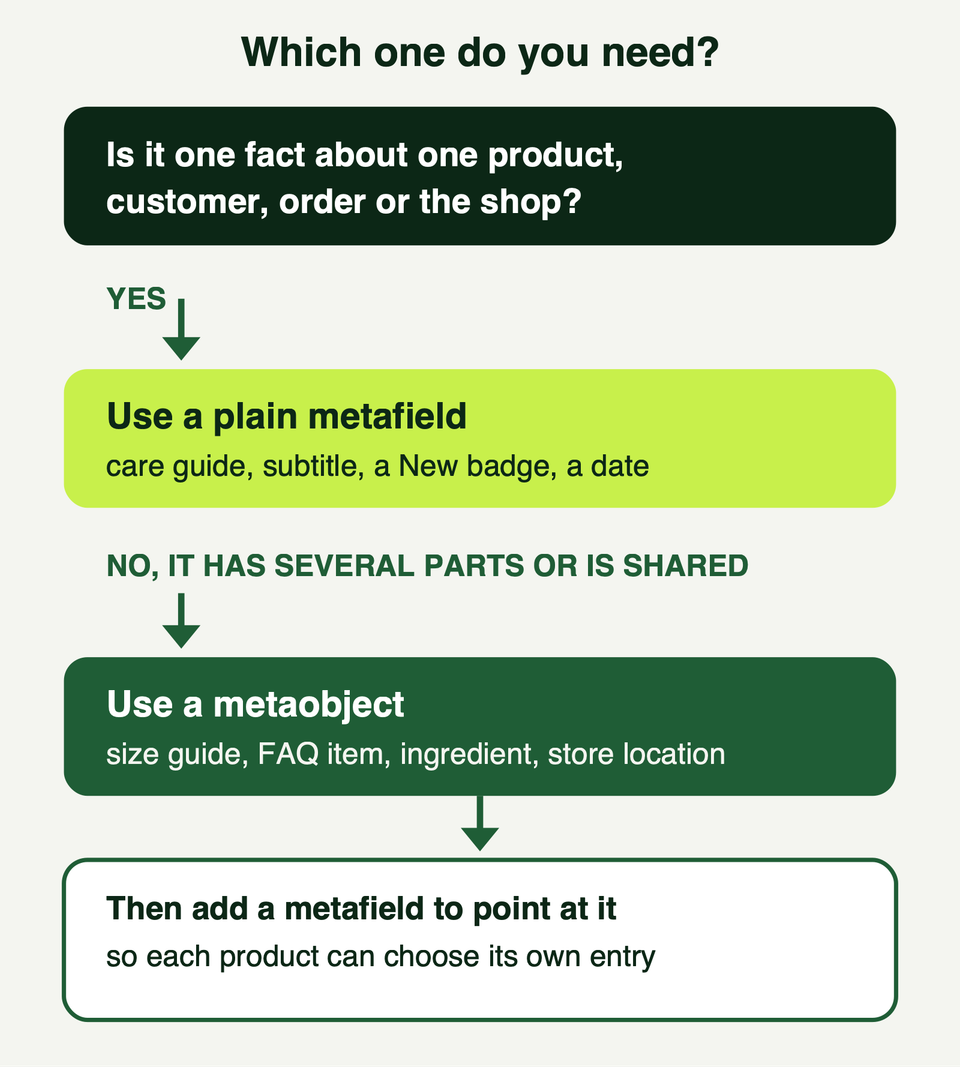
Why bother? Because the alternative is hard-coding: a size chart pasted into a description as HTML, an ingredients paragraph nobody can filter, a "New" tag a developer has to parse. Structured data can be edited by staff, validated, reused and read by apps, themes and reports. The Help Center also notes that metafields can serve as filters and dimensions in analytics reports, for example a Material metafield on a sales report.
Where metafields can live
Metafields are not only for products. The Admin GraphQL API lists the resource types that can own one. The ones a store owner is most likely to use:
- Products and product variants
- Collections
- Customers, orders and draft orders
- The shop itself (store-wide facts)
- Pages, blogs and articles
- Companies, company locations, locations and markets
The same list includes types used mainly by apps and Shopify Functions, such as discounts and cart transforms.
A practical rule: put the field on the narrowest thing it describes. A fabric weight that differs by colour belongs on the variant. A warranty for a whole range belongs on the collection. A pick-up phone number belongs on the shop or a location.
Definitions, types and your first metafield
Before you create values, you create a definition. Shopify's documentation says a defined metafield gets a typed editor in the admin, validation on write, and support for search and filtering. An undefined metafield is stored as a plain string that merchants cannot search or validate. In practice, always define.
Shopify also ships standard definitions for common cases. The list we opened today includes a product subtitle, a care guide (multi-line text, 500 characters maximum, aimed at apparel themes), ISBN, UPC, EAN and product rating. The Help Center recommends a standard definition when one fits, because themes and apps already know how to read it. They also do not count toward the definition limits.
The types you will use most
Every definition has a type. Shopify lists dozens, including many measurement types with units. These cover most stores:
| Type | Stores | Typical use |
|---|---|---|
| single_line_text_field | Short text | Subtitle, material |
| multi_line_text_field | Plain longer text | Care instructions |
| rich_text_field | Headings, lists, links, bold, italics | FAQ answers |
| number_integer, number_decimal | Numbers | Pieces per pack |
| boolean | True or false | "New" badge |
| date, date_time | Dates | Best-before |
| file_reference | A file or image | Size chart image |
| product_reference, collection_reference, page_reference | A link to a resource | "Goes well with" |
| metaobject_reference | A link to one entry | Size guide, ingredient |
| dimension, weight, volume, rating, money, color | A value with a unit or format | Pack size, swatch |
| list. plus a type | A list of that type | Several ingredients |
Two notes from the data types page. The Admin API always reads and writes the value as a string, whatever the type. And if you change a type to an incompatible one (the page's example is date_time to money), existing values become invalid and have to be cleared or fixed.
Create one in the admin
Shopify's Help Center walks through a care instructions example. In short:
- In the admin, go to Settings, then Metafields and metaobjects, then Product metafields, and choose Add definition.
- Type a name such as "Care guide". If a standard definition matches, a suggestion pill appears under the field. Choose it, then save.
- Open a product, find the new field under Product metafields, enter the value and save. Repeat for other products.
Staff need the matching permission. For products, the Help Center says that means View and Create and edit under Products. The same page suggests asking Sidekick which fields would suit your catalogue (see our Sidekick guide).
Show metafields in your theme
A metafield that never reaches the storefront is just admin clutter. There are two routes: the theme editor and Liquid code.
Dynamic sources in the theme editor
Themes that support dynamic sources let you connect a field without code. In a section or block setting, select the connect dynamic source icon and pick the metafield instead of typing text. Following Shopify's care guide tutorial: open Online Store, choose Edit theme, switch to the default product template, add a Collapsible row block in the product information section, and connect its row content to your Care guide field.
The same product template then works for every product, and the block stays empty where there is no value. For background, see our sections and blocks guide and our Online Store 2.0 overview.
Not every setting accepts every field type, which trips people up. Shopify publishes the pairing table; here are the first rows:
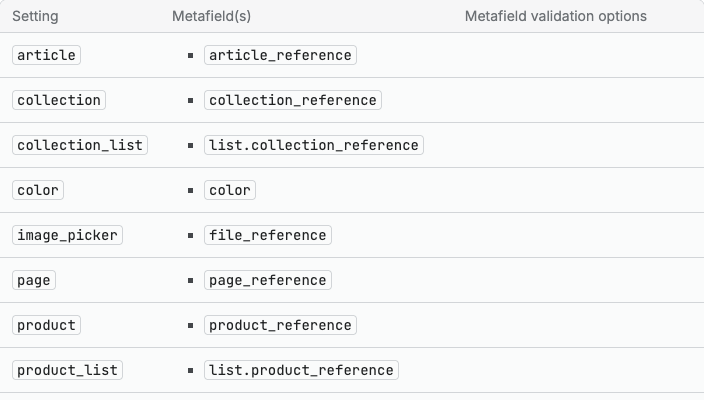
From the same developer page: dynamic sources are not available for general theme settings, only section and block settings, and a metaobject setting needs a reference to the same metaobject type as its schema. The Help Center adds that vintage themes need code edits instead.
Output in Liquid
When the theme editor is not enough, read the metafield in Liquid. The path is resource.metafields.namespace.key, and the value is on .value. Two things to remember: you cannot create metafields in Liquid (only in the admin or through an app), and you should always guard against a missing value, because most products will not have every field.
Plain text and rich text, using the metafield_tag filter, which wraps each type in the right HTML element:
{%- assign care = product.metafields.custom.care_instructions -%}
{%- if care != blank -%}
  <section class="care">
    <h3>Care instructions</h3>
    {{ care | metafield_tag }}
  </section>
{%- endif -%}
A list of text values (a list.single_line_text_field), where .value is an array:
{%- assign ingredients = product.metafields.custom.ingredients.value -%}
{%- if ingredients != blank -%}
  <ul class="ingredients">
    {%- for item in ingredients -%}
      <li>{{ item | escape }}</li>
    {%- endfor -%}
  </ul>
{%- endif -%}
A true or false badge. An unset boolean is empty, so it counts as false:
{%- if product.metafields.custom.is_new.value -%}
  <span class="badge">New</span>
{%- endif -%}
If you are new to the syntax, our Liquid guide covers objects, filters and tags first.
Metaobjects for structured content
Use a metaobject when the content has several parts, or when the same content appears on many products. One definition describes the shape, and each entry fills it in. Shopify's own examples include product highlights (icon, title, description), FAQs (question and answer) and event appearances.
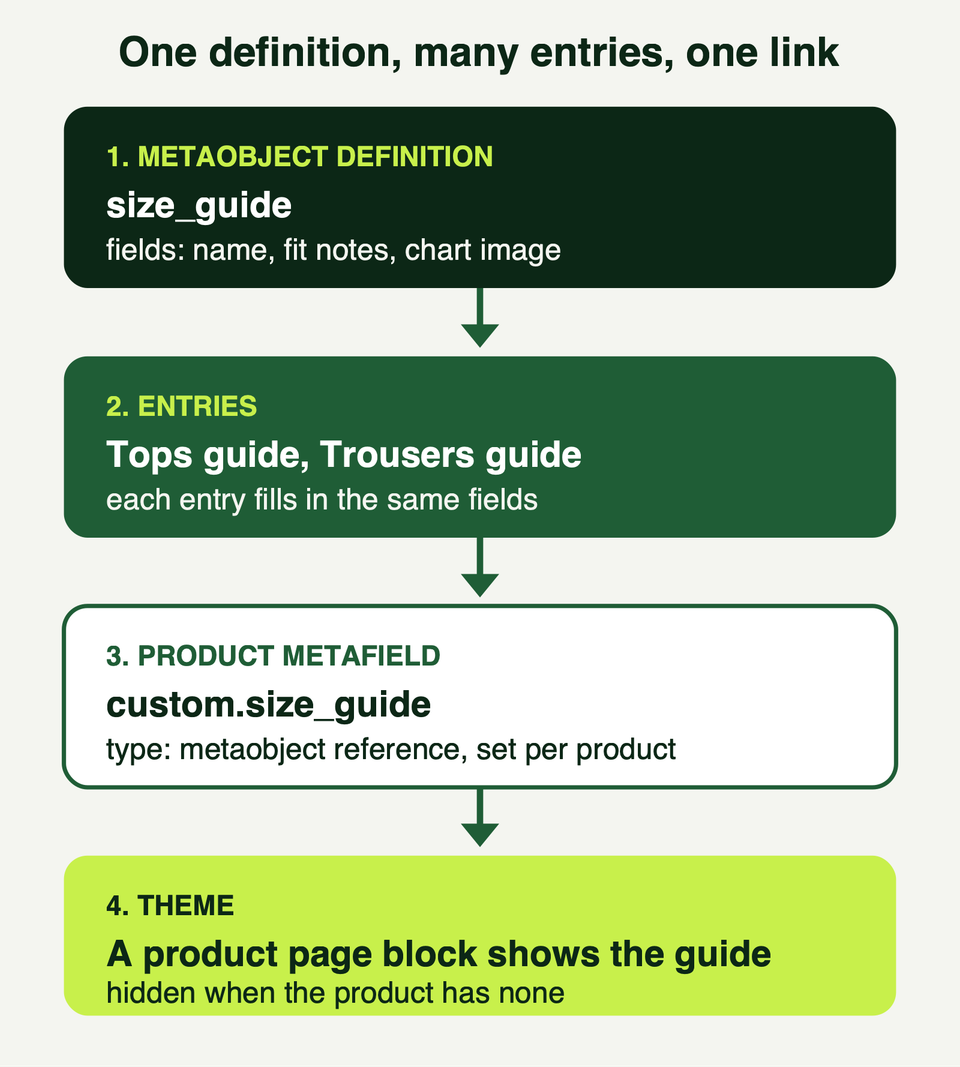
You manage the pieces in two places. The definition (name, type, fields, validation and options) is under Settings in the admin. The entries themselves are created and edited under Content, then Metaobjects. Each definition can have up to 40 fields.
Definitions also have options, which the Help Center lists. The ones that matter for a storefront:
- Storefronts access lets you use the metaobject in your online store through Liquid or the Storefront API.
- Active-draft status lets entries move between active and draft. When this is on, a draft entry returns nothing in Liquid.
- Translations lets entries be translated.
- Publish entries as web pages lets you build a theme template for a page per entry, and it needs Storefronts access.
Read a metaobject in Liquid
If a product has a metafield of type metaobject_reference called custom.size_guide, its .value is the entry, and each field is reachable by its key:
{%- assign guide = product.metafields.custom.size_guide.value -%}
{%- if guide != blank -%}
  <details class="size-guide">
    <summary>{{ guide.name.value | escape }}</summary>
    {{ guide.fit_notes.value | newline_to_br }}
    {%- assign chart = guide.chart_image.value -%}
    {%- if chart != blank -%}
      {{ chart | image_url: width: 900 | image_tag: loading: 'lazy', alt: guide.name.value }}
    {%- endif -%}
  </details>
{%- endif -%}
For a list of entries (list.metaobject_reference), loop over .value. This FAQ example uses a rich text answer. One detail that catches people: for a rich text field inside a metaobject, pass the field itself to metafield_tag, not .value. That is the answer given on Shopify's developer forum, where .value produces a "metafield_tag can only be used with a metafield drop" error, and it is how we write it. Test it on your theme.
{%- assign faqs = product.metafields.custom.faqs.value -%}
{%- for faq in faqs -%}
  <details>
    <summary>{{ faq.question.value | escape }}</summary>
    {{ faq.answer | metafield_tag }}
  </details>
{%- endfor -%}
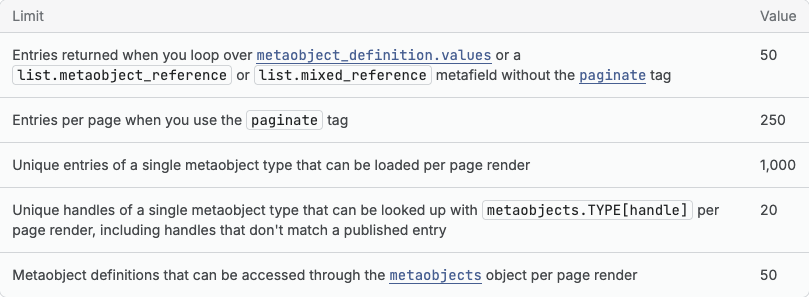
You can also read an entry directly with metaobjects.<type>.<handle>, or loop every entry of a type with metaobjects.<type>.values. The first suits one-off content such as a homepage testimonial, the second small global lists. Both have per-page limits, below.
Real uses that earn their keep
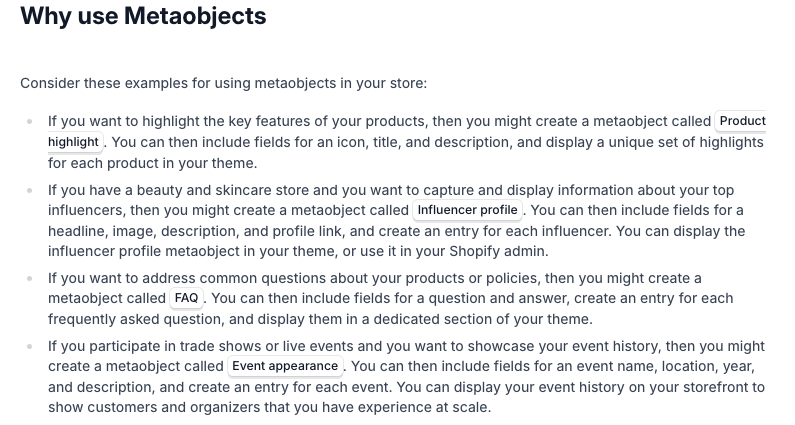
Here is how the common cases map to data, using the Help Center's own examples where it gives one:
| Use | Model |
|---|---|
| Care instructions | Product metafield, multi_line_text_field (or the standard Care guide). Shopify's tutorial example |
| Size guide | Metaobject (name, notes, chart image) plus a metaobject_reference metafield. The Help Center also suggests a size chart shown as a pop-up |
| Ingredients | list.single_line_text_field for simple lists, or an ingredient metaobject if each needs an image or description. Start simple |
| Badges ("New", "Vegan") | boolean product metafield. Keep to a handful so the design stays calm |
| FAQs | A metaobject with question and answer, referenced by a list metafield, so each product gets its own questions without a theme edit |
| Dimensions | A dimension metafield, or separate width, height and depth fields (a Help Center furniture example) |
Keep the model boring. A new definition costs nothing, but every field is something your staff has to remember to fill in. Add the ones a customer would actually use.
Visibility, limits and gotchas
Who can read what
Three places can read a definition's data, and they are controlled separately:
- The admin and Admin API. For app-owned data you set whether merchants can view or edit it. Merchant-owned metafields (any non-reserved namespace, such as
custom) are always fully readable and writable by merchants and by apps with the right scopes. - The Storefront API, used by headless and custom storefronts. In the API, access is hidden by default and you opt in with
PUBLIC_READ. Shopify's developer documentation says this setting does not affect Liquid. The Help Center describes the admin option Storefronts access as covering both Liquid and the Storefront API. We could not reconcile those two statements, so our rule is simple: switch Storefronts access on for anything the storefront shows, and check it first if a value goes missing. - Customer accounts. There is a separate Customer account access option for customer, company, company location and order metafields.
Anything exposed to the storefront is visible to every visitor, so keep private notes in fields without that access.
If you are building an app, Shopify separates app-owned data (reserved $app namespace) from merchant-owned data. We keep the API side light here; start with Shopify's metafields documentation and metaobjects documentation.
Limits we checked on 17 October 2026
| Limit | Value |
|---|---|
| Metafield definitions per resource type | 256 for merchants, and 256 per app |
| Pinned definitions per resource type | 50 |
| Value size, most types | 64KB |
| Value size, id and url | 2KB |
| Value size, json | 128KB for writes on API version 2026-04 or later; apps using JSON fields before 1 April 2026 keep 2MB |
| Items in a list | 128, or 1,024 for metaobject references |
| Metaobject definitions per store | 128 on Basic, Shopify and Advanced; 256 on Plus and Enterprise |
| Fields per metaobject definition | 40 |
| Entries per metaobject definition | 1,000,000 (the old plan-based caps of 64,000 and 128,000 were removed in October 2025) |
| metafieldsSet per request | 25 metafields |
The JSON change is from Shopify's February 2026 changelog, which first proposed 16KB and settled on 128KB after developer feedback. The entry limit change is in the October 2025 changelog.
The limits that bite themes are the per-page ones:
Gotchas that cost time
- Loops stop at 50. A loop over a list of references (products, files, metaobjects) returns the first 50 items. Wrap it in
paginateto get up to 250 per page. - Keys named
size,firstorlast. These collide with Liquid filters. Use bracket notation, for exampleproduct.metafields.custom["size"]. - Drafts are invisible. If a metaobject has active-draft status turned on, a draft entry returns nothing, so check the status before blaming the code.
- Deprecated types.
integer,json_stringandstringare older types that do not work with metafield filters. metafield_tagis not universal. It supports list metafields only forlist.single_line_text_fieldandlist.metaobject_reference.- Do not store huge JSON. Shopify's changelog says large JSON values hurt storefront performance. See our performance guide and our customization best practices.
Frequently asked questions
What is the difference between a metafield and a metaobject?
A metafield is one extra field on something Shopify already has, such as a product, order or customer. A metaobject is a standalone record you design with several fields, such as a size guide or FAQ entry. They work together: a metafield on a product can point at a metaobject entry so each product chooses its own.
Do I need to code to use metafields?
Not always. If your theme supports dynamic sources, you can create the definition in the admin, fill in values, and connect the field to a section or block in the theme editor. You need Liquid when your theme does not offer the right setting, when you want custom layout, or when the data type is not accepted by the setting.
Can I create a metafield from Liquid?
No. Shopify's Liquid reference states that metafields cannot be created in Liquid. They are created in the Shopify admin or through an app. Liquid is read only: it outputs values that already exist. If you need data written from the storefront, that is app or API territory.
Why does my metafield show nothing on the storefront?
Check in order: the product has a value, the namespace and key in your code match the definition, Storefronts access is on, and (for metaobjects) the entry is active rather than draft. Also check you are not using .value where the filter expects the field itself.
Can apps and other tools read my metafields?
Yes. Shopify's overview says custom data is available in the admin, themes, Shopify Functions and extensions, and through the GraphQL Admin API. Who can read a given definition depends on its access settings, covered above.
Where we can help
We build and maintain Shopify themes, including the data models behind size guides, FAQs and product information. If you want help planning the right definitions, wiring them into your theme, or tidying a store that has outgrown its product descriptions, see our services or get in touch.