Shopify Sidekick: What It Does, Who Can Use It and Where It Falls Short
Sidekick is the AI assistant inside the Shopify admin. This guide covers what it can do, where it lives, who can use it, what Shopify says about your data, and how to use it without breaking your store.


Sidekick is the AI assistant built into the Shopify admin. You type or speak a request, and it answers questions, writes content, builds reports and fills in forms for you to approve. This guide explains what it does, who can use it, what Shopify says about your data, and where it stops. It also covers how to use it without letting a wrong answer reach your live store.
Short version: it is useful for admin chores and first drafts, and it is built so you approve changes. Those changes include orders, policies and even moving money, so it is not a replacement for checking its work.
What Sidekick is
Shopify describes Sidekick as an AI-enabled commerce assistant in your Shopify admin. You use it to get guidance, generate content, build apps and complete tasks in everyday language. It works from the context of your store and shows changes for your review before applying them, per the Sidekick help page.
On its Sidekick page, Shopify says it has direct access to your Shopify data and takes action in your admin, unlike a generic AI chat tool that cannot see your store. That is the main difference from tools like the ones we compare in ChatGPT alternatives: Sidekick knows your orders, products and reports, but it is built for Shopify work, not for general questions.
Where it lives
Shopify says you can chat with Sidekick from Shopify Home or any other page in the admin, on desktop, mobile and tablet. You can use text, voice, or screen sharing. The getting started page lists these details:
- It uses the page you are on as context. If you are on Analytics, it can use data from that page.
- In the Shopify app on a phone, the chat stays on screen as you move around your store.
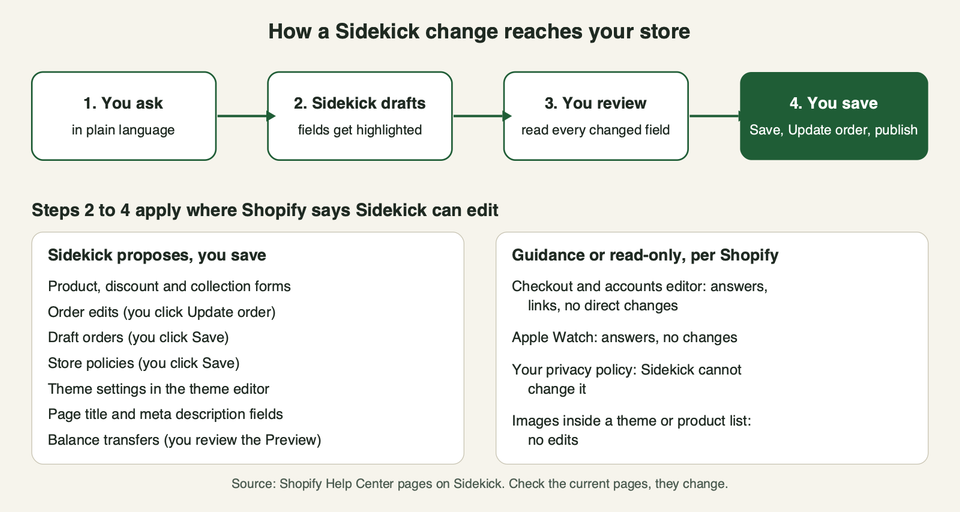
- On Apple Watch you can ask questions by voice. Sidekick there can answer, but it cannot change your store or navigate the admin.
- It is not available when you open the admin in a mobile browser. Use the Shopify app instead.
- Screen sharing is marked early access and works from the admin in a desktop browser, per the voice and screen sharing page.
You can also use the @ symbol to point at a specific product, order, collection, customer or app, and a Target mode to click an element in the admin as context.
What it can do
Shopify's help pages group the work into a few areas. Here is the list, trimmed to what a merchant is likely to use.
Answer questions and run reports
Sidekick can write ShopifyQL queries, show charts, and export reports it generates, according to the help and guidance page. Shopify advises naming the exact metrics and columns you want. It can also explain SEO basics, based on the Shopify Help Center, and review a product's search listing.
Create content
The content page lists text for blog posts and products, images from a text prompt, customer segments, discounts, email campaign content for Shopify Messaging, and metafield or metaobject updates. Shopify says to review generated text before accepting it.
Edit your store
Sidekick can fill forms to create or edit products, discounts and collections, create customers and companies, edit orders, and create or edit draft orders. In each case it highlights the fields it changed and waits for you to save. It can also help write store policies, but it cannot change your privacy policy.
Sidekick can also tell you your Shopify Balance and help move money, either between your Balance accounts or to an external account you have added as a payee. Shopify says you can review the transaction by clicking Preview before you complete the transfer, and you can ask Sidekick to change details during that review.
In the theme editor it can change theme settings, add sections and blocks the theme already has, and move or hide sections. You must save those changes. It can also generate new theme blocks, which we cover below.
Work with Flow and apps
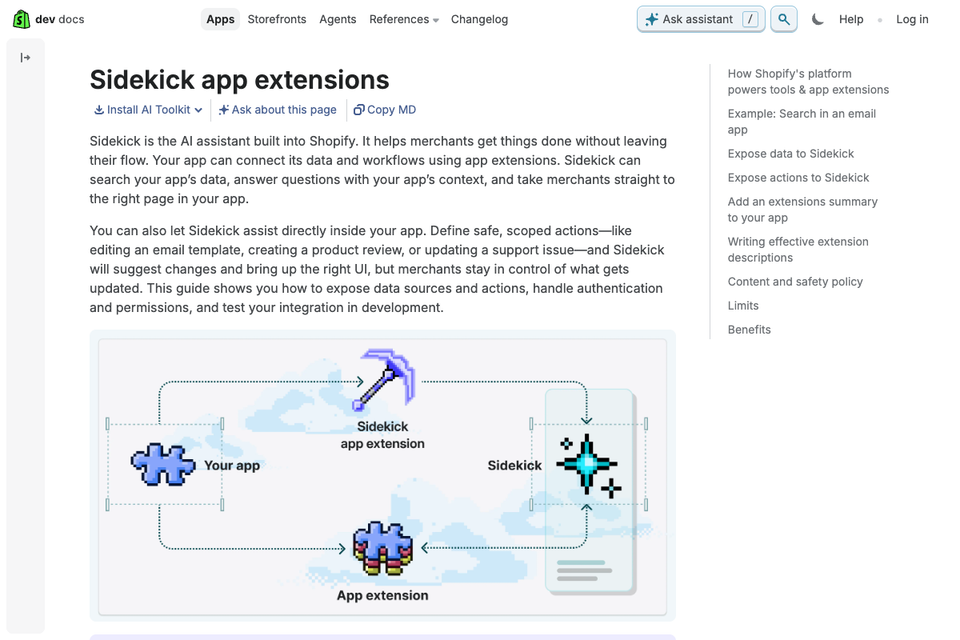
Sidekick can create or edit Shopify Flow workflows from a description (described on Shopify's Sidekick content generation page). It can recommend apps and start an install from chat. It can also work with third-party apps that have added support for it. Shopify names Klaviyo, Judge.me and Seguno as examples. It asks for your approval before using an installed app, and that approval lasts for the current conversation only.
Build custom apps
On eligible plans, you can describe a small admin app and Sidekick builds it. See the generate apps page. Shopify warns that generated apps can change customer-facing data, so test them before installing. Staff need the App development, Develop permission to generate or edit them.
Save repeat work as skills
If you repeat the same prompt, you can save it as a skill and run it with a slash shortcut. Shopify's skills page says you can create up to 50, and some stores have a limit of 25.
Who can use it
This is where we have to be careful, because Shopify states only some of it.
- Cost: Shopify says Sidekick is included with your Shopify plan, and that features and usage limits vary by plan. It does not list numbers on the pages we read, but it does describe the shape of the limits: app generation has an hourly and a weekly rolling limit, and image generation has a monthly limit and a short-term limit, and both are shared by everyone who works in the store.
- Staff: Shopify says every staff member can use Sidekick based on their admin permissions, and that it respects access controls. Staff only work with data and features they are authorised to use.
- Languages: Shopify says Sidekick adapts to your store's language settings and can help in multiple languages. Voice mode detects and responds in the language you speak. We did not find a list of supported languages.
- Plans for specific features: app generation is for the Grow, Advanced and Plus plans. Shopify's media generation page contradicts itself on image editing in the file editor: it lists Basic, Grow, Advanced and Plus, and it also says that for a limited time the feature is open on all plans at no additional cost. Check your own admin. Theme block generation is open to the free trial, Basic, Growth, Advanced and Plus, but not Starter, per the theme block page.
- Early access: Sidekick Pulse, which puts suggested actions on your Home page, is early access and available only to certain merchants. The Pulse page says it needs recent sales activity and Shopify Network Intelligence turned on.
Plan names and limits change, so check the page for your own plan.
What Shopify says about your data and privacy
The pages we read make a few clear statements:
- Sidekick cannot share private information or data from other merchants with you.
- It remembers your preferences and past conversations. Memory covers conversations for about three months and recent admin activity for about twelve hours, per the memory page.
- You can turn memory off for a conversation, ask Sidekick what it remembers, ask it to forget details, or delete a conversation. Turning memory off cannot be undone for that same conversation.
- Chats in the theme editor are not added to Sidekick's memory.
- An image Sidekick generates stays private in your chat until you click Save to store.
- Pulse needs Shopify Network Intelligence, which Shopify says uses your customer data together with data from other merchants to power certain features. Shopify's requirements page lists what you must tell your customers.
Known limits
Shopify lists these limits in its help pages:
- It cannot talk to your customers or handle support conversations for you.
- It cannot change your store without your approval.
- It cannot edit images inside a store theme or your product list.
- In the checkout and accounts editor it gives answers and links, but cannot change the configuration.
- It can edit themes only from the theme editor or Canvas.
- AI-generated theme blocks may contain errors, or code that misses accessibility or performance practices. Shopify Support does not help with customising or fixing them.
- Image and app generation have usage limits that depend on your plan.
- Shopify's AI best practices page says the same request will not always give the same result, and that AI output can contain errors.
What Shopify does not say
Some questions come up often, and we did not find a clear answer on the pages we read. Ask Shopify, or check your own agreement, before relying on any of these.
- How accurate it is. Shopify gives no accuracy figure. The pages say to review output, and that is all.
- How it uses your data to improve the model. The pages describe memory, feedback and Network Intelligence for Pulse. We did not find a plain statement on whether your chats are used to train models, on the Sidekick help pages or the merchant privacy page we read. That is not proof either way, so ask Shopify.
- What the usage limits are. The pages describe hourly, weekly, monthly and short-term limits that depend on your plan, but we found no numbers.
- Which model runs it. Shopify does not name one in the pages we read.
- How to audit what it did. We did not find a change log of every action Sidekick took. Your normal store history, order timeline and theme history are what you have.
- Which languages work well. Support is described in general terms only.
If any of these matter for legal or compliance reasons, ask Shopify Support and keep the answer in writing.
How to use it well
Shopify's best practices page is worth reading. In short, give a clear goal, name the data to use, set limits, say what is in scope, and ask it to confirm before anything hard to undo. These habits add to that:
- Start with reading tasks. Reports, questions and SEO reviews cannot hurt your store. Build trust there first.
- Name things with
@. Pointing at a product or order beats describing it. - Ask for options. For copy, ask for three versions and pick, then edit.
- Check the numbers. If Sidekick says sales fell, open the report and see the query it wrote.
- Read every purple field. Changed fields are highlighted for a reason. Read them before you save.
- Save a good prompt as a skill. This makes the habit repeatable for the team.
For content, treat the output as a first draft. Our post on the best free AI content generators covers how to edit AI text so it still sounds like your brand, and AI for ecommerce covers where AI helps and where it does not.
How not to use it
- Do not approve what you did not read. Orders, policies and discounts affect real customers and money.
- Do not publish AI-written policies without a human check. Shopify's own help page says you are responsible for following your published policies and should review anything Sidekick drafts.
- Do not hand out broad staff permissions because Sidekick is "just a chatbot". It acts within the staff member's permissions. A person with wide access can ask it to do wide things, so keep roles tight.
- Do not install a generated app on a live store untested. Shopify says to test it first. Try changes on an unpublished theme or a development store.
- Do not rely on it for tax or legal advice. It can guide you through VAT setup in the EU and UK, per Shopify. A tax adviser should confirm your setup.
- Do not let anyone with Balance access approve a transfer without reading the Preview. Check the payee yourself.
- Do not paste in customer data you do not need to share. With memory on, Sidekick keeps conversations for a period, so treat the chat as stored data, as you would in any other business tool.
Pick this if, skip this if
| Situation | Use Sidekick? |
|---|---|
| You run the store alone and lose time on admin chores | Yes, start with reports and product copy |
| You need custom theme code or complex app logic | Use it for a first pass, then have a developer review it |
| You need an audit trail of every change | Do not rely on Sidekick alone |
| Your staff have broad admin access | Tighten roles first |
| You need support replies for customers | Skip, it cannot handle customer conversations |
Pick Sidekick if you want fast drafts and reports inside the admin and you will review the results. Skip it as a sole source of truth for tax, legal or financial questions, or for changes you cannot reverse.
FAQ
What is Shopify Sidekick?
It is Shopify's AI assistant inside the admin. It answers questions, writes content, builds reports and fills in forms, then asks you to approve changes.
Is Sidekick free?
Shopify says it is included with your Shopify plan, with features and usage limits that vary by plan. Check your own plan for the details.
Can Sidekick change my store without asking me?
Shopify says it cannot make changes without your approval. In practice you approve by saving a form, updating an order or publishing a theme change.
Can staff use Sidekick?
Yes, within their admin permissions. Shopify says it respects access controls.
Does Sidekick work on mobile?
It works in the Shopify app on phones and tablets. It is not available when you use the admin in a mobile browser. Some features, such as app generation, are desktop only.
Can Sidekick edit my theme?
Yes, in the theme editor or Canvas. It can change settings and use sections and blocks your theme already has. You must save the changes. It can also generate theme blocks, but Shopify says to test them and that Support does not fix them.
Can Sidekick answer my customers?
No. Shopify says it cannot handle customer support conversations for you.
Do I still need a developer?
For simple admin work, often not. For a custom build, performance work, migrations or anything that touches checkout logic, a developer still earns their keep. If you want a second opinion on what to hand to Sidekick and what not to, talk to us.